Track QR Code Scans in GA4 Without Losing Attribution
QR scans default to "direct" in GA4, killing your attribution. Learn how to use UTM parameters and custom channel groups to fix qr code ga4 tracking for good.
This article was written by the QR Nova team. We build QR code software, which may inform our perspective.
You launch a print campaign. Posters go up, menus get new QR codes, product packaging ships with a fresh scan prompt. Two weeks later you open GA4 to measure performance and see a spike in direct traffic. No campaign, no source, no medium. Your QR scans are in there somewhere, mixed in with people who typed your URL by hand. This is the default behavior for qr code ga4 tracking, and it will keep breaking attribution on every physical campaign you run until you fix it.
TL;DR
- QR scans arrive in GA4 as direct traffic because phones send no HTTP referrer when opening a URL from a camera app.
- The fix is always-on UTM tagging: every QR destination URL needs at minimum
utm_source,utm_medium, andutm_campaign. - GA4 has no built-in QR channel — create a custom channel group so tagged QR traffic is not bucketed as "Unassigned."
- Use a consistent lowercase naming convention or your data fragments into separate line items that look like different sources.
- QR platform analytics and GA4 serve different purposes — use both, not one or the other.
Why QR codes break GA4 attribution
Try it now — no sign-up needed
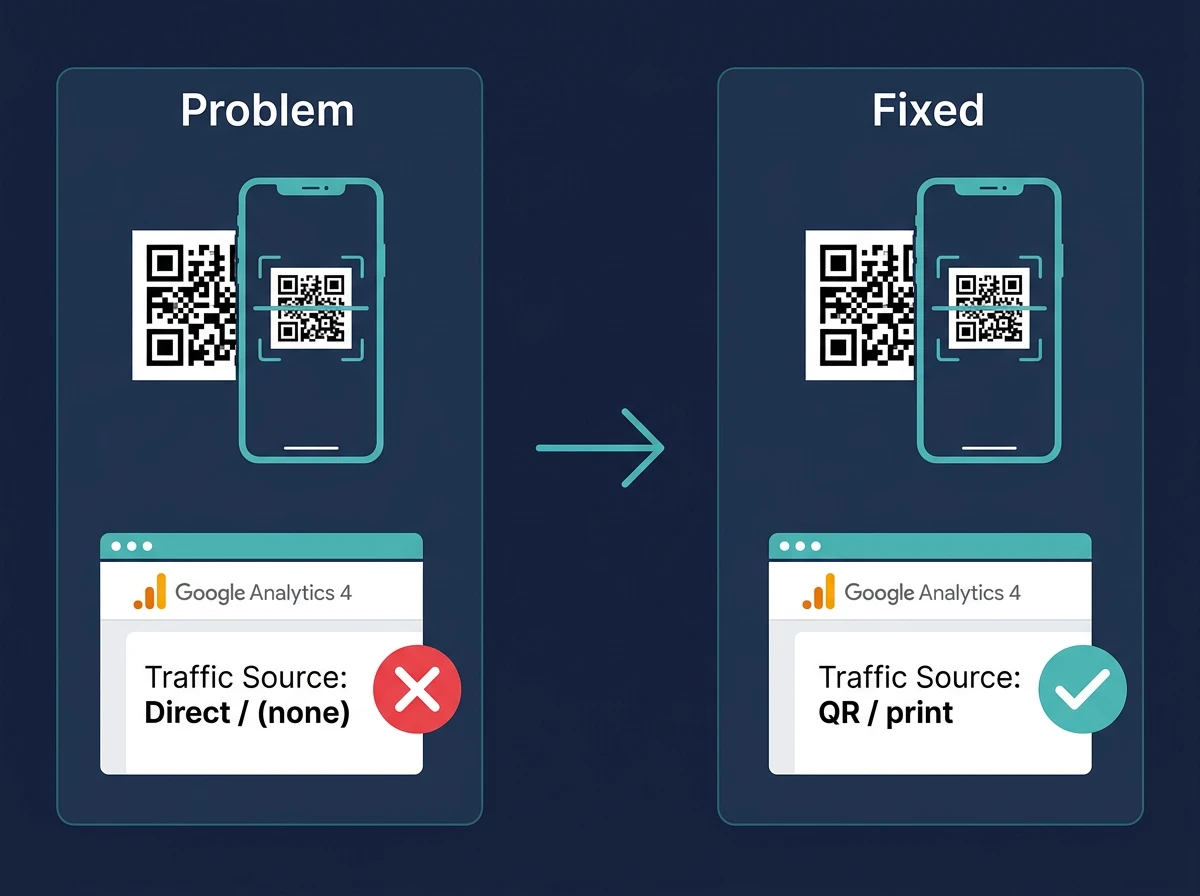
Get startedKey concept: GA4 classifies every session by traffic source. When no UTM parameters and no HTTP referrer are present, GA4 defaults to "direct / (none)." That is exactly what happens with every untagged QR code scan.
GA4 identifies traffic source from two places: UTM parameters in the URL and the HTTP referrer header sent by the browser. Click a link on a webpage and that page's URL gets passed along as the referrer. Click an email link and the email client usually strips the referrer, which is why email marketers have been tagging URLs with UTM parameters for years.
QR codes are the same problem, only worse. Someone scans a QR code and their phone opens the URL in a fresh browser tab. No previous page to reference. No referrer sent. GA4 sees an empty source and files the session under "direct / (none)."
Every untagged QR campaign you run inflates your direct traffic number and vanishes from campaign reports. You cannot prove which placement drove visits, which campaign generated conversions, or whether your print spend was worth a dime.
The foundation: utm parameters for QR campaigns
UTM parameters are query string tags appended to a destination URL. GA4 reads them on arrival and stores them as session-scoped dimensions, overriding whatever referrer data the browser would have sent. For QR codes, UTMs are not optional. They are the only attribution signal you have.
The five utm parameters
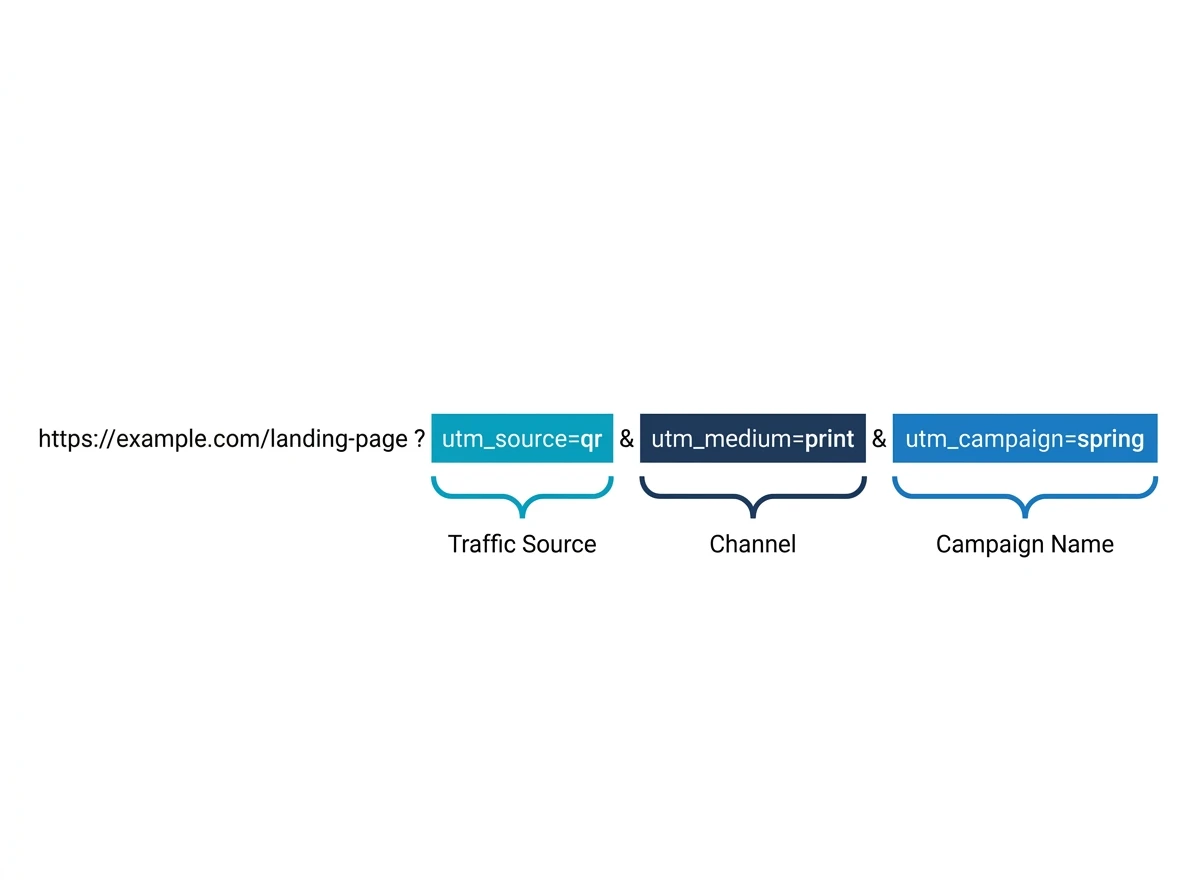
utm_source, Where the traffic originates. For QR codes, useqras a standard value across all campaigns. This makes it easy to create a single GA4 channel rule that captures all QR traffic regardless of format.utm_medium, The channel type. Options includeoffline,print,packaging,outdoor,event. Pick the one that reflects the physical format. Usingofflineas a catch-all works if you do not need to distinguish between formats in reports.utm_campaign, The campaign name. Keep it descriptive and lowercase:summer_menu_2026,trade_show_april,product_launch_q2.utm_content, The specific placement within a campaign. This is where QR tracking gets interesting.utm_content=lobby_posterversusutm_content=table_cardversusutm_content=receipt_footergives you placement-level data inside a single campaign.utm_term, Skip it for QR campaigns. It was designed for paid search keyword tracking and adds noise without value in an offline context.
A practical QR utm URL structure
Here is what a properly tagged URL looks like for a restaurant running a summer menu campaign:
https://example.com/menu?utm_source=qr&utm_medium=print&utm_campaign=summer_menu_2026&utm_content=table_card
And the same campaign for a different placement:
https://example.com/menu?utm_source=qr&utm_medium=print&utm_campaign=summer_menu_2026&utm_content=entrance_poster
In GA4, these sessions show up in Traffic Acquisition under source qr, medium print, campaign summer_menu_2026. Break down by utm_content to see which placement drove more scans or deeper engagement.
One rule: always use lowercase
GA4 is case-sensitive for UTM parameter values. utm_source=QR and utm_source=qr show up as two different sources. If different team members tag QR codes however they feel like it, your reports end up with fractured data across rows that should be one. Pick your values, document them, enforce them. This is far and away the most common UTM mistake I see in practice.
Setting up GA4 to recognize QR traffic
Even with perfect UTM tagging, GA4 will not know what to do with sessions where session_source = qr and session_medium = offline. The default channel grouping has no rule for these values, so they land in "Unassigned." Not great. You need a custom channel group.
Step 1: open channel group settings
Go to GA4 Admin and select your property. Under Data Display, click Channel Groups. You will see the default channel grouping, which you cannot edit directly. Click Create new channel group.
Step 2: create the QR code channel
Name your channel group something like "QR Campaigns" or copy the default channel group and add a new channel to the existing list. Click Add new channel and name it "QR Code." Set the rule condition:
- Dimension:
Session source - Condition: exactly matches
- Value:
qr
If your team already uses multiple source values (some use qr, others use qr_code or qrcode), add multiple conditions with OR logic. But honestly, this is a good argument for standardizing on utm_source=qr from the start so you only ever need one rule.
Step 3: position the rule correctly
GA4 evaluates channel rules from top to bottom and stops at the first match. Place your QR Code channel above the broad catch-all rules like "Unassigned" or "Direct" so QR sessions are claimed before they fall through to a default bucket.
Step 4: save and publish
Click Save. The new channel group appears in your Traffic Acquisition report as a selectable option. One caveat: this rule is not retroactive. Sessions collected before you created it stay where they are. Going forward, any session with session_source = qr shows up under your new QR Code channel.
Verifying it works
Use GA4's Realtime report to test right away. Scan one of your tagged QR codes on your phone and watch the active users report. Within a few seconds the session should appear with the correct source, medium, and campaign. If you see direct traffic instead, check the URL your QR code actually resolves to. A redirect probably stripped the UTM parameters.
Where utm tags break: redirects and dynamic QR codes
URL redirect chains trip up even experienced marketers. If your tagged URL goes through a redirect that strips query parameters, the UTM values disappear before they reach the landing page. Gone.
Here is the typical failure: you tag a URL, shorten it, and the shortener's redirect does not preserve query strings. The user lands on your page with a clean URL and GA4 records a direct session. Test every redirect in your chain before printing anything. Paste the final UTM URL into a browser, follow every redirect manually, and confirm the parameters survive all the way to the destination.
Dynamic QR codes sidestep this. Instead of encoding a long UTM-tagged URL directly, the QR code points to a short redirect URL managed by your QR platform. The platform redirects to your destination with UTM parameters intact and lets you change the destination URL later without reprinting the QR code. For long-running campaigns, that flexibility alone is worth the switch.
QR platform analytics vs. GA4: use both
These tools track different things, and you need both.
A QR platform like QR Nova captures scan-level data: total scans, unique scans, device type, OS, location by country and city, time-of-day patterns. All of this is recorded the moment someone scans, before they reach your website. It tells you how many people scanned and where.
GA4 picks up after the landing page loads. Pageviews, events, conversions, session duration, goal completions. It tells you what scanners did once they arrived and how many converted.
A QR campaign might show 400 scans in the platform dashboard but only 220 sessions in GA4. That gap is real: users who bounced before the GA4 script fired, or users on devices with JavaScript disabled. Comparing scan data against session data is the only way to understand drop-off at the scan-to-landing-page step.
Five attribution mistakes that kill QR campaign data
1. no utm parameters at all
The most common one, and the most painful. Every QR code destination URL must be tagged. No exceptions. If you already have QR codes printed on materials without UTM parameters, that attribution data is gone. You cannot recover it.
2. tagging internal links
Adding UTM parameters to links between pages on your own website overwrites the session source mid-visit. A user arrives from your QR code, clicks a UTM-tagged internal banner, and GA4 reassigns the session to the banner as the source. Keep UTM parameters on external-to-your-site links only.
3. one generic QR code per campaign
Same tagged URL across five different placements means five placements sharing one line item in GA4. You know the campaign total but nothing about which placement actually worked. Worth creating a unique QR code for each one, even if it takes a few extra minutes.
4. inconsistent naming across campaigns
Someone on your team launches a new campaign with utm_source=qr-code while every previous campaign used utm_source=qr. Now you have a separate source row in GA4 that cannot be merged after the fact. A shared UTM naming doc, reviewed before each launch, prevents this.
5. not testing before print
Printing 10,000 flyers with a broken QR code is an expensive lesson. Scan your QR code with GA4 Realtime open before sending anything to print. Takes two minutes. Confirm the UTM parameters survive every redirect in the chain.
Building a QR attribution report in GA4
With tagging and the channel group in place, build a focused QR campaign report in Explore using a free-form exploration.
Dimensions to include:
Session campaign, separates individual campaignsSession source / medium, confirms QR sessions are properly taggedSession manual ad content, surfaces yourutm_contentplacement dataLanding page + query string, useful for catching untagged QR sessions that slipped through
Metrics to include:
- Sessions
- Engaged sessions
- Engagement rate
- Key events (conversions)
- User engagement duration
Filter the exploration to Session source exactly matches qr to isolate QR traffic. Save it once and revisit across campaigns without rebuilding.
For a deeper walkthrough of QR scan tracking setup, including event-based tracking approaches, see the complete guide to tracking QR code scans.
Conclusion
QR code attribution in GA4 is not a platform limitation. It is a setup problem you can solve in an afternoon. Proper qr code ga4 tracking comes down to three things: tag every destination URL with consistent UTM parameters, create a custom channel group so GA4 knows what to do with that traffic, and test before you print. That is it. Those three steps recover attribution that most marketers are losing to the direct channel bucket right now.
The payoff is concrete. You can show which physical placements drive real engagement, which campaigns convert, and where to put print budget next quarter. That turns QR codes from a "just trust us, it works" tactic into a fully accountable channel.
Ready to set up QR codes with UTM parameters already built in? QR Nova lets you generate trackable QR codes with UTM parameters and view scan-level data in a built-in dashboard, so you have both scan analytics and GA4 attribution working together from day one.
Frequently asked questions
Why do QR code scans show up as direct traffic in GA4?
GA4 determines traffic source from the HTTP referrer header. When someone scans a QR code, their phone's camera app or QR reader opens the URL directly, no referring website, no referrer header. GA4 sees no source and buckets the session as direct, exactly the same as someone typing your URL manually.
What UTM parameters should I use for QR codes?
At minimum, set utm_source=qr, utm_medium=offline (or print, packaging, outdoor, whatever reflects the physical format), and utm_campaign=your-campaign-name. Add utm_content to distinguish individual placements, such as utm_content=lobby-poster versus utm_content=product-box. Skip utm_term unless you have a specific need for it.
Does GA4 have a built-in QR code channel?
No. GA4's default channel grouping has no QR channel. Traffic tagged with utm_source=qr and utm_medium=offline will likely land in "Unassigned" until you create a custom channel group. That is a five-minute fix in GA4 Admin, but you need to do it manually.
Will the custom channel group apply to historical data?
No. GA4 custom channel group rules are not retroactive. They only apply to sessions collected after you publish the new channel. This is another reason to tag your QR codes correctly from day one, you cannot recover untagged historical data.
Should I shorten UTM-tagged URLs before putting them in a QR code?
Yes, always. Long URLs with UTM parameters produce dense, complex QR codes that are harder for phones to scan, especially when printed small. Use a URL shortener, or better, use a QR platform with dynamic QR codes so you can update the destination URL without reprinting.
What is the difference between QR platform analytics and GA4?
QR platform analytics (like the dashboard in QR Nova) capture scan-level data, total scans, unique scans, device type, location, time of day, before the user even reaches your website. GA4 picks up after the landing page loads and tracks what users do next. You need both for a complete picture.
Can I track QR scans without adding UTM parameters to every URL?
Some QR platforms can fire a GA4 event via Measurement Protocol when a scan occurs, bypassing the need for UTM parameters on the destination URL. This approach is more complex to set up and requires server-side access. For most teams, UTM parameters on the destination URL remain the simplest and most reliable method.
Related articles
QR Code Analytics: What Data You Can Actually See
A QR code shows scans, location, device and time — but only if it's dynamic. Here's the exact data you can and can't see. Free, no account.
QR Code Design Ideas: Creative Examples for 2026
QR code design ideas that actually scan: color palettes, logo embedding limits, module shapes, frame CTAs, and real industry examples for 2026.
QR Code Marketing Ideas That Actually Work
25 QR code marketing ideas with real examples from Chipotle, Starbucks, and Coca-Cola. Which tactics drive scans, which don't. Free guide.
Try it now — no sign-up needed
Get started