How to Create a WiFi QR Code, Free in 60 Seconds
How to create a WiFi QR code that connects guests instantly, free, no account, permanent. Works on iOS 11+ and Android 10+ without any app.
This article was written by the QR Nova team. We build QR code software, which may inform our perspective.
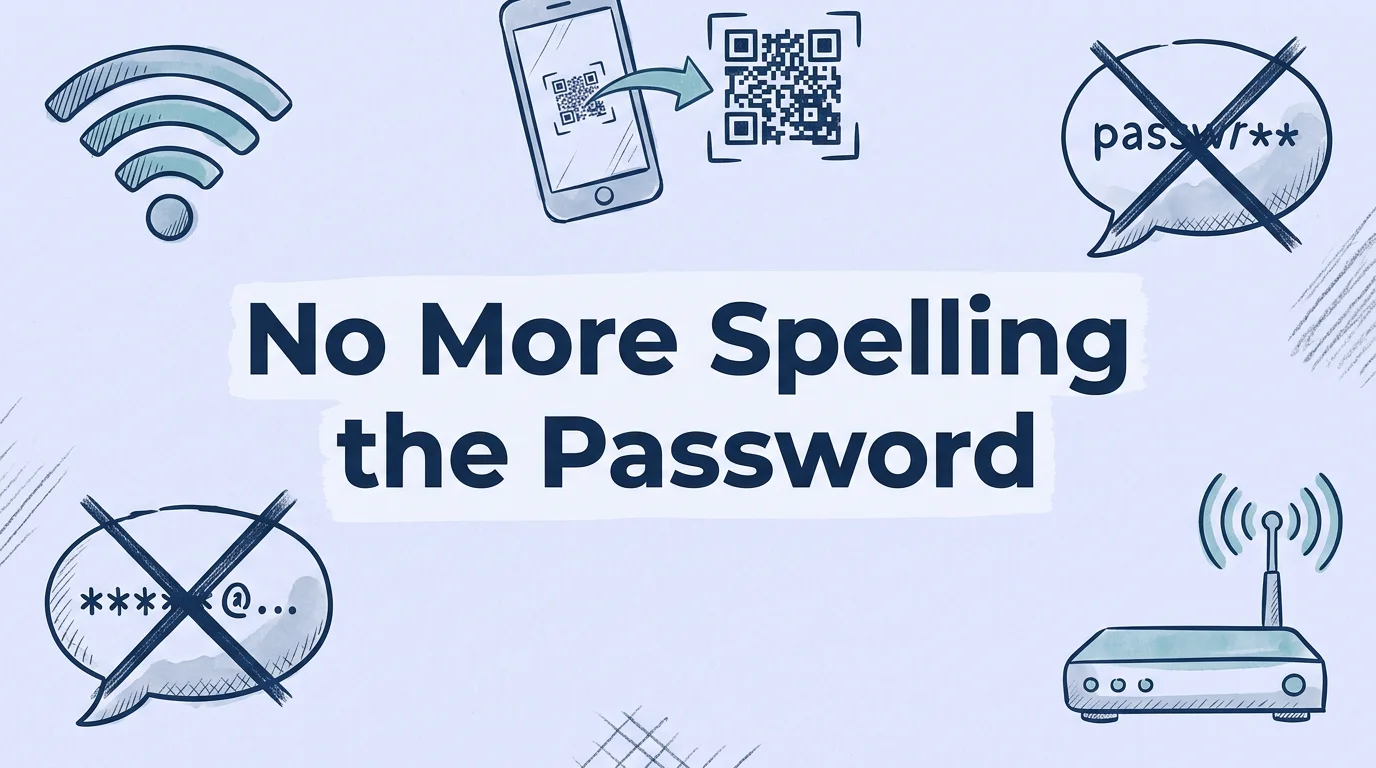
Most WiFi QR code articles don't tell you that your password is being sent to the generator's server, which defeats the entire purpose of keeping your WiFi credentials private. They also skip the part where the wrong security type selection breaks every connection attempt silently. Here's the complete picture. Creating a WiFi QR code takes under 60 seconds: enter your exact SSID, your exact password (case-sensitive), select WPA2 for most networks, and download. Guests scan once and connect, no typing, no asking, no paper cards.
TL;DR
- Use a generator that processes credentials client-side (in your browser), your password never leaves your device with QR Nova.
- WPA2 is the correct security type for most routers. Check your router admin panel if unsure.
- Works natively on iOS 11+ and Android 10+, no app needed.
- Static WiFi QR codes never expire. Regenerate only if you change your password.
How to create a WiFi QR code
Try it now — no sign-up needed
Get startedThe process is simpler than it looks, but the details matter, one wrong character in the password or the wrong security type selection will produce a code that fails every connection attempt silently. If you're new to QR codes in general, our complete guide to creating a QR code covers the fundamentals.
Step 1: find your WiFi credentials
You need three pieces of information before generating the code:
- SSID (network name): The name that appears when devices search for WiFi networks. Case-sensitive. If your network is named "CafeGuest" and you type "cafeguest," connections will fail.
- Password: Exactly as set, including uppercase letters, numbers, and symbols. One wrong character means zero successful connections.
- Security type: WPA/WPA2 for nearly all home and business networks set up since 2004. WPA3 for newer routers. Open (no password) for public guest networks without authentication.
To find your security type: log into your router's admin panel (typically 192.168.1.1 or 192.168.0.1, check the label on the router itself). Look under Wireless Settings or Security. Most routers display "WPA2-PSK" or "WPA2/WPA3 Mixed Mode."
Step 2: generate the code
Go to QR Nova's WiFi QR code generator. Enter your SSID, password, and security type. The generator encodes these credentials using the WiFi QR code standard format (WIFI:T:[security];S:[SSID];P:[password];;), which is the format that iOS and Android parse natively.
Before downloading: verify your credentials in the form fields are exactly correct, including case. There's no way to recover a wrongly encoded static QR code other than generating a new one.
Step 3: customize (optional)
Add your business logo to the center of the QR code if you'd like. Keep the logo under 20% of the total QR code area to preserve scannability, for more design guidelines, see our QR code best practices. For WiFi codes that will be displayed on signs or table cards, adding your logo improves the visual and signals to guests what the code does.
Step 4: download and deploy
Download as SVG for any print application, signs, table cards, window stickers. Download as PNG for digital contexts like websites or email templates.
The WiFi QR code format is a static code. Your credentials are encoded directly in the pixel pattern with no server dependency. The code never expires and requires no account or subscription. If you change your WiFi password, you'll need to generate and print a new code, the old one will still scan but connections will fail because the encoded credentials no longer match the network.
Device compatibility — who can scan it natively
WiFi QR code scanning without a third-party app requires iOS 11 or later (released September 2017) or Android 10 or later (released September 2019). On these devices, opening the default camera app and pointing it at the code triggers a notification: "Join network [SSID]?" Tap the notification, and the device connects.
Older devices need a third-party QR scanner app. The share of devices running iOS 10 or earlier is below 3% globally as of 2026, according to Apple's developer statistics. Android fragmentation is more significant, roughly 12% of active Android devices run versions before Android 10. For a restaurant or hotel, these percentages are close to negligible. For a venue serving elderly demographics, a printed password alternative alongside the QR code is a reasonable fallback.
Security: why client-side generation matters
This is the part most guides skip. When you enter your WiFi password into a QR code generator, that password needs to be processed to create the code. Two approaches exist:
Server-side processing: Your credentials are sent to the generator's server, the server creates the QR code, and the image is returned to your browser. Your WiFi password has now traveled over the internet to a third-party server. Most platforms use this approach because it's easier to build.
Client-side processing: The code generation happens entirely in your browser using JavaScript. Your credentials never leave your device. QR Nova's WiFi generator uses this approach, the password is encoded locally and the resulting image is generated in your browser.
For a home network with nothing sensitive connected, server-side generation is a low-risk concern. For any network connected to a POS system, business computers, or sensitive data, client-side generation is the correct choice.
Where to place your WiFi QR code
Placement determines whether guests actually use it. The goal is to display the code at the moment guests are most likely to want to connect, which varies by environment.
Restaurants and cafes
Table tent cards are the most effective placement. Guests settle in, want to get connected before ordering, and are actively looking at the table. A second placement on the menu or menu stand ensures guests who are already browsing see it. Place the code in a location that's visible when seated, not just when standing at the counter.
Hotels and accommodations
The nightstand card is a high-visibility spot, guests check what's on the nightstand when they arrive. A second copy near the TV, where guests sit after settling in. The check-in desk card works for early adoption but misses guests who are focused on luggage and check-in at that moment.
Offices with a guest network
A small framed print near the reception desk handles most visitors. A printed card in the conference room eliminates the "what's the WiFi password" question that opens every meeting with outside participants.
Homes
A small printed card near the router is the minimal version. A framed print in the kitchen or living room, where guests spend time, is more visible. Some households put a QR code on the back of the front door for guests who arrive and immediately pull out their phones.
Troubleshooting: why WiFi QR codes fail
When a WiFi QR code fails, the cause is almost always one of three things, and none of them are scanability issues.
Wrong password in the encoded data
The phone scans the code, attempts to join, fails silently. The guest sees "unable to join network" without a helpful error. Fix: regenerate the code with the correct password and test by connecting a device that isn't currently connected to that network.
Wrong security type selected
Selecting "WPA" when the router uses "WPA3" causes authentication failures on newer devices. Selecting "Open" when the network has a password means the code doesn't include the password, every connection attempt will fail. Fix: check your router admin panel and match the security type exactly.
SSID contains special characters
Network names with apostrophes, quotation marks, backslashes, or semicolons can cause encoding issues in some generators. If your network name contains these characters, verify that the generator handles them correctly. In the WiFi QR code standard, these characters should be escaped. QR Nova's generator handles standard special characters correctly.
Static code, no subscription needed
WiFi QR codes are one of the clearest cases where a static code is obviously the right choice. Your WiFi credentials don't change frequently. You don't need to edit the destination after printing. You have no use for scan analytics. A dynamic QR code adds cost and a subscription dependency for zero functional benefit over a static code.
As of April 2026, Flowcode's free tier limits users to 2 active dynamic codes. QR Tiger's free plan caps dynamic codes at 500 scans each. For a restaurant table card scanned dozens of times per day, 500 scans disappears in a few weeks. A static WiFi code from QR Nova costs nothing, needs no account, and never expires, which is exactly what you need for a code that will be printed and posted for months.
Create your WiFi QR code now at QR Nova's free WiFi generator. For a restaurant or cafe that also needs a menu code, both can be generated in under two minutes, see our guide on creating a QR code for your restaurant menu.
Frequently asked questions
How do I create a WiFi QR code for free?
Go to QR Nova's WiFi generator, enter your network name (SSID), password, and security type (WPA2 for most routers). Click generate, download the code. No account required, no subscription. The code is generated entirely in your browser, your WiFi credentials are never sent to any server.
What phones can scan a WiFi QR code?
iPhones running iOS 11 or later (released 2017) and Android phones running Android 10 or later (released 2019) can scan WiFi QR codes directly with the default camera app, no extra app needed. Older devices may need a dedicated QR scanner app.
Is it safe to create a WiFi QR code?
Yes, when using a generator that processes credentials locally in your browser. QR Nova's WiFi generator encodes your credentials entirely client-side, your password is never transmitted to any server. Avoid platforms that process WiFi credentials server-side, as this means your password is sent over the internet.
Does a WiFi QR code expire?
A static WiFi QR code never expires, the credentials are encoded directly in the image. The code stops working only if you change your WiFi password or network name. When you change your password, generate a new code and swap out the printed materials.
What security type should I select when creating a WiFi QR code?
WPA/WPA2 covers the vast majority of home and business routers set up after 2004. Check your router's admin panel (typically 192.168.1.1 or 192.168.0.1) if you're unsure. WPA3 applies to newer routers released after 2018. Select 'Open' only for public networks with no password, which you should avoid for any network connected to your business systems.
What happens if I enter the wrong password in my WiFi QR code?
The phone will attempt to connect and fail. Guests won't get an error message saying 'wrong password', they'll see a generic connection failure. The only fix is to generate a new code with the correct credentials. This is why testing before printing is essential.
Related articles
How to Make a QR Code (Without It Failing at Print)
How to make a QR code that actually scans: static vs dynamic, error correction, testing before you print. Free, no sign-up.
QR Code Not Working? 7 Real Causes (and Exact Fixes)
QR code not working? There are 7 distinct failure modes, not 25. Diagnose which one you have in 60 seconds and fix it. No account required.
Can You Edit a QR Code After Printing?
Can I edit a QR code after printing it? Static codes can't, but dynamic codes let you change the destination anytime. Here's exactly how it works.
Try it now — no sign-up needed
Get started