How to Add a Logo to a QR Code
How do I add a logo to a QR code? Use a generator that builds around your logo, don't overlay it. Step-by-step guide with scannability rules. Free.
This article was written by the QR Nova team. We build QR code software, which may inform our perspective.
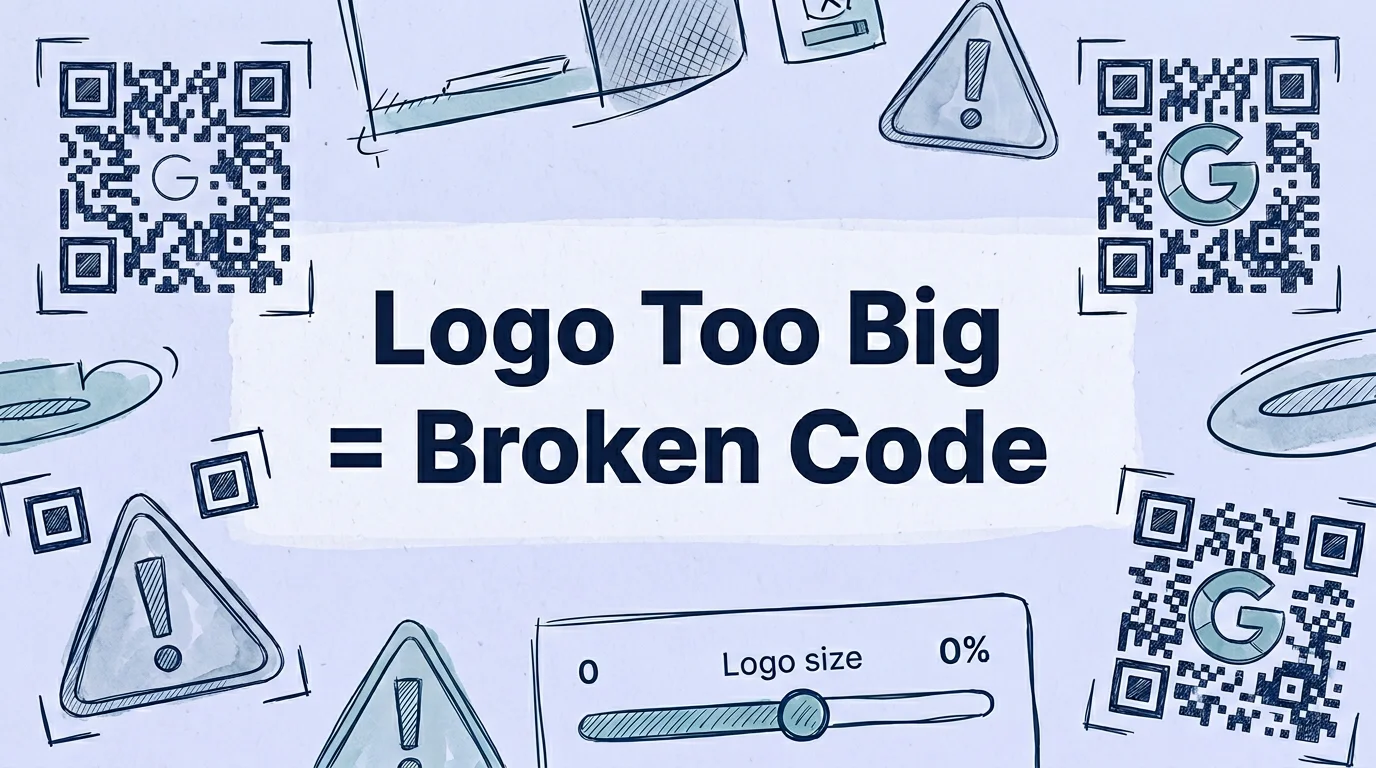
Most guides on adding a logo to a QR code either give you a list of tools without explaining the scannability rules, or they tell you to "just upload your logo" without mentioning that overlaying a logo on an existing QR code destroys scannability in 80-85% of cases. One approach works. The other produces a code that looks professional and scans nothing. Here's what actually matters. A logo can be safely embedded in any QR code as long as the generator builds the code at Error Correction Level H (30% damage tolerance) and the logo occupies no more than 20% of the code's total area. Using a tool that overlays a logo on top of a standard code instead of generating with the logo integrated is the mistake that breaks codes.
TL;DR
- Use a generator that integrates the logo during generation at Error Correction Level H, not one that overlays afterward.
- Keep the logo to 10-20% of the total code area. Larger logos reduce scan reliability.
- Use SVG or transparent PNG format for the sharpest result.
- Test with multiple scanner apps before printing at scale. iPhone Camera, Google Lens, and a dedicated scanner app covers the main variants. See QR code best practices for the full three-device testing protocol.
Why logo placement matters: the error correction mechanic
Generate your first QR code — free
Get startedA QR code can withstand physical damage and still scan correctly because the ISO/IEC 18004 standard includes four error correction levels, L, M, Q, and H, that add redundant data to the code's pattern. At Level H, up to 30% of the code's modules can be missing, damaged, or obscured and the scanner can still reconstruct the full data.
A logo in the center of a QR code works by deliberately obscuring a portion of the code's modules within that 30% tolerance. Properly generated, a logo covering 20% of the code area is well within Level H's recovery capacity. The scanner reads the remaining 80% of the pattern, reconstructs the missing data from the redundant information, and decodes the full URL.
The critical detail: this only works if the code was generated at Level H from the start, with the logo obstruction factored in. A code generated at Level M (15% tolerance) with a 20% logo obstruction exceeds its recovery capacity and fails to scan. A code generated at Level H, then having a logo overlaid in Photoshop on top of already-rendered modules, also risks failure, the overlay tool doesn't know which modules are critical for data recovery, so it may obscure data the code can't reconstruct.
Generators that handle logo embedding correctly (QR Nova, QR Code Monkey, Uniqode) set error correction to Level H automatically when a logo is added and generate the code with the logo obstruction as a planned element. Generators that offer a "download and then add logo in your design tool" workflow are the ones that cause scan failures.
How to add a logo to a QR code: step by step
The process is straightforward on any generator that supports logo embedding natively:
- Go to a generator with native logo support. QR Nova, QR Code Monkey, Uniqode, and Hovercode all support this. Don't use a generator that produces a plain code and expects you to add the logo in Illustrator.
- Enter your destination URL (or other content). URL, WiFi credentials, vCard, PDF link, the content type doesn't affect logo placement.
- Upload your logo. Use SVG for best quality at all print sizes. If SVG isn't available, use a PNG with a transparent background. Minimum 200×200 pixels for a logo that will appear crisp in the code. Square aspect ratio works best, rectangular logos get cropped or letter-boxed in the circular or square logo zone.
- Adjust logo size within the tool's recommended range. Most generators cap the logo size at 20-25% of the code area and show a preview. Stay at or below 20% for reliable scanning across all scanner apps.
- Preview and scan before downloading. The generator preview on screen is not sufficient, use your phone's actual camera app to scan the preview on screen. If it scans reliably on the preview, it will scan on print.
- Download in print-ready format. SVG or high-resolution PNG (at least 1000×1000 pixels) for print. Lower resolution for digital-only use. Avoid JPEG, lossy compression creates artifacts that affect module edges.
Can i create a QR code with a custom logo?
Yes, every major generator supports this. Here's how the main options compare specifically for logo embedding:
QR nova
Logo upload supported in the QR code generator. Generates at Error Correction Level H when a logo is present. Free, no account required. Supports transparent PNG and SVG logos. The logo is centered in the code with appropriate padding to keep the finder pattern squares (the three large squares in the corners) unobstructed.
QR code monkey
Strongest free option for logo customization. Supports logo upload, custom colors for modules and background, custom module shapes (squares, rounded, dots), and custom corner patterns. All for free with no account required. The level of visual customization is deeper than most paid tools at this price point ($0). Particularly useful for branded QR codes on business materials.
Adobe express
Free tier supports logo embedding with drag-and-drop upload. More design-tool oriented than QR-specific, useful if you're building the code as part of a larger designed asset. The QR code customization is more limited than QR Code Monkey, but the integration with Adobe's design canvas is convenient for creating print materials that include the QR code.
Uniqode
Logo embedding is standard on all tiers. Supports custom colors, frames, and logo placement variants (not just centered). Dynamic QR codes with logos are available on paid plans. More feature-rich than free options but requires a subscription for dynamic codes.
Logo design rules for scannable QR codes
Size: 10-20% of the total code area
At 10%, the logo is visible but small, appropriate for simple icons or minimal logos. At 15%, it's clearly visible and well within Level H's tolerance. At 20%, the logo is prominent and the code still scans reliably on modern apps. Above 20%, scan failures become measurable, older scanner apps and poor lighting conditions see failure rates increase.
In practice: a 1000×1000 pixel QR code has a logo zone of roughly 200×200 pixels at 20%. That's sufficient space for any brand mark or wordmark simplified to a square format.
Shape: square or circular, not wide-format rectangles
The center zone of a QR code is approximately square. A wide-format logo (e.g., a horizontal wordmark) placed in a square zone will either be letter-boxed (with blank space above and below), cropped, or forced to occupy more horizontal area than intended. The solutions: crop the logo to just the icon/symbol element of your brand (not the full wordmark), or use a version of the logo adapted for square format. Most professional brands have both a horizontal lockup and a square icon, use the square icon for QR code embedding.
Background: transparent or matching the code background
A white background on the logo in a white-background QR code looks seamless. A transparent background achieves the same effect. A solid colored background on the logo (a colored square behind the logo mark) looks intentional and is also fine, it can actually improve the visual separation between the logo and the surrounding code modules. What to avoid: a logo background color that's the same as the code's module color, which causes the logo to visually blend into the code.
Contrast: maintain the dark module / light background separation
The QR code scanner needs strong contrast between the dark modules and the light background to read the pattern. Our QR code color contrast guide covers this in depth. Standard is dark modules on white. Custom colors work, dark blue on white, dark green on white, as long as the contrast ratio is at least 4:1. Light gray on white is a common customization failure. If your brand colors include a light primary color, use a white or light neutral background for the code and apply the brand color selectively (e.g., corner patterns, logo) rather than the entire module grid.
Testing your logo QR code before printing
This step is skipped constantly and is directly responsible for print runs that don't scan. Before printing any quantity, test with at least three different scanning methods:
- iPhone native camera app: the most common QR scanner in most markets.
- Google Lens on Android: the primary scanner on Android devices.
- A dedicated QR scanner app: catches edge cases that the camera apps handle differently. QR Reader by TapMedia or similar.
Test under realistic conditions: same approximate distance you expect real users to scan from, with the code printed at the actual intended size. A code that scans on a 27" monitor preview may fail when printed at business card size (3.5" × 2") if the code modules become too small.
Minimum print size for reliable scanning: 2cm × 2cm (approximately 0.8" × 0.8") for standard scanning distances of 10-30cm. See our QR code best practices for more sizing and testing guidance. For codes that will be scanned from further away (poster, billboard), scale proportionally. At 1m scanning distance, minimum code size is approximately 10cm × 10cm.
When adding a logo to a QR code won't work
There are cases where logo integration produces genuinely unreliable codes, and knowing them saves print runs:
- The logo is too complex or high-detail. A logo with fine lines, gradients, or photographic elements doesn't translate well into the center zone of a QR code, the fine details are lost at small sizes. Simplify to a flat icon version before embedding.
- The print size is too small. At 1" × 1", a logo adds visual noise to an already small code. Below 1.5" × 1.5", consider removing the logo entirely and relying on a brand-colored code or a branded frame label instead.
- Low-contrast color scheme. A light-colored logo on a light-colored code background makes both the logo and the code hard to read. If your brand is predominantly white or light, use a dark-background code variant.
- The logo generator uses Level L or Level M error correction. Check the generator's documentation. Level M provides 15% damage tolerance, a 15% logo already uses up the entire error budget with no margin for physical damage or scan angle. Only use generators that set Level H for logo codes.
How QR nova handles logo QR codes
The QR Nova generator supports logo upload for static QR codes. Codes are generated at Error Correction Level H when a logo is present. The logo is centered, and the finder pattern squares in the three corners are kept clear of the logo zone. No account required, no watermark, and the download includes print-ready high-resolution output.
For business card QR codes specifically, a centered logo is the most common design requirement. Business cards are scanned at close range, which means even a smaller code size works reliably with a well-integrated logo. The vCard QR generator handles logo embedding with the same Level H settings.
Create your branded QR code with logo at QR Nova, free, no sign-up, print-ready download.
Frequently asked questions
Can I add a logo to a QR code without affecting scannability?
Yes, if done correctly. The QR code standard (ISO/IEC 18004) includes error correction specifically to compensate for obstructions. At Error Correction Level H, a QR code remains scannable with up to 30% of its modules obscured. A logo occupying 10-20% of the code area falls within the safe range. The critical rule: use a generator that accounts for the logo placement during generation, not one that overlays the logo after the fact.
How big can my logo be in a QR code?
The safe zone is 10-20% of the total QR code area. At 10%, the logo is small but cleanly visible and has zero impact on scannability. At 20%, the logo is prominent and the code still scans reliably at Error Correction Level H. Beyond 20%, you're entering territory where scan failures become measurable, some scanners (particularly older Android apps) fail on codes with 25%+ center obstruction.
What logo format works best in a QR code?
SVG is ideal, it scales without pixelation so the logo looks sharp at any QR code size. PNG with a transparent background is the practical choice if SVG isn't available. Avoid JPEG for logos with sharp edges or text, JPEG compression artifacts create jagged edges that look bad at small sizes. Square or circular logos work best in the center of a QR code; complex wide-format logos should be simplified or cropped to a square icon.
Will adding a logo make my QR code stop working?
A properly integrated logo (using a generator that builds at Level H error correction with a correctly sized logo) will not affect scannability. The risk is when people overlay a logo in image editing software onto a code that was generated without accounting for the obstruction, this can push the effective error rate above what Level H can compensate for. Always generate the code with the logo included, not added afterward.
Can I create a QR code with a custom logo for free?
Yes. QR Nova, QR Code Monkey, and Adobe Express (free tier) all support logo embedding in QR codes at no cost. QR Code Monkey is particularly strong for customization, it supports logo uploads, custom colors, and module shapes for free with no account required.
Does a QR code logo need to match my brand colors?
The logo itself should match your brand. The QR code modules (the dots and squares) can also be customized to brand colors, just maintain sufficient contrast between the dark modules and the background. The minimum contrast ratio for reliable scanning is approximately 4:1 between module color and background color. Dark blue modules on white, for example, work reliably. Light gray on white does not.
Can I put text in my QR code instead of a logo?
Yes, though it's less common. Some generators support adding short text (the brand name or 'Scan Me') as a frame around the QR code or as a small label below it. Text inside the code's module area (where the logo would go) is riskier for scannability because QR scanners aren't as reliably tolerant of complex shapes as they are of simple square logos. A simple logo or icon works better than text in the center zone.
Related articles
QR Code Design Ideas: Creative Examples for 2026
QR code design ideas that actually scan: color palettes, logo embedding limits, module shapes, frame CTAs, and real industry examples for 2026.
QR Code Logo Size: Maximum Safe Limit Explained
QR code logo size limit depends on error correction level. 30% max at H-level ECC only. Wrong ECC = broken scan. Free guide with exact rules.
How to Make a QR Code (Without It Failing at Print)
How to make a QR code that actually scans: static vs dynamic, error correction, testing before you print. Free, no sign-up.
Generate your first QR code — free
Get started