QR Code Not Working? 7 Real Causes (and Exact Fixes)
QR code not working? There are 7 distinct failure modes, not 25. Diagnose which one you have in 60 seconds and fix it. No account required.
This article was written by the QR Nova team. We build QR code software, which may inform our perspective.
Most "QR code not working" articles list 20+ possible causes in random order, then recommend you try them all. That's not troubleshooting, that's guessing. There are exactly seven distinct failure modes for a QR code that isn't working, and they require completely different fixes. When a QR code is not working, the problem is almost always one of three things: the destination URL is dead, the dynamic redirect was deactivated by a platform subscription lapse, or the URL changed after the code was printed. The code image itself is almost never the culprit.
TL;DR
- Scan the code and copy the URL before following it, this tells you immediately whether the code is reading correctly or whether the destination is broken.
- If the URL looks right but the page is dead: the destination moved or was deleted. Dynamic codes can be updated without reprinting; static codes cannot.
- If the code worked before and stopped: check whether a subscription or trial lapsed on a dynamic code platform, this is the #1 cause.
- If the code works on one phone but not another: test whether the destination uses HTTPS. HTTP redirects break on some device/browser combinations.
- Physical scanning issues (size, contrast, damage) are covered in a separate guide, this post focuses on codes that scan fine but fail to deliver.
The first thing to do when your QR code is not working
Make a QR code that won't break — free, no sign-up
Get startedBefore reading anything else, run this test. Open a QR scanner app and scan the code. Most apps, including the native iOS Camera and Android Camera, show you the decoded URL for a second before following the link. Copy that URL and paste it into a browser address bar.
What you get back tells you exactly where to look:
- 404 Not Found: the destination page was deleted or moved. The QR code is reading correctly; the destination is the problem.
- Redirect error or "code deactivated" page: the dynamic code's redirect server is down or deactivated. The URL in the code is a short URL pointing to a platform that stopped serving it.
- Wrong page loaded: the URL redirects somewhere, but not where intended. The destination URL changed after the code was printed.
- Connection timeout: the destination domain is no longer pointing to any server. Domain expired or hosting cancelled.
- HTTPS warning or blocked page: the URL uses HTTP and the device is blocking the redirect. Affects some Android + Chrome configurations.
- Page loads, but wrong content: the destination URL is live but now serves different content. The site was restructured after the code was printed.
- Code doesn't decode at all: this is a scanning problem, not a destination problem. See the QR code not scanning guide.
Pick your failure type and go directly to that section.
Failure mode 1: the destination URL is dead (404)
A 404 means the server received the request and said: this page doesn't exist. The QR code decoded correctly. The short URL resolved correctly (if it's dynamic). The destination just isn't there anymore.
Static code pointing to a deleted page
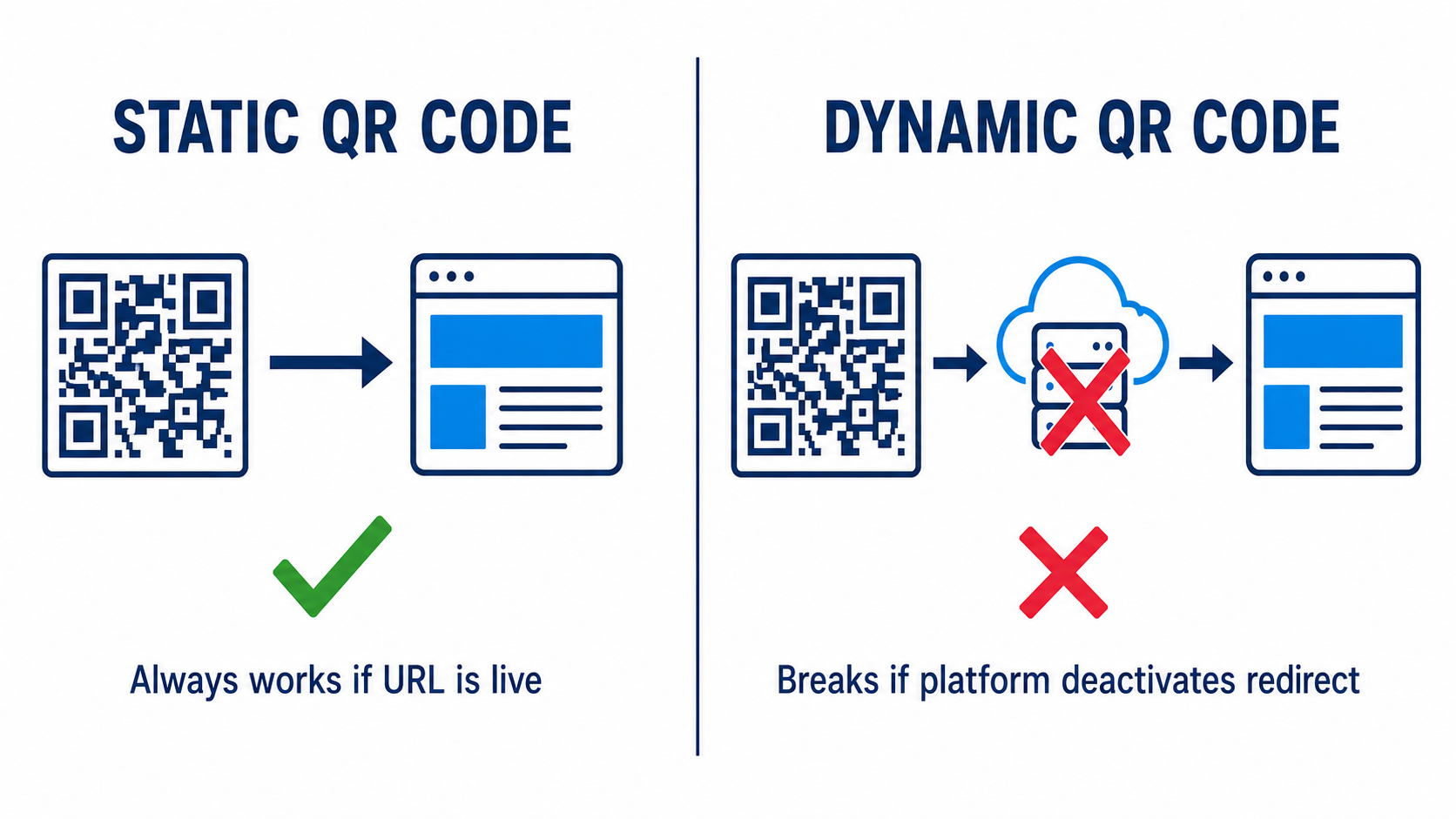
Static QR codes encode a full URL directly in the pattern, for example, https://yourcompany.com/menu. If that page was deleted, renamed, or the site migrated to a different URL structure, the code is now permanently broken. There's no fix except reprinting with a working URL.
This bites restaurants and retailers hardest after website redesigns. The old URL /menu becomes /our-menu or moves to a subdomain. Every printed table tent, window sticker, and takeout bag with the old code is now broken. Entirely avoidable with a dynamic code, but there's no going back once it's printed static.
Dynamic code pointing to a deleted page
A dynamic QR code encodes a short redirect URL, something like go.platform.com/abc123, and the platform redirects that to your actual destination. If the destination page was deleted, update the redirect destination in the platform dashboard without reprinting. The printed code still points to the same short URL; the platform now sends scanners to the new destination.
Log in, find the code, edit the destination URL to a working page, and test. No reprint required.
Failure mode 2: dynamic redirect deactivated
When a dynamic code's redirect returns an error page, a platform-branded "upgrade to reactivate" screen, or simply times out, the platform's redirect server stopped serving that code. This is the single most common reason a QR code stops working after previously working fine.
Dynamic QR codes depend on a platform's server being active and configured to forward that specific short URL. When your subscription lapses, your trial ends, or your account is flagged, the platform disables that forwarding rule. The QR code image is identical to the day you printed it. The short URL is still readable. The platform just stopped honoring it.
According to QR Nova's support data, deactivation due to subscription or trial expiration accounts for over 60% of the "QR code stopped working" reports we receive. The pattern is always the same: code worked for days or weeks, stopped the moment a trial ended or a payment failed.
How to fix it
Log into the original platform account. Check the subscription status. If the trial ended or a payment failed, renewing the account restores the redirect within minutes. No reprinting needed. The physical code is still good.
If the platform is permanently gone, see Failure Mode 5 below. For a full breakdown of this specific problem, read the post on QR codes that stop working after cancellation.
How to prevent it
Use a platform that doesn't tie QR code functionality to active subscription status. Static QR codes have zero server dependency, they cannot be deactivated by any platform. For editable codes that must remain live regardless of billing, QR Nova's codes stay active as long as the destination URL is live, with no scan-count limits or deactivation on plan changes.
Failure mode 3: redirect points to the wrong page
The code scans. The short URL resolves. The page loads, but it's the wrong page. The user lands on a homepage, a login screen, or a completely unrelated piece of content.
This happens after site migrations, URL restructures, or CMS changes. A restaurant that migrated from Squarespace to Shopify might have had /pages/menu become /menus/main-menu. If the old URL wasn't redirected, everyone scanning the code lands on a 404 or the new homepage. Nobody put up a sign. Nobody updated the code. The printed materials kept going out.
For dynamic codes: update the destination URL in the platform dashboard to the correct current URL. Test after updating.
For static codes: unrecoverable without reprinting. Before reprinting, confirm the new URL is stable, a 301 redirect from the old URL means the new URL is the canonical one.
Failure mode 4: works on some devices, not others
Cross-device QR failures are uncommon but maddening, the code works when you test it and fails for customers with different phones. Here's what's actually happening.
HTTP vs HTTPS
A destination URL starting with http:// (not https://) will load fine on many devices but trigger security warnings or outright blocks on others. Modern Android Chrome and iOS Safari both warn users when a QR code destination is unencrypted HTTP. Some corporate device management profiles block HTTP content entirely.
The fix: ensure your destination URL uses HTTPS. If your site supports HTTPS (it should, in 2026), update the QR code destination to the HTTPS version. For dynamic codes, this is a dashboard edit. For static codes, reprint with the correct HTTPS URL.
URL encoding issues
If the destination URL contains special characters, spaces, non-ASCII characters, ampersands in query strings, or URL-encoded sequences, some phone browsers handle them differently. The safest destination URLs for QR codes use only alphanumeric characters, hyphens, and forward slashes. If your URL contains query parameters (UTM tracking, for example), verify the full URL on both iOS and Android browsers before printing.
App-specific failures
Some older QR scanner apps have bugs with specific URL formats. The native iOS Camera app and Android Camera/Google Lens are the most reliable. Third-party scanner apps often have narrower support. If a code works with the native camera but fails in a specific app, the app is the problem, not the code.
Failure mode 5: platform shutdown
Several QR code platforms have shut down in the past five years: QReate, QR Stuff (partially), and a number of smaller services that built on top of Bitly or similar APIs. When a platform shuts down, every dynamic code created on it becomes permanently broken. The short URL in the code no longer resolves because the servers are gone.
This is the unrecoverable scenario for dynamic codes. Full stop. The short URL encoded in the pattern, something like app.shutdownservice.io/x7k2m, points to a domain that no longer exists. Nothing you do to the code image changes this.
The only fix is reprinting with a new code from a different provider. Expensive if the code is on physical materials at scale, business cards, product packaging, building signage. And entirely preventable by choosing providers with explicit permanent code commitments over free or low-cost platforms with uncertain longevity. (Yes, "free" QR code platforms do close. They close more often than paid ones.)
Failure mode 6: URL typo at creation
A QR code with a URL typo works perfectly, it scans, the short URL resolves, and redirects the user to exactly what was encoded. Unfortunately, what was encoded was https://yourcompnay.com/menu instead of https://yourcompany.com/menu. Broken since day one. The creator just never noticed.
This is the most avoidable failure mode and one of the most common in batch printing jobs. The creator generated the code, verified it "worked" (it scanned), but never followed the link all the way to the final destination. Scanning is not the same as testing.
The fix for dynamic codes: correct the destination URL in the dashboard. No reprint needed.
The fix for static codes with a URL typo: reprint. No other option.
The prevention: always test the full link chain before approving any print job. Scan the code, follow the link completely, and verify the browser address bar shows the intended URL. One minute before printing saves hours of damage control after.
Failure mode 7: the destination domain expired
Domain registrations require annual renewal. When a domain expires, every URL under it becomes unreachable. A QR code pointing to any page on an expired domain will fail with a DNS error or a domain parking page.
This catches both static and dynamic codes. Even a dynamic code that's actively maintained will fail if the destination domain is gone, there's nothing for the redirect to land on.
The fix: renew the domain. If someone else grabbed it after expiration (domain squatters move within 24 hours of expiry), recovery is expensive or impossible. For dynamic codes, update the destination to the new domain. For static codes, reprint with the new destination URL.
When none of these fix the QR code not working
If you've worked through all seven failure modes and the code still doesn't work as expected, the problem may be a physical scanning issue, the camera can't decode the QR pattern itself due to size, contrast, damage, or reflective surface. Different diagnostic tree entirely. The QR code not scanning guide covers all twelve physical scanning failure modes with specific tests and fixes.
One more possibility worth checking: the code never worked and you don't have a reference scan to compare against. Always keep a test scan log, the URL decoded from the original test print, with the date and result. If "it used to work" but you can't confirm what it used to do, the diagnostic gets much harder.
How QR nova prevents most of these failures
Static QR codes generated at QR Nova encode the destination URL directly in the pattern, no platform server in the chain. Failure modes 2 (deactivation), 5 (platform shutdown), and the subscription components of modes 1 and 3 simply cannot happen. There's no redirect server to go down.
For use cases that require editable destinations, QR Nova's dynamic codes maintain permanent redirect availability. No scan-count caps on any plan, no automatic deactivation on plan changes, no "upgrade to reactivate" walls. The redirect is active because you made it active, or off because you turned it off. That's it.
You can generate a QR code free, no account required, no trial period. Test it thoroughly before printing. If the destination ever needs to change, that's a dashboard edit, not a reprint.
Frequently asked questions
Why is my QR code not working?
The seven root causes for a QR code not working are: (1) the destination URL is dead (404, domain expired, typo in the URL), (2) the dynamic code's redirect was deactivated by subscription cancellation or trial expiration, (3) the redirect points to the wrong page after a site migration or URL restructure, (4) the code works on some phones but not others due to HTTPS or encoding issues, (5) the platform that hosted the redirect shut down, (6) physical scanning issues like size, contrast, or damage, which are a separate problem, (7) the QR code was never tested before printing and contained a URL typo from the start.
My QR code scans but goes to a dead page, what do I do?
Copy the URL from your QR scanner (most apps show it before following the link) and paste it directly into a browser. If you get a 404, the destination page was deleted or moved. If you get a redirect error, the platform's service may be down or deactivated. For a static QR code with a dead URL, there is no fix, the code must be reprinted with a working URL. For a dynamic QR code, update the destination URL in the platform dashboard, no reprinting required.
Why did my QR code stop working after it was working fine?
Three scenarios cover 90% of cases where a QR code worked before and stopped: (1) a dynamic code whose redirect was deactivated when a subscription lapsed or trial ended, the most common cause by far; (2) the destination website changed its URL structure and the page the code pointed to no longer exists; (3) the destination domain expired or the hosting was cancelled. To diagnose: scan the code, copy the URL shown before following the link, and paste it directly in a browser to see which type of error you get.
Why does my QR code work on iPhone but not Android (or vice versa)?
Cross-device QR failures almost always trace to one of three causes: the redirect URL starts with HTTP instead of HTTPS (Android Chrome blocks mixed-content redirects in some configurations), the destination URL uses non-standard characters that the other platform's browser doesn't handle, or the destination page has a mobile detection script that sends one device type to a broken URL. Test the destination URL directly on both devices to confirm.
I canceled my subscription and now my QR codes are broken, can I fix them?
For dynamic codes, reactivating your subscription on the original platform restores the redirect immediately, no reprinting needed. If the platform is permanently gone (shut down), the encoded short URL no longer resolves and the printed codes are unrecoverable without reprinting. For static codes, subscription cancellation has no effect, static codes have no server dependency.
How do I test a QR code before printing?
Test on two devices: one iPhone and one Android. Use the native Camera app on iOS and Google Lens or the Camera app on Android, not a third-party QR scanner app, because your audience will use native apps. Follow the link completely, confirm the final destination page loads correctly, and verify the URL in the browser bar matches what you intended. Run this test after any URL change, not just at initial creation.
QR code not working on iPhone, how do I fix it?
For iPhone-specific failures: verify QR code scanning is enabled in Settings > Camera > Scan QR Codes. If the code scans but the page doesn't load, check that the destination URL uses HTTPS, iOS Safari flags HTTP destinations with a warning. If the code doesn't scan at all on iPhone but works on Android, test contrast and size: iPhone's native decoder has stricter requirements than most Android alternatives.
Is there a QR code that will never stop working?
Static QR codes cannot be deactivated by any platform, they encode the destination URL directly in the pattern with no server dependency. They stop working only if the destination URL goes offline. For codes that need to remain editable after printing, use a platform that explicitly commits to permanent redirect availability rather than tying functionality to active subscription status.
Related articles
QR Code Not Scanning? 12 Fixes That Actually Work
QR code not scanning? Fix it fast: size, contrast, quiet zone, damaged print, dead redirect, and 8 more causes. Step-by-step guide, no account needed.
How to Make a QR Code (Without It Failing at Print)
How to make a QR code that actually scans: static vs dynamic, error correction, testing before you print. Free, no sign-up.
How to Test a QR Code Before Printing: 5-Step Checklist
5-step checklist: multi-device scanning, distance testing, URL verification, contrast ratio, and structural validation. Catch QR failures before ink hits paper.
Make a QR code that won't break — free, no sign-up
Get started