How to Scan a QR Code on Any Phone
How to scan a QR code on iPhone, Android, or PC, built-in camera, Control Center, Google Lens, and screenshot scanning. No app needed.
This article was written by the QR Nova team. We build QR code software, which may inform our perspective.
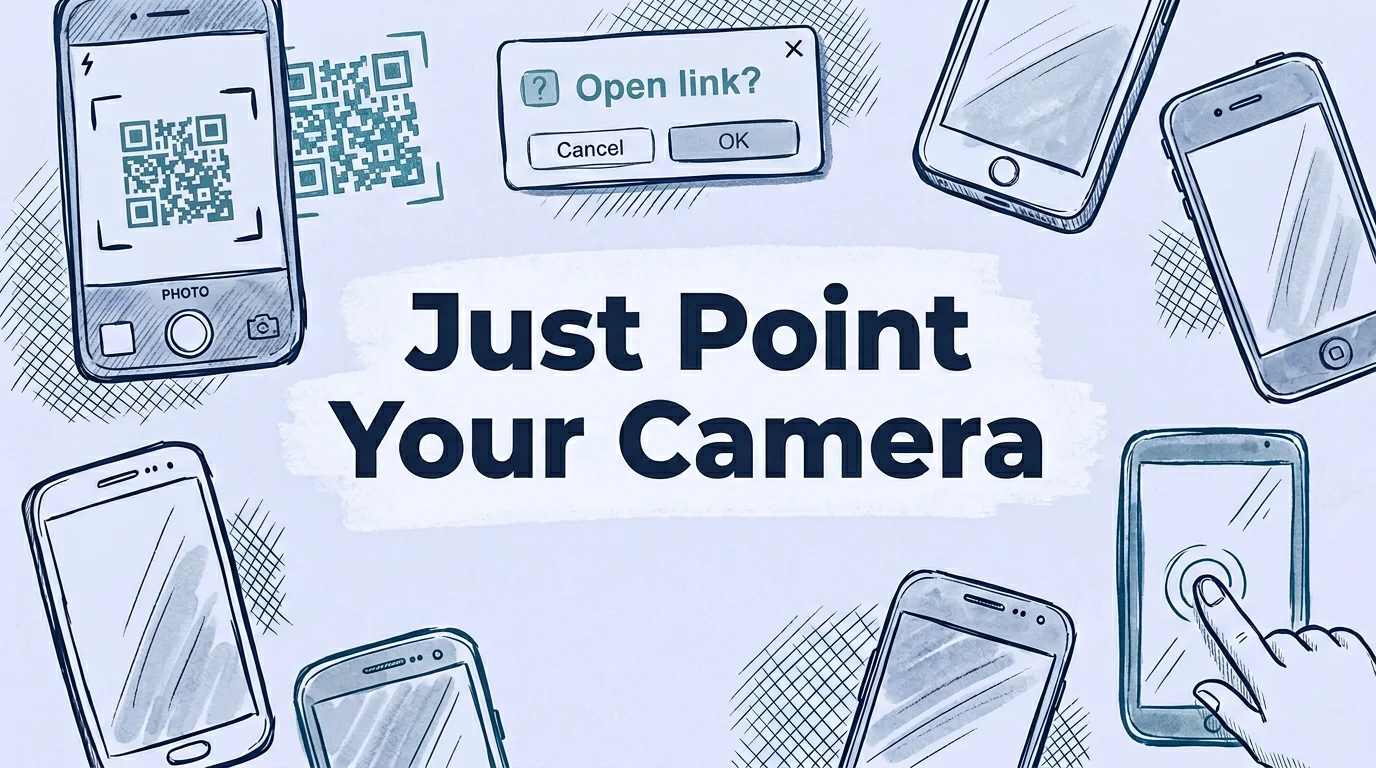
If you're not sure what a QR code is or how the technology works, start there. Most how-to guides about scanning QR codes are written for 2018. They tell you to download a third-party app, when virtually every smartphone sold in the last six years scans QR codes natively through the built-in camera. No download, no sign-up, no scanning app required. On iPhone, open the Camera app and point it at the code. A banner appears at the top and you tap it. On Android, the Camera app handles it the same way on most phones. The whole process takes under three seconds.
TL;DR
- iPhone (iOS 11+): Camera app scans QR codes natively, no app needed. Tap the banner at the top of the screen.
- Android (most phones 2018+): Camera app scans automatically. If it doesn't, use Google Lens.
- Scanning from a photo or screenshot: use iPhone Photos (Live Text) or Android Google Lens.
- Computer: upload to lens.google.com or use the Windows 11 Camera app in QR mode.
- Always preview the destination URL before tapping, it appears in the camera banner.
How to scan a QR code on iPhone
Try it now — no sign-up needed
Get startedOn any iPhone running iOS 11 or later, which is every iPhone 5s and newer, QR code scanning is built into the Camera app. No third-party app, no setup, no configuration required. Apple added native QR scanning in iOS 11, released September 2017. Every iPhone sold since then supports it out of the box.
Method 1: iPhone camera app (fastest)
- Open the Camera app (swipe left from the lock screen, or tap the Camera icon).
- Point the camera at the QR code. You don't need to press the shutter button.
- Hold steady for 1–2 seconds. A yellow banner appears at the top of the screen showing the URL or action.
- Tap the banner to open the link, save the contact, connect to WiFi, or perform whatever action the code contains.
The camera works in any mode, Photo, Portrait, or Video, but Photo mode is most reliable for static codes. Make sure the entire code is visible in the frame, including the white border (quiet zone) around it.
Method 2: control center QR scanner
iOS has a dedicated QR scanner tile in Control Center. To access it: swipe down from the top-right corner of the screen (iPhones without Home button) or swipe up from the bottom (older iPhones with Home button). If the QR code icon is there, tap it and point at the code.
If the icon isn't there: go to Settings > Control Center and add "Code Scanner" to your included controls. This scanner is slightly faster for users who prefer it, but the end result is identical to the Camera app.
Method 3: scanning a QR code from a photo or screenshot on iPhone
You received a QR code as an image, in an email, a text message, a website screenshot. Here's how to scan it without printing.
- Open the image in the iPhone Photos app.
- Tap the Live Text icon in the lower-right corner (it looks like text inside a box).
- The QR code is automatically detected. Tap it to reveal the action button (Open Link, Add to Contacts, etc.).
This works on iPhone XS, XR, and later running iOS 16 or later. On older iPhones or earlier iOS versions, use the Google Lens method described in the Android section, Google Lens is available on iPhone via the Google app or Chrome.
iPhone QR scanning: common problems and fixes
If the Camera app isn't scanning, QR code scanning was likely disabled in settings. Go to Settings > Camera and make sure "Scan QR Codes" is toggled on. It's on by default but can be turned off accidentally.
Other causes of iPhone QR scan failure:
- Too close or too far: Optimal scanning distance is 15–30 cm (6–12 inches). Closer than 10 cm, the camera can't focus. Back up and try again.
- Low light: The camera needs enough light to read the module contrast. Turn on the flashlight by tapping the lightning bolt icon in the Camera app.
- Small code on screen: For small codes on a computer monitor, maximize the browser window and increase screen brightness before scanning.
- iPhone 13 Pro and later, macro conflict: iPhone 13 Pro+ automatically switches to the ultra-wide macro lens when you're very close. This can blur the image for very small codes. Back up slightly and let the main camera take over.
How to scan a QR code on Android
Android is more fragmented than iOS, different manufacturers customize the camera app differently. Since 2018, though, the vast majority of Android phones (Samsung, Google Pixel, OnePlus, Motorola, Xiaomi, LG, and others) scan QR codes natively in the Camera app. No third-party app needed.
Method 1: Android camera app
- Open the Camera app.
- Point the camera at the QR code.
- Hold steady. On most phones, a scan overlay appears automatically and a popup or banner shows the detected link or action.
- Tap the popup to open the link or perform the action.
On Samsung phones (One UI 4 and later), the QR scan overlay appears as a small icon in the viewfinder. On Google Pixel phones (Android 9+), scanning is automatic with no button press. On Motorola phones, look for a small QR code icon in the camera toolbar.
Method 2: quick settings QR scanner tile (Android 9+)
Many Android phones have a QR scanner tile in the Quick Settings panel (swipe down twice from the top). On Samsung Galaxy phones, it's labeled "QR Scanner" and opens a dedicated scanner without launching the full Camera app. Fastest method on supported devices.
Method 3: Google lens (universal Android fallback)
Google Lens is available on all Android phones with the Google app installed, which is essentially all Android phones except some Chinese market devices. It reads QR codes reliably and works even on phones where the Camera app doesn't support native QR scanning.
To use Google Lens for QR scanning:
- Open the Google app and tap the Lens icon (camera outline in the search bar).
- Point the camera at the QR code. Lens detects and decodes it automatically.
- Alternatively, long-press on any image (in Chrome or in Google Photos) and select "Search with Google Lens", it decodes QR codes in images too.
Method 4: scanning a QR code from a photo or screenshot on Android
- Open Google Photos and navigate to the image containing the QR code.
- Tap the Google Lens icon (square icon with rounded corners) in the bottom toolbar.
- Google Lens automatically identifies the QR code and displays the decoded URL or action.
- Tap the result to open it.
On Samsung phones, Galaxy AI includes an image decoder in the Gallery app, though Google Lens is more reliable across all Samsung devices regardless of model.
Which Android phones don't have native QR scanning in camera?
Phones running Android 7 or earlier (released before 2017) typically lack native QR scanning. Some mid-range and budget phones from 2017–2018 also shipped without it, depending on the manufacturer's camera implementation. If your Camera app doesn't scan after pointing at a code for 3–4 seconds, use Google Lens as the fallback, it's available on all Android 5.0+ devices via the Play Store.
How to scan a QR code on a computer (windows and mac)
Scanning QR codes on a laptop or desktop is less common but has clear use cases: you received a QR code in an email and need to open it on the same computer, or you want to decode a QR code image file.
Windows 11 — camera app QR mode
Windows 11's Camera app has a built-in QR code scanner. Open the Camera app, click the three-dot menu, and select "QR Code Scanner." Point the webcam at a physical code or hold the camera up to a QR code on your phone screen. It decodes and displays the URL for you to click.
Mac — no native QR scanner in macos
macOS does not have a built-in QR code scanner as of macOS Sequoia (2025). The workarounds:
- Google Lens in Chrome: Right-click any QR code image and select "Search Image with Google", Chrome passes it to Google Lens which decodes it.
- iPhone Continuity Camera: On Macs with macOS Ventura or later paired with an iPhone running iOS 16+, the iPhone can act as a webcam. With Continuity Camera active, point the iPhone at the physical QR code and open the link from the notification on the Mac.
Decoding a QR code from an image file on any computer
Go to lens.google.com in any browser, click "Upload a file," and select the QR code image. Google Lens decodes it immediately and displays the URL or action. Works on any OS, any browser, no extension required.
How to scan a QR code from a screenshot
Someone sends you a QR code in a WhatsApp message, a PDF, a presentation slide, or a website, and you need to scan it without printing it. This comes up more than most guides acknowledge.
From a screenshot on iPhone
Open the screenshot in Photos. Tap the Live Text button (bottom-right, looks like text in a dotted box). If a QR code is detected, it highlights it with a popup button. Tap the button to open the URL. Requires iOS 16 or later and iPhone XS or newer.
From a screenshot on Android
Open the screenshot in Google Photos. Tap the Lens icon (bottom toolbar). Google Lens scans the image automatically. If a QR code is in the image, it's decoded and the result appears as a tap target.
From an image on a website
In Google Chrome on Android or desktop: long-press (Android) or right-click (desktop) the image and select "Search image with Google" or "Search with Google Lens." The QR code in the image is decoded in the Lens panel.
Troubleshooting: why your QR code won't scan
When a QR code doesn't scan, there are six possible causes. Working through them in order of likelihood saves time.
1. QR scanning is disabled in camera settings
iPhone: Settings > Camera > Scan QR Codes, must be ON. This is the most common cause on iPhone and takes 10 seconds to check. Android: varies by manufacturer, but Camera app settings typically have a "Scan QR codes" or "Barcodes" toggle.
2. the code is too small or you're too far away
The 10:1 rule: scanning distance should be no more than 10 times the code width. A 2 cm code needs to be scanned from within 20 cm. For codes on posters or signage, size and scanning distance must be matched, a 5 cm code on a wall poster should be scanned from within 50 cm.
3. insufficient contrast or poor print quality
A dark blue code on a dark gray background fails. A blurry or pixelated code fails. A code printed at too-low DPI (below 150 DPI) fails. If the code looks sharp to your eye but won't scan, try adjusting the angle of your phone relative to the code surface, reflective and matte surfaces affect scan reliability differently.
4. physical damage to the code
QR codes include error correction (levels L, M, Q, H) that allows them to survive up to 30% physical damage (at level H). A coffee stain over 20% of the code? Still scannable at level H. A scratch through the three corner finder patterns (the large squares in the corners)? The code fails regardless of error correction level, those finder patterns are required for the scanner to locate and orient the code.
5. low lighting
Enable the phone flashlight. Camera QR scanners depend on visible-light contrast between the dark modules and the background. In dim environments, module contrast drops below the scanner's threshold. The flashlight fixes this reliably.
6. the QR code itself is broken
If you're generating QR codes and they won't scan on any device, code generation may have failed. Common causes: encoding a URL that's too long (above ~3,000 characters for standard QR), using a non-standard character set, or platform-specific bugs. Regenerate on a different platform and test again. You can create a new QR code free at QR Nova to test whether the content scans correctly.
QR code scanning security: what to check before you tap
QR codes are not inherently dangerous, they're just containers for data. But like any link, what's inside can be malicious. Our guide on whether QR codes are safe covers the full threat landscape. QR code phishing ("quishing") attacks increased significantly in 2023–2024, with Abnormal Security (November 2023) reporting a 587% increase in QR code phishing attempts in September–October 2023 compared to the previous two months.
The protection is simple: read the URL preview before tapping. Every modern phone displays the destination URL in a banner before you take action. Check:
- Does the domain match the expected organization? A restaurant menu QR should point to the restaurant's actual domain, not a random redirect URL.
- Is it HTTPS? HTTP links from physical QR codes are unusual and worth extra scrutiny.
- Does the domain look legitimate? Watch for typosquatting (paypa1.com, app1e.com) or overly long domain names with hyphens.
- Is the domain a URL shortener (bit.ly, t.co, tinyurl)? Shorteners are common in legitimate QR codes but also in phishing attacks. Paste the shortened URL into a link expander before tapping if you're uncertain.
QR codes in physical spaces, restaurant tables, business cards, retail shelves, are overwhelmingly legitimate. The risk is higher for QR codes received via email or text, or physical codes stuck over legitimate ones (sticker replacement attacks have been documented on parking meters and public charging stations).
QR code format variations you May encounter
Not all QR-like codes are QR codes. Knowing what you're looking at helps when a code won't scan with the standard camera method.
- QR code (ISO/IEC 18004): The standard square black-and-white pattern with three corner finder squares. Scans with Camera app on all modern phones.
- Micro QR code: A smaller variant with only one corner finder square. Less common, used on tiny labels. Some camera apps don't support it, Google Lens handles it more reliably.
- Data Matrix: Rectangular or square, no corner finder squares, denser module pattern. Used extensively in shipping and medical labeling. Not supported by the iPhone Camera app natively, requires Google Lens or a barcode scanner app.
- Aztec code: Concentric square rings, no quiet zone required. Used on airline boarding passes and transit tickets. Google Lens and most transit apps read it; the standard Camera app may not.
- PDF417: Rectangular stacked barcode. Used on driver's licenses and event tickets. Not supported by Camera apps, requires a dedicated barcode scanner app.
For travel documents, boarding passes, and ID verification, use dedicated apps (airline apps, transit apps), the phone Camera app is optimized for QR codes specifically.
How to create a QR code someone can actually scan
If you're on the creating end rather than the scanning end, our full guide on how to create a QR code walks through every step. The most important factor in scanability is starting from a high-resolution vector source. A QR code generated at 300 × 300 pixels and printed at 2 × 2 cm on a business card is near the minimum for reliable scanning. For anything larger, posters, signage, packaging, scale the SVG, not the raster file.
QR Nova generates QR codes as SVG by default, which means they're infinitely scalable without quality loss. Start at QR Nova's free QR code generator, no account needed, no watermark, and the output is print-ready immediately.
For WiFi network QR codes specifically (where guests scan to join a network), the WiFi QR code generator encodes the network credentials in the format that iOS and Android recognize natively, the camera prompts the user to join the network without any typing required.
Frequently asked questions
How do I scan a QR code with my phone?
On iPhone (iOS 11 and later): open the Camera app, point it at the QR code, and tap the notification banner that appears at the top. On Android (most phones since 2018): open the Camera app and point it at the code, no button press needed. If nothing happens, open Google Lens from the camera icon or the Google app and point it at the code.
How do I scan a QR code with my phone without an app?
No app is needed on modern phones. iPhones running iOS 11+ and most Android phones from 2018 onward read QR codes natively through the Camera app. You don't need to install anything.
Why won't my phone scan a QR code?
The most common causes: QR code scanning is turned off in Camera settings (check Settings > Camera > Scan QR Codes on iPhone), the code is too small or you're too far away, lighting is too dim, or the printed code is blurry or low contrast. Try enabling the flashlight, getting closer, and holding the phone steady for 2–3 seconds.
How do I scan a QR code from a screenshot or image on my phone?
On iPhone: open the image in the Photos app, tap the Live Text button (the icon with lines in the bottom-right corner), then tap the QR code. On Android: open the image in Google Photos, tap the Google Lens icon, and tap the QR code. Alternatively, open Google Lens directly and import the image from your photo library.
How do I scan a QR code on a computer?
Windows 11: open the Camera app, switch to QR Code mode. Mac: use the Camera app in FaceTime or a browser extension. Most reliably: open Google Lens at lens.google.com, upload the image, and it decodes the QR code automatically. Alternatively, use a browser extension like QR Code Reader.
Is it safe to scan QR codes?
QR codes are as safe as the links they contain. Before tapping any URL, check the preview shown by your phone's camera app, the destination URL appears in the banner before you tap. Never tap URLs with suspicious domains, random characters, or IP addresses. Legitimate QR codes from restaurants, businesses, and events link to obvious domains.
How do I scan a QR code on an older Android phone?
On Android phones from 2016–2018 that don't have native QR scanning in the Camera app, download Google Lens from the Play Store (free) or use the Barcode Scanner app. From 2019 onward, native camera scanning is standard on most manufacturers' devices.
Can I scan a QR code from my computer screen using my phone?
Yes. Open the Camera app on your phone, point it at the QR code displayed on your monitor, and scan normally. Hold the phone steady 20–30 cm from the screen and make sure the screen brightness is high enough. Screen glare can interfere, tilt the phone slightly off-axis if the code doesn't register.
Related articles
How to Make a QR Code (Without It Failing at Print)
How to make a QR code that actually scans: static vs dynamic, error correction, testing before you print. Free, no sign-up.
QR Code Not Working? 7 Real Causes (and Exact Fixes)
QR code not working? There are 7 distinct failure modes, not 25. Diagnose which one you have in 60 seconds and fix it. No account required.
Can You Edit a QR Code After Printing?
Can I edit a QR code after printing it? Static codes can't, but dynamic codes let you change the destination anytime. Here's exactly how it works.
Try it now — no sign-up needed
Get started