QR Code for Apple Wallet & Google Wallet: How It Works
QR codes in Apple Wallet are the pass barcode, not an external link. Learn how wallet passes work, 5 key use cases, and how to create yours.
This article was written by the QR Nova team. We build QR code software, which may inform our perspective.
Searching for a QR code for Apple Wallet or Google Wallet? Most articles get the relationship backwards. They tell you to "generate a QR code and add it to your Wallet" — but that's not how either platform works. In Apple Wallet and Google Wallet, the QR code lives inside the pass. The pass is the document; the QR code is the scannable barcode it contains. You cannot add a raw QR image to Wallet without wrapping it in a structured pass file first.
TL;DR
- Apple Wallet and Google Wallet store passes (.pkpass / Google Wallet Object), not raw QR images. The QR code is the barcode inside the pass.
- Passes are created with a pass-builder platform or developer API, then distributed as a link or file customers tap to add.
- Use cases: loyalty cards, event tickets, coupons, membership cards, boarding passes — each maps to a specific pass type.
- iOS 27 (expected September 2026) adds native "Create a Pass" for any QR code — closing the current gap for informal passes.
- Dynamic QR codes are useful for distributing the pass link, not as the barcode inside the pass itself.
What Apple Wallet and Google Wallet passes actually are
Create your wallet QR code — free
Get startedAn Apple Wallet pass is a .pkpass file — a signed ZIP archive containing a JSON definition of the pass fields, images (logo, background, thumbnail), and a barcode descriptor. The barcode can be a QR code, Aztec code, PDF417, or Code 128 barcode. The pass is cryptographically signed with a Pass Type ID certificate issued to your Apple Developer account, which is how iOS verifies the pass hasn't been tampered with.
Google Wallet passes (called Wallet Objects) follow a similar structure but live in Google's cloud. You define a Pass Class (the template), create Pass Objects (one per customer), and issue them via a signed JWT that the customer taps to save. Both platforms support location-based notifications, expiration dates, and real-time updates pushed from your backend.
The QR code in both systems is the redemption barcode — the part a staff member or automated scanner reads at the point of use. It encodes a string: a ticket ID, loyalty member number, coupon code, or any identifier your validation system recognizes.
The two platforms differ in one meaningful way. Google Wallet has supported native barcode scanning for loyalty cards since 2024: users open Google Wallet, tap "Add to Wallet," and scan a physical barcode or QR code on a loyalty card to create a digital copy — no merchant integration required. Apple hasn't offered anything equivalent until iOS 27 (expected September 2026), which is why third-party apps like Pass2U Wallet have filled that gap for iPhone users wanting to convert personal QR codes into Wallet passes.
How the QR code functions inside a wallet pass
When a customer presents their pass at a coffee shop, event gate, or airline counter, the scanner reads the QR code on screen. The scanner sends that string to your backend. Your backend checks: is this ticket ID valid and unused? Is this loyalty number active? Is this coupon still redeemable? The pass display is the frontend; your database is the authority.
The QR code inside a pass doesn't need to be a dynamic QR code — it doesn't redirect to a URL. It encodes a fixed identifier. The "dynamic" behavior (updating the pass design, sending push notifications, invalidating used tickets) is handled by the PassKit or Google Wallet API pushing updates to the pass on device, not by changing the QR code itself.
Five use cases where a QR code for Apple Wallet or Google Wallet delivers real value
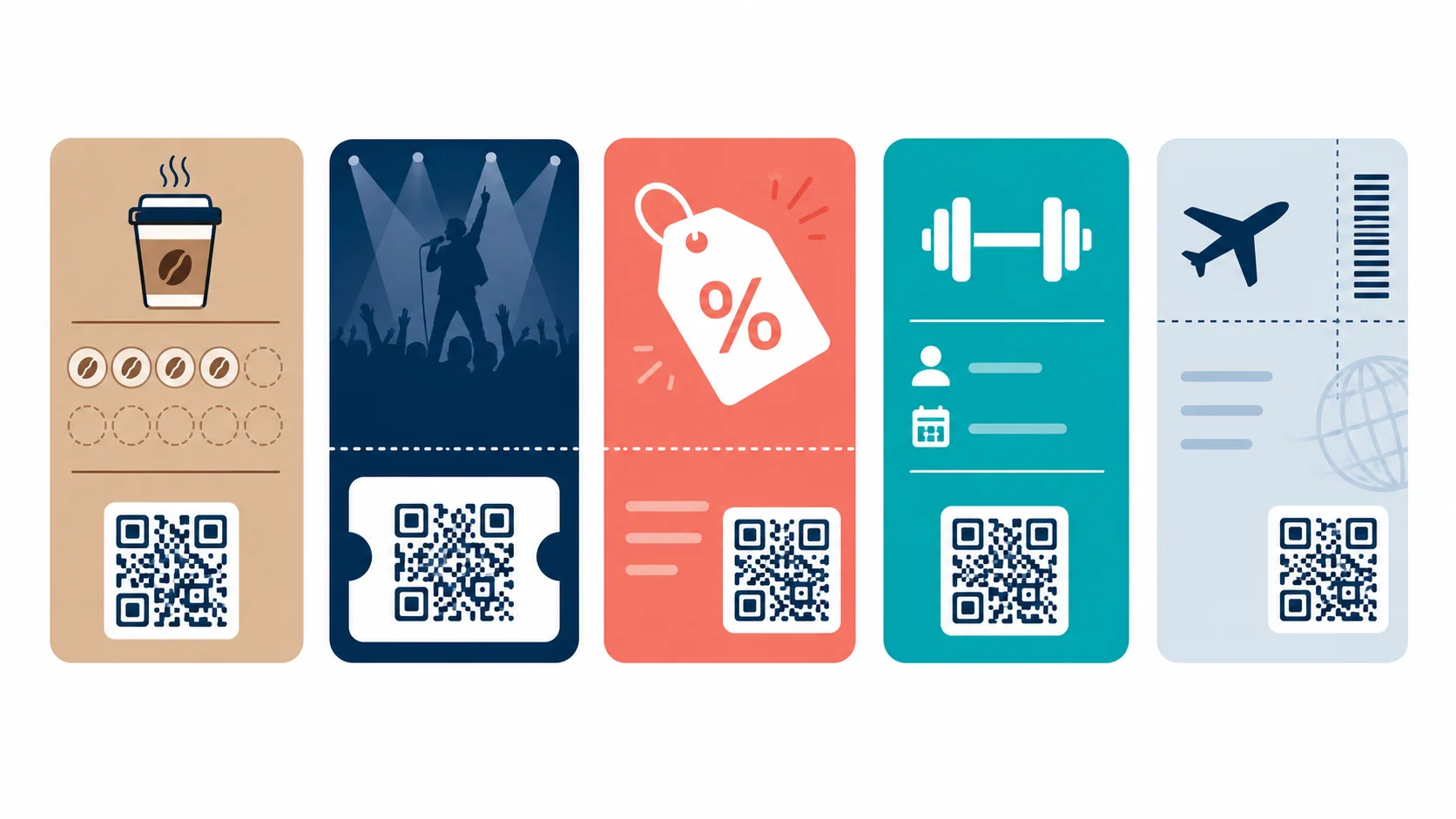
1. Loyalty cards
A coffee shop issues a digital loyalty stamp card. The customer adds it to Apple Wallet or Google Wallet via a QR code on the receipt or a "Save to Wallet" link in a confirmation email. The pass displays their current stamp count. Each visit, the barista scans the QR code on screen; the backend increments the count and pushes an update to the pass. No app download required. No paper card to lose.
According to PassKit's 2024 platform data, digital loyalty passes see a 40–60% higher retention rate than paper stamp cards — the pass lives on the device's lock screen, visible with a single tap. (Source: PassKit State of Digital Loyalty, 2024.)
2. Event tickets
An event organizer generates one pass per ticket. Each pass contains a unique QR code encoding the ticket ID. At the gate, scanners verify the ID against the ticketing database and mark it used — preventing duplicate entry. The pass can include event details (venue, time, seat number) and update automatically if the event is rescheduled. This is the same infrastructure used by Eventbrite and AXS, and it's available to independent organizers via pass-builder platforms.
3. Coupons and promotional offers
A retailer issues a 20%-off coupon as a Google Wallet offer. The pass shows the discount value and an expiry date. At checkout, the customer taps their phone and the cashier scans the QR code. The backend validates the coupon and applies the discount. Passes in a class can be updated in bulk — say, extending the expiry — without reissuing individual passes.
4. Membership cards
A gym, museum, or club issues a digital membership pass. The QR code encodes the member ID. Staff scan it at entry. The pass displays membership tier, expiry date, and member photo. When a member's tier changes, the pass updates in place — no plastic card to reprint or mail.
5. Boarding passes and transit passes
Airlines and transit authorities were the first major adopters. A boarding pass stored in Apple Wallet or Google Wallet displays the QR code (or Aztec code — airlines often prefer Aztec for its higher damage tolerance) that gate scanners read. Google has documented the transit QR code pass type in the Google Wallet API since 2023, and Apple PassKit has supported boarding passes since iOS 6.
How to create a wallet pass QR code: the practical path
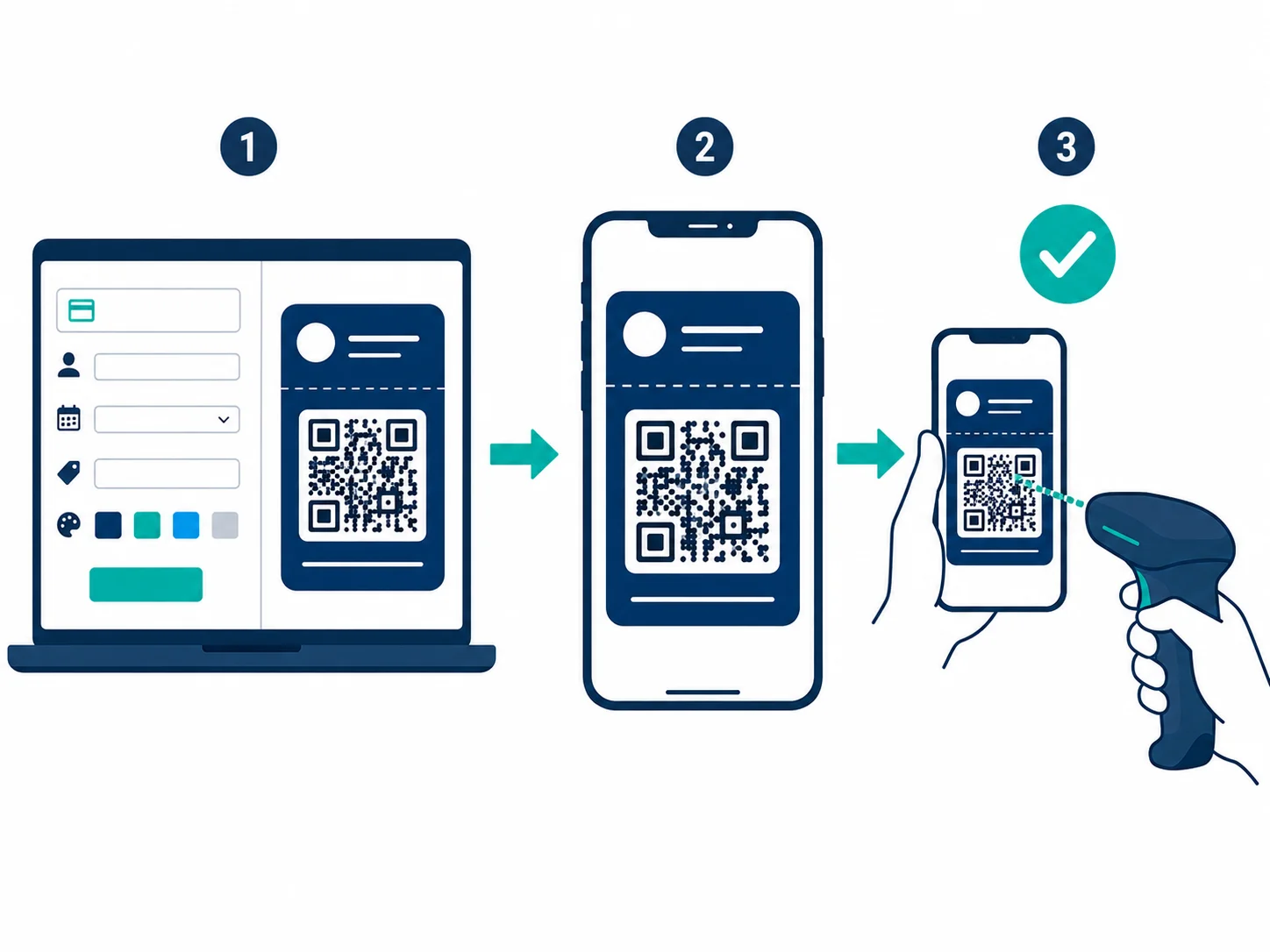
There's no single button that says "generate QR code for Apple Wallet." The process has three components: build the pass, sign it, distribute it. How each plays out depends on your technical situation.
Option A: Use a pass-builder platform (no code required)
Platforms like WalletThat, Passtastic, and Walletwallet handle pass creation, signing, and hosting. You:
- Choose a pass type (loyalty, ticket, coupon, generic).
- Upload your logo and configure pass fields (member name, discount value, event date).
- Enter the barcode value — the string that will encode into the QR code. This can be auto-generated per pass or imported from a CSV for bulk issuance.
- The platform generates a signed .pkpass file and an "Add to Apple Wallet" / "Save to Google Wallet" link.
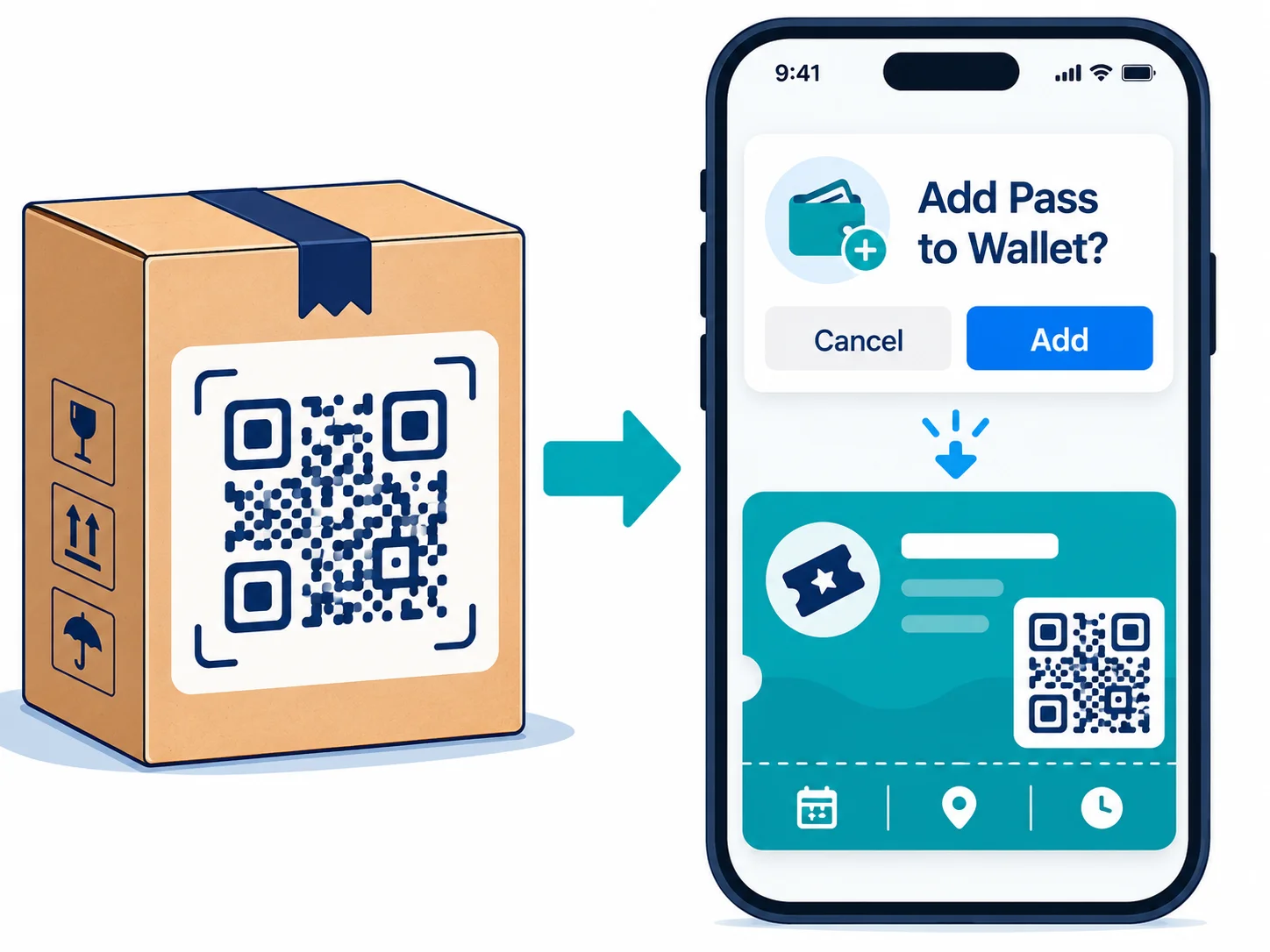
- Distribute the link by email, SMS, or a QR code printed on packaging or receipts.
Step 5 is where a regular QR code — generated with a tool like QR Nova's free generator — becomes useful: you generate a QR code that links to the pass download URL, print it on physical materials, and customers scan that code to add the pass to their Wallet. The printed QR code and the pass QR code are two different things serving two different functions.
Option B: Use the PassKit or Google Wallet API directly
For developers integrating wallet passes into an existing backend, Apple's PassKit framework and Google's Wallet API provide full programmatic control. Apple requires an Apple Developer Program membership ($99/year) to obtain a Pass Type ID certificate. Google requires a Wallet API merchant account (free to create, subject to approval). Both platforms provide detailed documentation for each pass type, including the exact JSON schema for pass fields and barcode configuration.
Option C: Third-party apps for individual users (no developer account)
If you're an individual — not a business — and you want to save a personal QR code (a gym membership barcode, a paper coupon, a conference badge) into Apple Wallet, the current path before iOS 27 is a third-party app. Pass2U Wallet is the most widely used: scan any QR or barcode, assign it to a pass template, and push the result to Apple Wallet. The free tier covers basic generic passes; a $1.99/month Pro plan unlocks custom logos and unlimited templates. On Android, Google Wallet's native barcode-scan feature already handles this without a third-party app.
What iOS 27 changes (September 2026)
Ahead of WWDC 2026, Apple confirmed that iOS 27 will include a native "Create a Pass" feature in the Wallet app. Users can scan any QR code and create a custom Wallet pass from three templates (Standard, Membership, Event). This targets individual users and informal use cases — a handwritten loyalty card photo, a printed code for a local market — not business-grade pass issuance at scale. For professional use cases requiring backend validation and per-customer pass objects, PassKit remains the right path.
When to use a dynamic QR code alongside wallet passes
A dynamic QR code has one role in the wallet pass workflow: distributing the pass. If you're printing the "Add to Wallet" link on packaging, posters, or receipts, encoding that URL as a dynamic QR code means you can update the pass version URL without reprinting. If a new pass design supersedes the old one, update the redirect destination and existing printed materials automatically point to the new pass.
The barcode inside the pass itself is always static — it encodes a fixed identifier. Changing the barcode value inside an issued pass would require reissuing the pass object, which the PassKit or Google Wallet API handles by pushing an update, not by modifying the QR code.
For the distribution QR code specifically, using a permanent QR code from QR Nova means the redirect stays live regardless of whether you're on a paid plan — the code printed on your packaging today will still resolve three years from now, even if your pass platform changes.
How QR Nova fits into the wallet pass workflow
QR Nova doesn't generate .pkpass files or Google Wallet Objects — that's a pass-platform function. What QR Nova provides is the distribution layer: the QR code you print on physical materials that customers scan to reach the "Add to Wallet" link.
That distribution QR code is where most businesses create an unintended fragility. If the QR code on your packaging links through a platform's paid redirect service and that subscription lapses, every unit in the field becomes a dead end. With QR Nova's free generator, the static code you create never expires and has no scan limit. If you need the destination to be editable (to swap pass versions), use QR Nova's dynamic QR code with a permanent redirect — the code stays live, and you control the destination.
Troubleshooting: when a wallet pass QR code does not work
Pass QR code not recognized at the venue. Maximize screen brightness before reaching the scanner — most venue scanners are calibrated for full brightness. Glossy screen protectors scatter laser light; remove one if consistent scan failures occur. Hold the phone 15–20 cm from the scanner, steady and flat.
No "Add to Wallet" button appears after tapping the link. The device needs an active internet connection for the initial pass handshake. If the connection is weak, the pass JWT cannot be verified. Move to a better signal area and re-tap the link.
Pass added but QR code shows as invalid at scan. The QR string was validated (and likely marked as used) at a previous scan. For single-use passes, the backend marks the barcode value used on first successful read. If you believe this is in error, contact the pass issuer — the QR code itself is not the authority, the backend database is.
Can't add pass — "This pass is not valid for use with Wallet." The .pkpass file isn't signed with a valid Apple Pass Type ID certificate, or the certificate has expired. This is a pass-issuer problem, not a device problem. For businesses using a pass-builder platform, verify the signing certificate hasn't lapsed in your platform's dashboard.
Common mistakes businesses make with wallet pass QR codes
Confusing the distribution QR code with the pass QR code. These are two different codes with two different purposes. The distribution code is printed on physical materials and links to the pass download. The pass QR code is inside the Wallet app and is scanned at point of use.
Using a trial-account QR code for the distribution link. If the QR code printed on 10,000 packaging units links through a platform's paid redirect service, and that subscription lapses, every unit in the field becomes a dead end. Use a code that doesn't depend on a recurring billing relationship.
Generating one QR code for the entire customer base instead of per-customer pass objects. For validation to work correctly — especially for event tickets and single-use coupons — each customer needs a unique pass object with a unique barcode value. A single shared QR code can't be reliably validated or marked as used.
Choosing PDF417 when QR is sufficient. PDF417 barcodes are wider, lower contrast on small screens, and require a specialized scanner. Unless your validation hardware specifically requires PDF417, QR codes are the better choice for wallet passes — universally readable by any smartphone camera and most modern retail scanners.
Frequently asked questions
Can I add a QR code directly to Apple Wallet?
Not as a standalone image — Apple Wallet stores .pkpass files, which are structured pass bundles containing a barcode (QR, Aztec, or PDF417), metadata, and styling. You create a pass using a pass-builder platform or the PassKit API, then distribute it as a .pkpass file or 'Add to Apple Wallet' link. Starting with iOS 27 (expected September 2026), Apple adds a native 'Create a Pass' feature that lets users scan any QR code and turn it into a Wallet pass directly from the Wallet app.
What is the difference between a QR code and an Apple Wallet pass?
A QR code is a 2D barcode encoding any data — a URL, text, or ID. An Apple Wallet pass is a signed digital document (.pkpass) that contains a barcode (often a QR code), pass design, expiration logic, and optional location-based notifications. The QR code is the scannable component inside the pass, not the pass itself.
Does Google Wallet support QR code passes?
Yes. Google Wallet supports loyalty cards, event tickets, boarding passes, coupons, and generic passes — all of which can contain a QR code barcode. Businesses issue passes via the Google Wallet API or third-party pass platforms. Customers add them by tapping 'Save to Google Wallet' in an email, SMS, or web page.
What QR code types does Apple Wallet support?
Apple Wallet supports four barcode formats: QR code (PKBarcodeFormatQR), PDF417 (PKBarcodeFormatPDF417), Aztec (PKBarcodeFormatAztec), and Code 128 (PKBarcodeFormatCode128, iOS only — not watchOS). QR codes are the recommended format for most use cases because they are universally readable by smartphone cameras and modern retail scanners.
Do wallet pass QR codes expire?
The QR code pattern inside a wallet pass does not expire on its own — it encodes a static string (a ticket ID, loyalty member number, or coupon code). Expiration, if needed, is enforced by the backend system that validates the barcode at the point of scan, not by the QR code image itself.
Can I use a dynamic QR code inside a wallet pass?
The barcode in a wallet pass typically encodes a fixed identifier (not a redirect URL), so dynamic QR codes are rarely used inside passes. However, you can use a dynamic QR code to distribute the pass — as the link that opens the .pkpass download or the 'Add to Wallet' flow. This lets you update the destination (e.g., swap to an updated pass version) without reprinting any physical material.
What platforms can create Apple Wallet and Google Wallet passes?
Pass-builder platforms include PassKit, WalletThat, Passtastic, and Walletwallet. For Apple Wallet specifically, you need an Apple Developer account (to sign the .pkpass file with a Pass Type ID certificate) or a third-party platform that handles signing on your behalf. Google Wallet passes require a Google Wallet API merchant account.
Related articles
How to Make a QR Code (Without It Failing at Print)
How to make a QR code that actually scans: static vs dynamic, error correction, testing before you print. Free, no sign-up.
QR Code for Google Forms: Step-by-Step Guide
Create a QR code for Google Forms in under 2 minutes — free, no account, no scan limits. Step-by-step guide with size, placement, and testing tips.
QR Code for Feedback: The Complete Guide
How to make a QR code for feedback that people actually scan and complete. Static vs dynamic, response rate over scans, and the review-gating trap to avoid.
Create your wallet QR code — free
Get started