QR Code for Google Forms: Step-by-Step Guide
Create a QR code for Google Forms in under 2 minutes — free, no account, no scan limits. Step-by-step guide with size, placement, and testing tips.
This article was written by the QR Nova team. We build QR code software, which may inform our perspective.
Most tutorials about creating a QR code for Google Forms stop at "paste your link into a generator and download." That works, but it skips the three things that actually determine whether your code gets scanned: minimum print size, contrast requirements, and the login-screen trap that kills response rates before anyone fills out a single question. Creating a QR code for Google Forms takes under two minutes. Getting the form settings right so the code actually leads somewhere useful takes longer.
TL;DR
- Google Forms is free with no response limits. It's the right default for almost every use case.
- The QR code process: copy the form URL from the Send panel, paste into QR Nova, download PNG or SVG, test before printing.
- Most codes fail because the form requires a Google account login or the printed code is too small (under 1 inch).
- A static QR code from QR Nova works permanently: no subscription, no redirect server, no scan cap.
Why Google Forms Is the Right Tool for QR Code Surveys
Try it now — no sign-up needed
Get startedA Google Forms QR code is a standard QR code that encodes your form's URL. Scanning it opens the form directly on the respondent's phone: no typing, no app required, no friction. The QR code itself has no intelligence. It is a machine-readable URL and nothing more.
Google Forms has no response limits on any plan. You can collect 10 responses or 10,000 with the same free account. That's a genuine differentiator: as of 2025, Typeform's free plan caps responses at 10 per month across all forms, and SurveyMonkey's free plan limits data export entirely, requiring a paid subscription to download results as CSV. For a QR code for Google Forms printed on physical media (receipts, table cards, event handouts), Google Forms is the only major platform where you won't hit an invisible wall mid-campaign.
The form URL Google assigns is also permanent. Unlike some survey platforms that use session-based or account-specific URLs, a Google Form URL stays constant for the lifetime of the form. A QR code for Google Forms printed today will still work two years from now, as long as the form exists in your Google account.
Step-by-Step: Creating a QR Code for Google Forms
To create a QR code for Google Forms: open your form, click Send, copy the link, paste it into QR Nova's free generator, and download as PNG or SVG. The entire process takes under two minutes. The steps below cover each stage with the settings that matter.
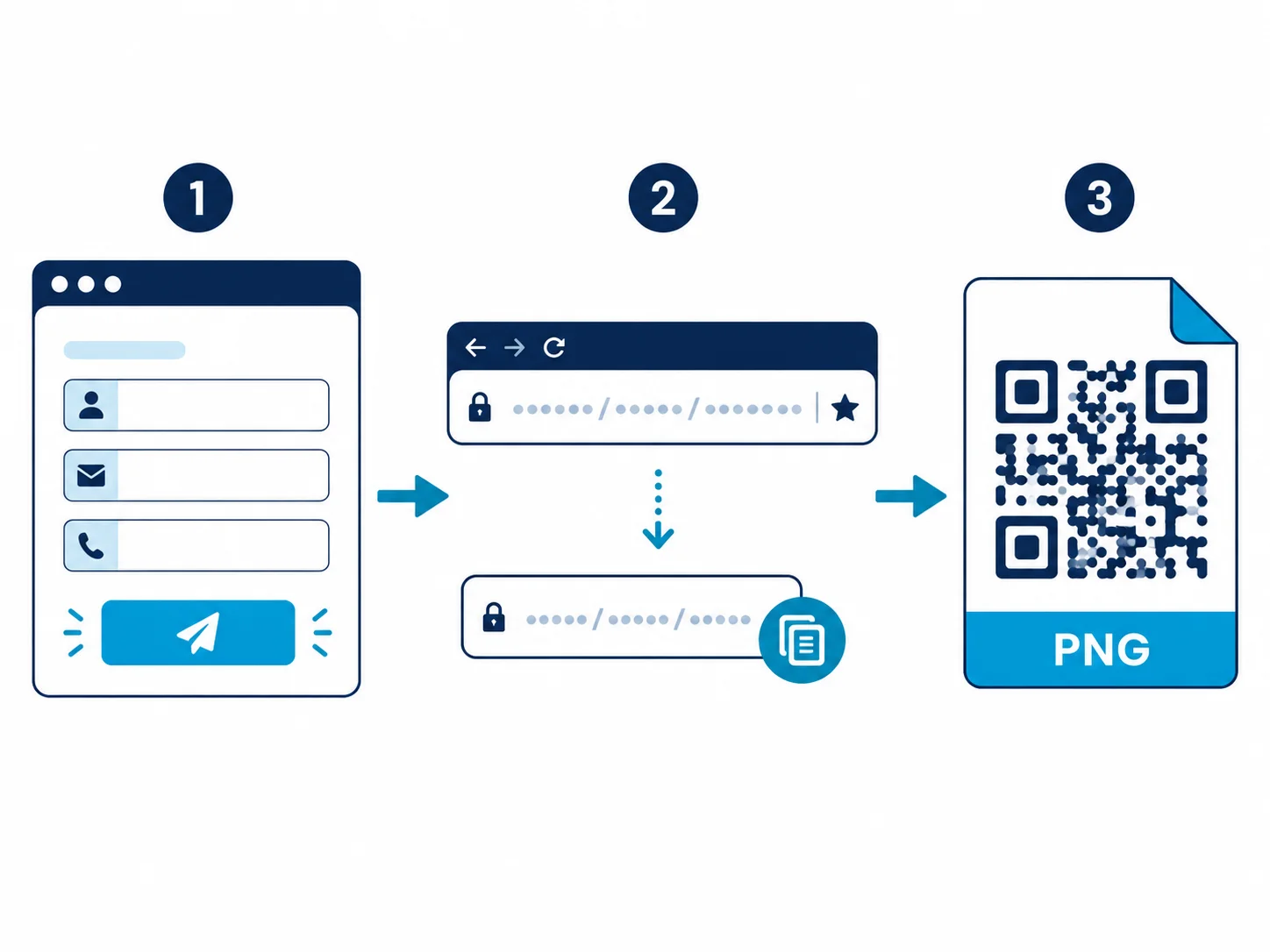
Step 1 — Build and configure your form
Go to forms.google.com and create your form. Before generating the QR code, check one setting that most people miss: open Form settings and look at who can fill it in. If "Restrict to users in [your domain]" is checked, only people with a Google account in your organization can respond. Anyone who scans the QR code on a personal device will see a login screen, not your form. For public QR code distribution, leave this unchecked and select "Anyone with the link" can respond.
Also preview the form on mobile before generating the code. Click the eye icon in the top-right to see the mobile view. A form that looks clean on desktop can have a 200px header image that pushes the first question below the fold on a phone. Every extra scroll is a small abandonment risk.
Step 2 — Get the shareable URL
Click Send in the top-right corner of the form editor. In the Send via panel, click the link icon (the chain symbol). Google shows your form's URL, something like https://docs.google.com/forms/d/e/[long-id]/viewform. Click "Shorten URL" to get a compact forms.gle/xxxxx version. Either works for a QR code. The shorter version produces a slightly less dense code, which scans more reliably at small print sizes. Copy the URL.
Step 3 — Generate the QR code
Go to QR Nova's free generator and paste your Google Form URL into the URL field. You can customize the foreground color to match your brand; keep the contrast ratio above 4:1 between the code modules and the background (dark modules on a light background, never the reverse). Add a logo if you want, but keep it small: anything covering more than 30% of the code's area will break error correction and the code won't scan. For guidance on minimum output dimensions, see our QR code minimum size guide.
Click Generate. Download as PNG for digital use and standard print. Download as SVG if your designer or printer needs a vector file. SVG scales to any size without quality loss, which matters for posters or banners.
Step 4 — Test before printing anything
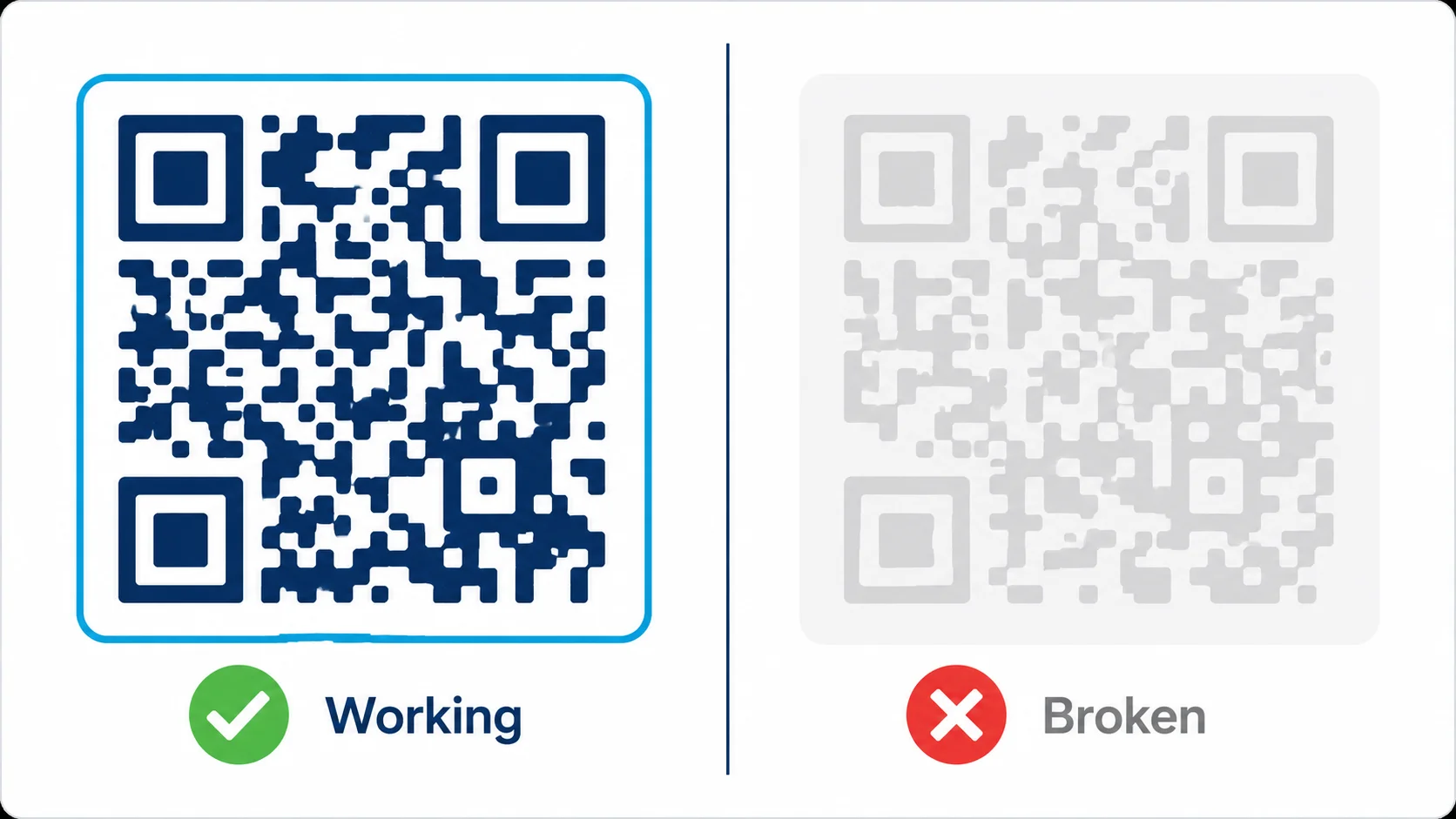
This step is the one most people skip. After downloading your QR code for Google Forms, print one copy and scan it with a phone you did not use to generate it. Check three things: the form opens (not a login screen), the first question is visible without scrolling, and the form submits successfully. If you have domain restriction enabled, test with a phone that is not logged into a matching Google account. That's what your respondent's experience actually looks like.
For receipt or packaging use, test the smallest size you plan to print. A code that scans at 2 inches may not scan reliably at 0.5 inches. Minimum reliable print size is 1 inch x 1 inch (2.5 cm x 2.5 cm) for most phone cameras under average indoor lighting.
QR Code Size and Print Requirements for Google Forms
Size is not aesthetic. It's functional. A QR code that is too small fails to scan, and no amount of good placement recovers from that. The modules (the small black squares that make up the code) must be large enough for a phone camera to focus on and decode.
- Business cards and small inserts: 1 inch x 1 inch minimum (2.5 cm x 2.5 cm). This is the practical floor. Below this, cheap or older phone cameras will fail intermittently.
- Flyers and table cards: 1.5 to 2 inches (4–5 cm). Gives comfortable scanning margin in varying light conditions.
- Posters and signage: Scale the code so it is at least 10% of the poster's shorter dimension. A code on an A2 poster should be at least 42 mm across.
- Quiet zone (white border): Leave a margin around the code equal to 4 modules wide on all sides. Many print designers clip this and break the code.
The URL length affects code density. A long Google Forms URL (docs.google.com/forms/d/e/[128-char-id]/viewform) generates a denser code than the shortened forms.gle/xxxxx version. At small print sizes, use the shortened URL. At large sizes, it makes no practical difference.
Common Failure Modes (and How to Avoid Them)
Here is what actually goes wrong when you create a QR code for Google Forms correctly but miss a detail:
The login-screen trap
This is the most common failure. A teacher prints 30 copies of a QR code handout. Students scan it and see a Google sign-in screen. The form requires a school Google account to access, but the phones are personal devices not signed into that account. Zero responses. Fix: in Form Settings, under Responses, set "Who can fill in this form" to "Anyone with the link."
Low-contrast code on a colored background
A teal QR code on a navy background looks on-brand and does not scan. Phone cameras use contrast detection to find QR code boundaries. WCAG contrast ratio guidance (4.5:1 for text) is a useful benchmark for QR modules too. If you're placing a code on a colored background, add a white border and keep the modules dark.
Logo-heavy codes that break error correction
QR codes have built-in error correction that lets them remain readable even with some damage, but that correction has limits. Logo overlays covering more than 30% of the code surface will exceed those limits and produce a code that looks fine but does not scan. QR Nova caps logo size automatically during generation.
Printing on glossy materials without a matte section
Receipts are often glossy thermal paper. A QR code printed on a glossy surface under overhead store lighting reflects directly into the phone camera lens. Either print the code in a slightly recessed area, use matte stock for the code section, or place a short instruction ("Hold phone steady, avoid direct light") near the code.
Three Real-World Use Cases at Different Scales
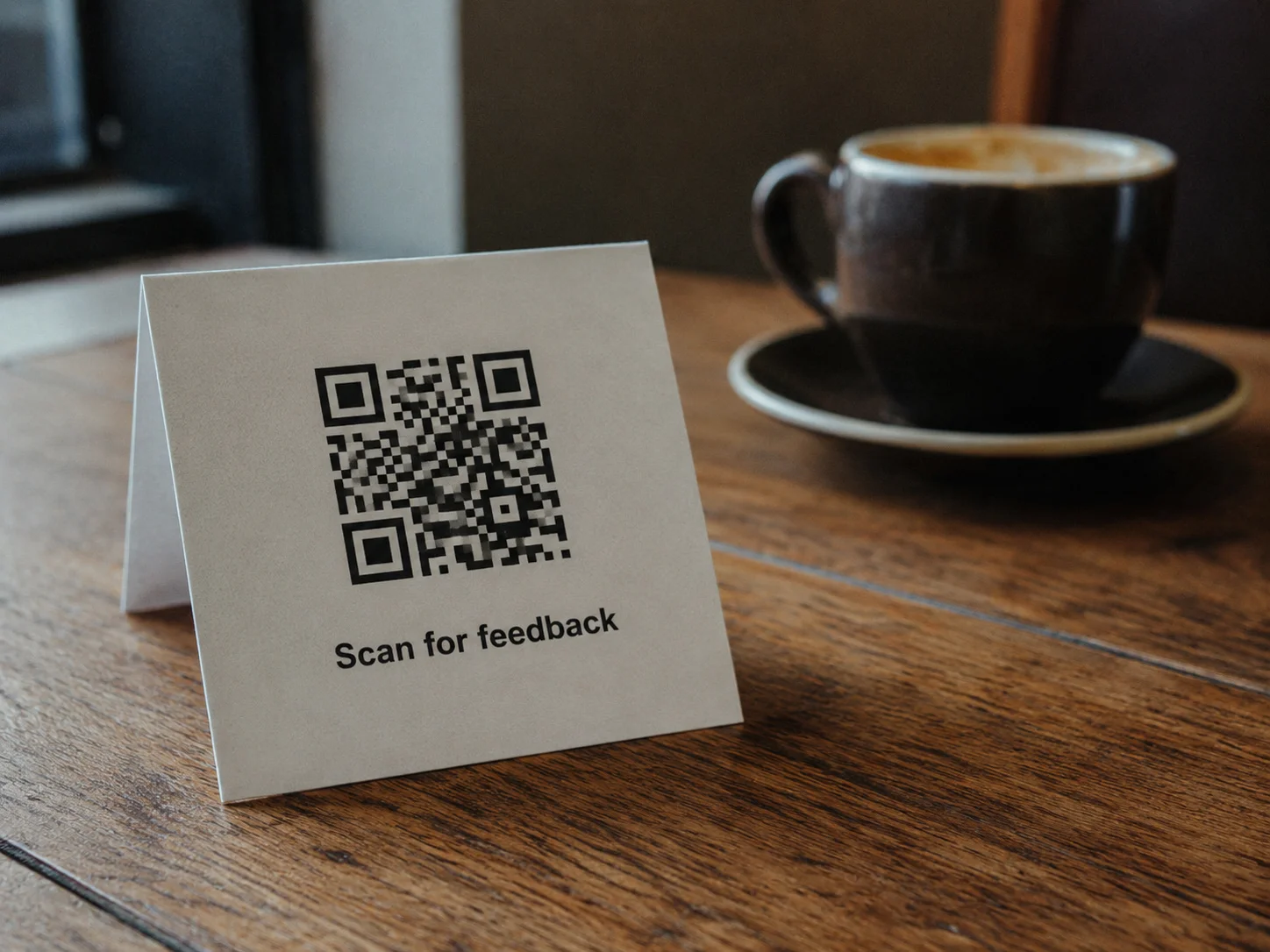
Classroom feedback (low complexity)
A teacher wants end-of-lesson feedback from 28 students. Google Forms, 3 questions, anonymous, no Google account required to fill in. QR code printed on the last slide of the lesson presentation and on a paper handout (two placements, for redundancy). Total setup: 8 minutes. Total cost: zero. The static QR code works indefinitely as long as the form exists in the teacher's account. For patterns specific to collecting feedback, see our QR code for feedback guide.
Event registration or check-in (mid complexity)
A conference organizer wants attendees to self-register via QR code at the entrance. Google Form with name, email, and session selection fields. QR code printed on a large-format banner (12 inches across) at the registration table. Responses feed into a Google Sheet for real-time attendance tracking; Google Forms exports to Sheets automatically. No third-party survey platform needed, no paid plan, no scan limits regardless of how many people attend.
Multi-location retail feedback (high complexity)
A retail chain with 12 locations wants ongoing NPS collection from in-store customers, with location-level segmentation. One Google Form with a dropdown for location selection. Single QR code on receipt rolls printed for all locations. Responses land in one Sheet, filterable by location column. For more granular tracking, create a separate form per location (or use UTM parameters on the URL) and print location-specific codes. Total platform cost: zero. The complexity is in form design and Sheet analysis, not in the QR code itself.
When a Google Form QR Code Won't Work
This approach has real limits. Better to know them before you print anything.
You need scan analytics. A static QR code encodes a URL and has no server-side component. It cannot log who scanned it, when, or from where. If you need scan count data separate from form response count, use a dynamic QR code from a platform that logs scans, or add UTM parameters to your form URL and connect Google Forms to Google Analytics via Google Tag Manager. Neither option is particularly complex, but neither is built into a plain static QR code.
The form URL needs to change after printing. Static QR codes encode the URL directly, so changing the destination means printing a new code. If you plan to swap the survey after printing materials (switching from a pre-event form to a post-event form, for example), use a dynamic QR code from the start. Our guide to QR code surveys covers the dynamic vs. static trade-off in more detail.
Respondents are unlikely to have a smartphone. Older demographics in some contexts (retirement communities, certain healthcare settings) have lower smartphone ownership. Printed URLs with short domains are more accessible in those cases.
Static vs Dynamic QR Code for Google Forms: Which to Use
For most Google Forms, a static QR code is the right choice — the form URL never changes, so the code works permanently with no server dependency. Reach for a dynamic code only when you specifically need to swap the destination after printing or log scans separately from form responses. The table below covers the decision in one glance.
| Factor | Static QR code | Dynamic QR code |
|---|---|---|
| Best for | Fixed Google Form, permanent print (receipts, signage, handouts) | Form URL that may change after printing |
| Editable after printing | No — encodes the URL directly | Yes — redirect target can be swapped |
| Scan analytics | None built in (use UTM + Google Sheets) | Scan counts, time, location logged |
| Server dependency | None — self-contained image | Relies on a redirect server staying live |
| Cost | Free, no account, no expiry | Often subscription-gated with scan caps |
Because a Google Form URL is permanent, the static column wins for the overwhelming majority of real cases. If you do need analytics, appending UTM parameters to the form URL keeps the code static while still segmenting responses in Google Sheets.
How QR Nova Generates a QR Code for Google Forms
At QR Nova, a static QR code for Google Forms encodes your form URL directly into the image using the ISO/IEC 18004 standard. There is no redirect server, no scan counter, no subscription managing the connection between the code and the form. The code is a self-contained image that works on any QR code scanner, on any device, indefinitely.
That permanence matters more than it sounds in print contexts. Think of a receipt roll: it sits in a printer cartridge for 6 to 12 months before the paper is replenished. A code that depends on a redirect server from a platform that could change plans or shut down is a real liability in that context. A code that just is the URL has no single point of failure.
No account required. No email. No credit card. Generate your QR code for Google Forms, download PNG or SVG, print. For more on why this matters in physical media, see our permanent QR codes page.
Frequently asked questions
How do I create a QR code for a Google Form?
Open your Google Form, click Send, then the link icon, and copy the URL. Paste that URL into QR Nova's free generator at qrcodenova.com/en/qr-code-generator, customize colors if needed, and download as PNG or SVG. No account required and the code never expires.
Do I need a paid plan to create a QR code for Google Forms?
No. Google Forms is free with no response limits, and QR Nova's generator is free with no account required. A static QR code encodes your form URL directly — no subscription, no redirect server, no scan cap.
What size should a Google Forms QR code be for printing?
Minimum 1 inch x 1 inch (2.5 cm x 2.5 cm) for business cards and small inserts. For flyers and posters, 1.5 to 2 inches (4–5 cm) is more reliable. At smaller sizes, low-end phone cameras struggle to focus on the fine modules of a dense QR code.
Can I update a Google Form QR code after printing?
Not if you printed a static QR code — changing the form URL requires a new code. However, the Google Form URL itself is permanent and never changes, so if your form content changes but the URL stays the same, your printed QR code still works.
Why is my Google Form QR code not working?
The most common causes are: the form requires a Google account login (the scanner sees a login screen, not the form), the QR code is printed too small to scan reliably, or the contrast is too low (light gray code on white background). Test with a phone you did not use to generate the code.
Should I use a static or dynamic QR code for Google Forms?
Static for most cases — Google Form URLs never change, so a static code works permanently. Use a dynamic QR code only if you plan to swap the form URL after printing, which is uncommon since Google Forms lets you edit questions without changing the URL.
How do I track how many people scanned my Google Form QR code?
A static QR code has no tracking built in. For scan analytics, use a dynamic QR code from a platform that logs scans. Alternatively, append UTM parameters to your Google Form URL (e.g., ?utm_source=flyer) and use Google Forms' response metadata plus Google Analytics if your form is linked to Google Sheets.
Related articles
QR Code for Surveys: Step-by-Step Guide
QR code survey setup for Google Forms, Typeform, and SurveyMonkey — with real platform limits, print use cases, and when QR surveys fail.
QR Code for Posters: Size, Placement & Print Guide
How to add a QR code to a poster that actually gets scanned — distance-based sizing, placement, contrast, and a clear call to action. Free, no account needed.
QR Code for Feedback: The Complete Guide
How to make a QR code for feedback that people actually scan and complete. Static vs dynamic, response rate over scans, and the review-gating trap to avoid.
Try it now — no sign-up needed
Get started