QR Code for Surveys: Step-by-Step Guide
QR code survey setup for Google Forms, Typeform, and SurveyMonkey — with real platform limits, print use cases, and when QR surveys fail.
This article was written by the QR Nova team. We build QR code software, which may inform our perspective.
Most guides on QR code for surveys tell you to "copy your survey link and paste it into any QR generator." That gets you a working code. It doesn't tell you that Typeform's free plan stops collecting responses after 10 per month, that SurveyMonkey locks your data export behind a paid tier, or that QR surveys placed on waiting-room brochures get roughly the same response rate as a cold email. A QR code for surveys works when it captures feedback at the exact moment of the experience, not before or hours later, and when the survey has fewer than 5 questions. The platform you use determines what's free, what's permanent, and what hidden wall you'll hit first.
TL;DR
- Google Forms is the only major survey platform with no response limits on the free tier — the right choice for most use cases.
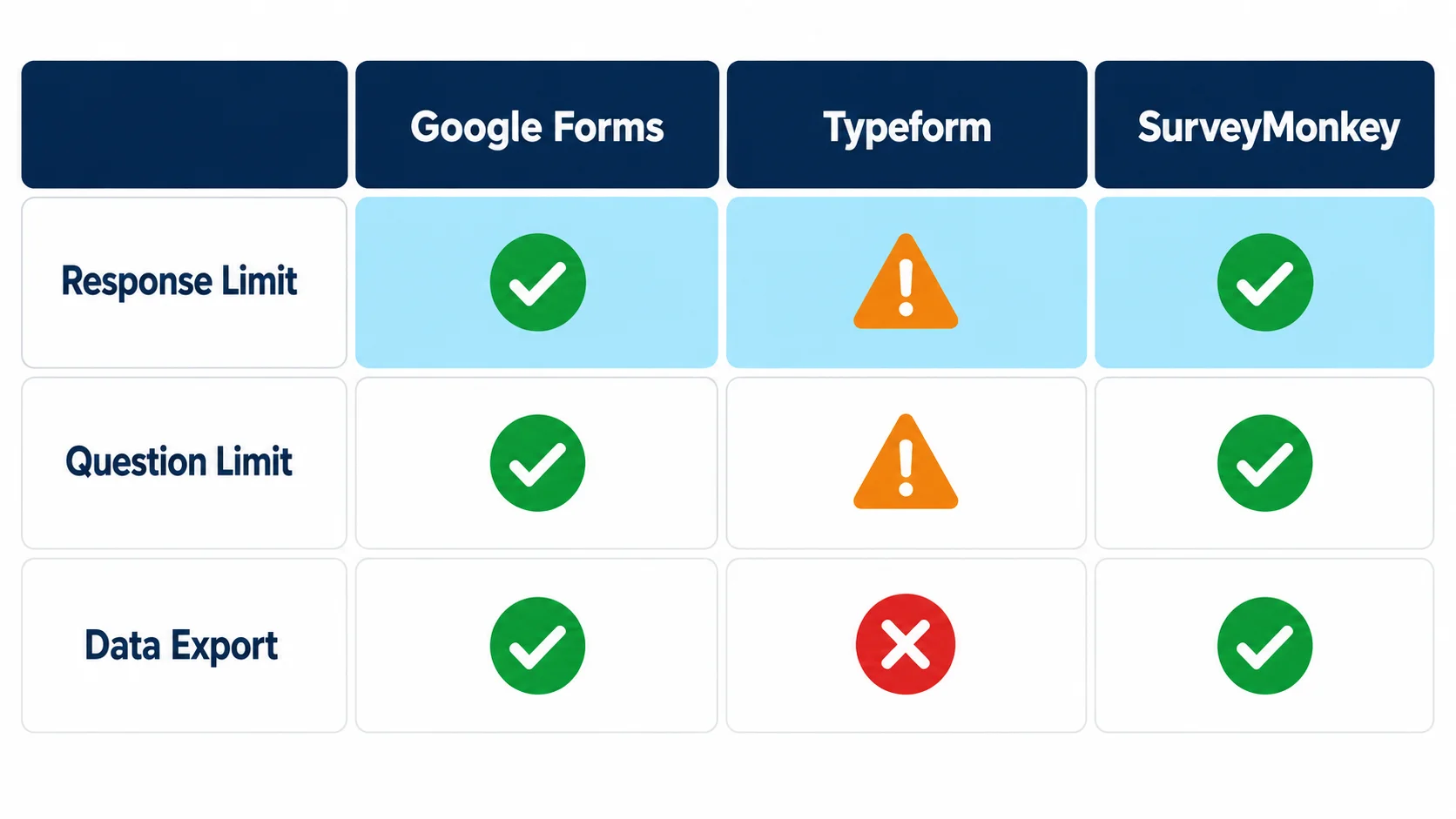
- Typeform free = 10 responses/month; SurveyMonkey free = 10 questions and 40 responses per survey (as of May 2026).
- QR code surveys outperform email surveys when placed at the point of experience — not in follow-up materials.
- A static QR code at QR Nova links directly to your survey URL, never expires, and requires no account or scan limits.
How QR Code Surveys Actually Work
Try it now — no sign-up needed
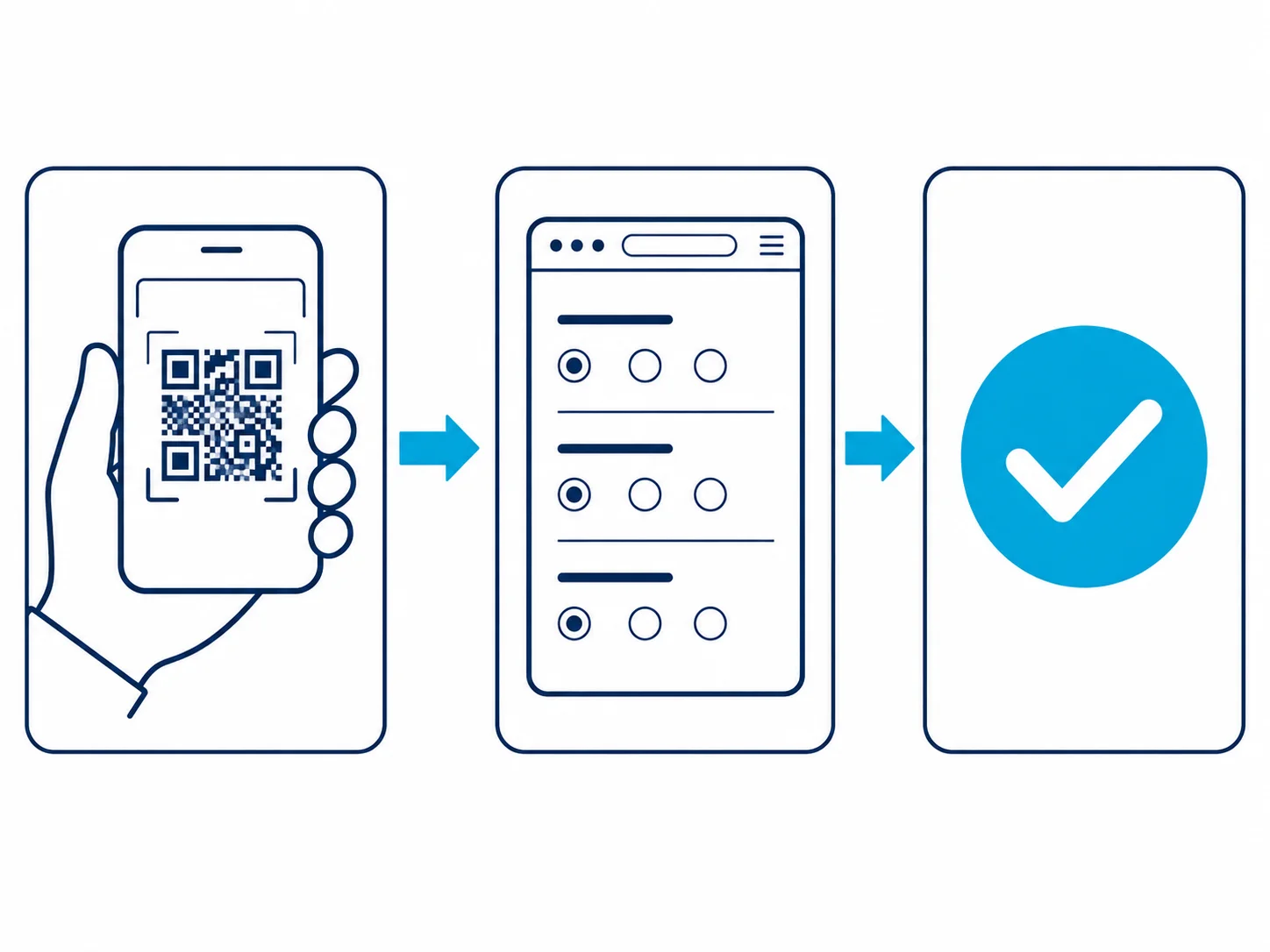
Get startedA QR code survey is a standard QR code that encodes your survey's URL. When someone scans it, their phone opens the survey directly — no typing, no searching, no friction. The QR code has no intelligence of its own. It is simply a machine-readable version of the link you already have.
Two things determine whether it works: the quality of the survey URL (does the form load well on mobile?) and the placement of the QR code (is the respondent at the right moment to give feedback?). A beautifully designed code on a waiting-room flyer handed out three weeks after the experience will perform worse than a plain black-and-white square on a receipt handed over right now.
Step-by-Step: Google Forms QR Code
Google Forms is the correct default for most survey use cases. Free with no response limits, no question caps, and no data export fees. Response data exports to Google Sheets in one click. For a classroom poll, a small event, or a retail feedback form with no budget, Forms is the right tool.
Step 1 — Build and publish your form
Create your form at forms.google.com. Add your questions. Click the eye icon (Preview) to confirm the form looks correct on mobile — this is the view your respondents will see. Make sure the form does not require a Google account to complete unless that is intentional.
Step 2 — Get the survey URL
Click the Send button in the top-right corner. In the Send via section, click the link icon (the chain). Google generates a URL like https://forms.gle/abc123. Copy it. If you want a shorter URL, check the "Shorten URL" checkbox — Google will give you a compact link. Either version works for a QR code.
Step 3 — Generate the QR code
Go to QR Nova's free generator. Paste your Google Form URL into the URL field. Customize the colors or add your logo if you want brand consistency. Click Generate, then download as PNG for print or SVG for scalable print production. No account required.
Step 4 — Test before printing
Before printing 500 flyers, scan the QR code with a phone you did not use to generate it. Confirm the form opens, loads quickly, and the questions are visible without scrolling past a giant header. If the form requires a Google account login, you will see the login screen instead of the form — fix that in the form settings before printing anything.
Step-by-Step: Typeform QR Code
Typeform has the best mobile UX of any survey platform. The one-question-at-a-time interface cuts abandonment on small phone screens. The trade-off: as of May 2026, the free plan caps responses at 10 per month across all your forms combined.
That limit bites harder than most people expect. Place a QR code at an event with 200 attendees and you will hit 10 responses before noon on day one. The rest of your respondents will see a "This form is closed" message. Typeform doesn't warn you in the form interface — the form simply stops accepting submissions. For anything beyond a tiny test, Typeform's Starter plan at $29/month removes the cap.
Getting the Typeform URL
Open your typeform. Click Share in the top navigation. Under the Link tab, your unique form URL appears (format: yourusername.typeform.com/to/xxxxx). Copy that URL and paste it into QR Nova's generator using the same steps as Google Forms above.
Typeform's built-in QR code
Typeform does generate QR codes natively — in the Share panel, look for the QR Code tab. Convenient, but it produces a basic unbranded image with no customization. For anything you're printing at scale, generate the code externally with QR Nova so you can match your brand colors and control the file format.
Step-by-Step: SurveyMonkey QR Code
SurveyMonkey's free plan (Basic tier) limits surveys to 10 questions and 40 responses per survey. Those constraints work for a quick NPS check or a post-event poll. The harder limitation is data portability: you cannot export responses in CSV, Excel, or PDF on the free plan. If you collect 40 responses and want to analyze the data outside SurveyMonkey's dashboard, you need a paid plan starting at $25/month (Individual Advantage, billed annually). For surveys where the data needs to leave the platform, that's a real cost to factor in before you commit.
Getting the SurveyMonkey URL and QR code
Log in and open your survey. Click the Send survey button. Choose Web link as the collector type. Your unique survey URL appears. SurveyMonkey also generates a QR code directly on this screen — click "Download QR Code" to get a PNG. As with Typeform, for custom branding or SVG output, copy the URL and generate the code at QR Nova instead.
Print Use Cases: Where to Put the QR Code
The medium matters as much as the survey. Here are the high-performing placements, with the reasoning behind each:
Receipts and packing slips
A QR code on a printed receipt captures feedback within minutes of a transaction. The customer still has the purchase fresh in mind. Response rates for receipt-based QR surveys are among the highest of any placement, often reaching 8–15% for retail and restaurant contexts — this is from Opiniator's 2024 benchmark study of 2,000+ retail feedback deployments. Post-purchase email surveys, by contrast, average 3–7% even with reminder sequences.
Table cards and tent cards
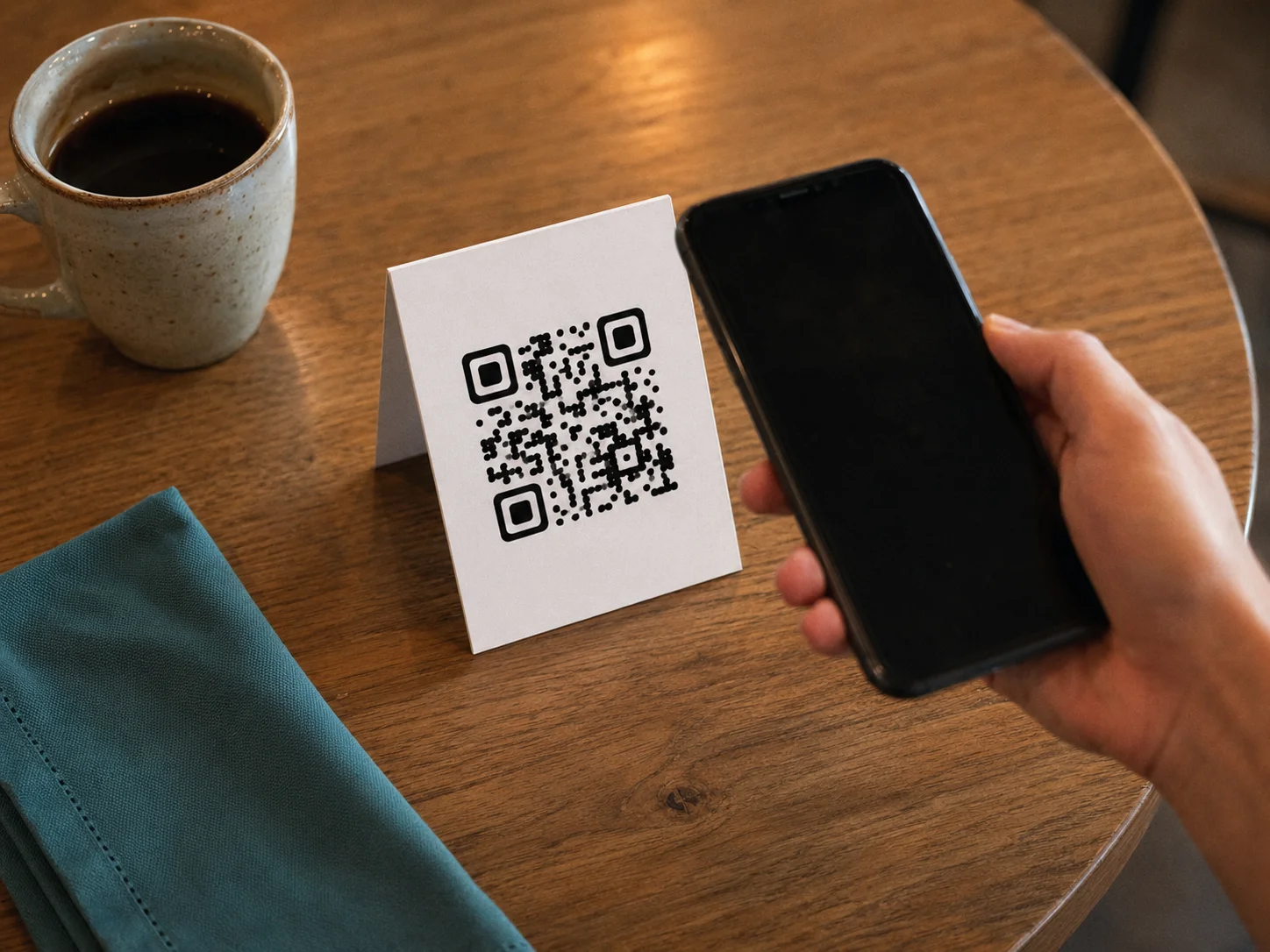
Restaurants, cafes, and hotel rooms use table cards because the respondent is literally in the experience while they see the QR code. A table card saying "Tell us how your meal is going — scan for 2 quick questions" works because the friction of scanning is lower than the friction of remembering to fill out a survey later.
Event registration desks and exit points
A QR code on a lanyard, a conference badge, or an exit sign captures post-session feedback while the session is still fresh. Place the code at the exit, not the entrance. Exit placement catches respondents as they leave — when they've formed opinions and haven't yet scattered.
Product packaging inserts
A small insert card inside product packaging with a QR code survey can capture the post-unboxing experience — the highest emotional intensity moment in the customer journey. Short surveys (2–3 questions) work best here. The respondent is engaged and curious; a 10-question form will close the tab.
Classroom and event handouts
For educators running end-of-session polls or conference speakers wanting real-time feedback, a QR code at the bottom of a printed handout works well. The respondent already has the paper. The scan barrier is minimal. Google Forms is the right tool here — no response caps, free, fast to set up.
Three Levels: Classroom Poll, Retail Feedback, Enterprise NPS
The same process looks very different at three scales:
Level 1 — Classroom poll (low complexity)
A teacher wants end-of-term feedback from 30 students. Tool: Google Forms. Survey: 4 questions, anonymous, no login required. QR code: static, generated at QR Nova, printed on the last slide of the presentation and on a paper handout. Cost: zero. Time to set up: 10 minutes. No response limits, no platform account needed, no data locked behind a paywall.
Level 2 — Retail feedback (mid complexity)
A retail chain with 8 locations wants ongoing NPS collection from in-store customers. Tool: Typeform (Starter plan, $29/month) for the mobile-optimized UI, or Google Forms with a custom theme. QR code: static, printed on receipt rolls and table cards at each location. The same QR code can serve all locations if the form includes a location dropdown. Scan data is tracked in the form responses, not the QR code. For location-specific tracking, create separate forms (and separate QR codes) per location.
Level 3 — Enterprise NPS (high complexity)
A SaaS company with 5,000 enterprise accounts wants quarterly NPS surveys triggered by sales rep visits. Tool: SurveyMonkey Advantage or Typeform Business, for Salesforce integration and response analytics. QR codes: printed on leave-behind materials, with UTM parameters appended to the survey URL so each rep's QR code tracks to their book of business. This requires dynamic QR codes (to update UTM parameters after printing) or pre-printed static codes per rep. The tracking happens at the survey platform level, not the QR code level — QR codes are the delivery mechanism, not the analytics layer.
The Counterintuitive Truth About QR Survey Response Rates
Every QR code survey guide claims QR codes "dramatically increase response rates." The actual data is more complicated.
A 2022 peer-reviewed study published in Survey Methods: Insights from the Field tested QR codes in mail surveys and found a 1.4 percentage point improvement — statistically significant but not dramatic. A separate Gallup experiment found no significant difference in total response rates when QR code access was provided versus standard web links. A 2024 U.S. Census Bureau working paper on QR code survey usability noted that QR codes served as an alternative access channel rather than a response-rate booster.
The improvement is real but context-specific. QR codes improve response rates when they reduce friction at the point of experience — scanning a code at a restaurant table is easier than typing a URL later. They don't improve response rates when used as a replacement for other channels in delayed follow-up (like mailing a survey with a QR code instead of a web URL). In that context, QR codes add an option; they don't motivate response.
QR codes are a delivery mechanism improvement, not a motivation improvement. If the motivation to respond is there — the experience just happened, the respondent is present — QR codes significantly reduce the barrier. If the motivation is low (it's been three days, the respondent has moved on), a QR code won't help.
When QR Code Surveys Won't Work
Generic content never acknowledges its own limits. Here are the situations where QR code surveys are the wrong approach:
Poor placement — too far from the experience
A QR code on a take-home brochure, mailed newsletter, or office waiting room wall collects feedback from people who may complete it minutes, hours, or days after the experience being measured. By then, most won't bother. Placement must be at the moment of experience, not near it.
No incentive, low engagement context
If there is no reason for the respondent to complete the survey — no intrinsic motivation (I want to give feedback), no extrinsic motivation (I get a discount) — QR codes will not generate responses. The scan barrier has been eliminated. The motivation barrier has not. A QR survey with no incentive in a low-engagement context will get near-zero completion.
Low-traffic locations
A QR code in a location with minimal foot traffic produces minimal responses. Volume matters. A code with 10 scans/day and 20% completion gives you 2 responses/day. Before scaling print materials, validate the scan volume is sufficient for your sample size requirements.
Long surveys on mobile
Every additional question after the fifth drops completion rate. A 15-question survey accessed via QR code on a phone is nearly always abandoned before completion. QR code surveys must be designed for mobile-first, fast completion. If your research requires depth, QR code distribution is the wrong channel — use email with a desktop link.
How QR Nova's Permanent Static Codes Work for Surveys
Most QR code platforms that offer survey-specific features are selling you a dynamic QR code: a redirect that passes through their servers. That means your survey QR code depends on their platform staying active and your subscription staying current.
For survey use cases where the form URL is stable (Google Forms, for example, never changes a form's URL), a static QR code is the better choice. At QR Nova, a static QR code encodes your survey URL directly in the image. No redirect. No server dependency. No scan limits. No platform subscription. Print 1,000 receipt rolls today and those codes will still work in three years, regardless of what happens to QR Nova or any other platform.
The free generator at QR Nova requires no account, no email, and no credit card. Generate your code, download as PNG or SVG, and print. The code has no expiry and no scan cap.
If you need to update your survey URL after printing — switching from an old Typeform to a new one, for example — that's when a dynamic QR code makes sense. Our permanent QR code guide explains when static codes are the right choice and when the flexibility of dynamic redirects justifies the platform dependency.
Generate Your Survey QR Code — Free, Right Now
The process takes under two minutes. Go to qrcodenova.com/en/qr-code-generator, paste your survey URL (from Google Forms, Typeform, SurveyMonkey, or any other platform), adjust the colors if you want, and download. No account. No sign-up. No scan limits, ever.
Print it on a receipt, a table card, a product insert, or a handout. Test with two phones before printing at volume. Keep the survey under 5 questions. Place it at the moment of experience, not hours later.
Frequently asked questions
How do I create a QR code for a Google Form survey?
Open your Google Form, click Send, then the link icon, and copy the URL. Paste that URL into QR Nova's generator at qrcodenova.com/en/qr-code-generator, customize if needed, and download as PNG or SVG. No account required.
Do QR code surveys get better response rates than email surveys?
It depends on the context. A 2022 peer-reviewed study in Survey Methods: Insights from the Field found only a 1.4 percentage point boost from QR codes in mail surveys. However, for point-of-experience feedback — like a receipt or a table card right after a meal — QR codes dramatically outperform delayed email outreach because they capture respondents while the experience is fresh.
What are the free plan limits on Typeform and SurveyMonkey?
As of May 2026, Typeform's free plan allows 10 responses per month across all forms, with a 10-question limit per form. SurveyMonkey's free plan limits you to 10 questions per survey and 40 responses per survey. Google Forms has no response limits on any plan.
Should I use a static or dynamic QR code for my survey?
For a permanent survey (always collecting feedback), a static QR code is simpler and free — no platform required. For a time-limited campaign where you may want to swap the survey URL after printing, use a dynamic QR code so you can update the destination without reprinting materials.
Where should I place a QR code survey for best results?
Place QR codes at the exact moment and location of the experience you want feedback on — restaurant table cards, event registration desks, product packaging inserts, or near checkout counters. Placement in low-traffic areas or on materials people take home and forget produces very low completion rates.
Can a QR code survey expire?
The QR code itself does not expire if it's a static code linking directly to your survey URL. However, the survey platform may take the form offline, or a dynamic QR code may deactivate if you stop paying for the platform that manages the redirect. For permanent, platform-independent surveys, use a static QR code pointing directly to your form URL.
How many questions should a QR code survey have?
Keep it to 3–5 questions for maximum completion rates. Every additional question after the 5th drops completion meaningfully — especially for mobile respondents who scan a code and complete the survey on a phone. For NPS surveys, 2 questions (score + open comment) is the sweet spot.
Related articles
QR Code for Google Forms: Step-by-Step Guide
Create a QR code for Google Forms in under 2 minutes — free, no account, no scan limits. Step-by-step guide with size, placement, and testing tips.
QR Code for Feedback: The Complete Guide
How to make a QR code for feedback that people actually scan and complete. Static vs dynamic, response rate over scans, and the review-gating trap to avoid.
QR Code for Coupons: The Complete Guide
How to make a QR code coupon that you can edit after printing, track redemptions, and stop people from sharing. Free generator, no account.
Try it now — no sign-up needed
Get started