QR Code Not Working on iPhone? 6 Fixes That Work (2026)
QR code not working on iPhone? Fix the Settings toggle, HTTPS requirement, contrast rules, and 3 more iPhone-only failure modes. Fix it in 60 seconds.
This article was written by the QR Nova team. We build QR code software, which may inform our perspective.
Most guides about QR codes not working give you the same 10-step list regardless of device. That's the wrong approach. iPhone has six failure modes that don't exist on Android — and every one of them requires a different fix. Here's what actually goes wrong on iOS, verified against iOS 17 and iOS 18.
If your QR code is not working on iPhone, the cause is almost certainly one of six iOS-specific issues: the Camera's scan toggle is off, the destination URL is HTTP not HTTPS, the code's contrast is below iPhone's stricter threshold, you're running iOS 10 or older, a third-party scanner is mishandling the format, or iOS 16+ Safari's Intelligent Tracking Prevention is cutting the redirect chain.
TL;DR
- First check: Settings > Camera > "Scan QR Codes" toggle must be ON (iOS 11+)
- QR codes pointing to HTTP URLs will be blocked by iOS Safari — destination must be HTTPS
- iPhone's native decoder is stricter on contrast than Android; dark-on-dark codes that Android reads, iPhone won't
- "Works on Android, not iPhone" almost always means contrast or HTTPS — not a broken code
- Third-party QR scanner apps on iOS are less reliable than the built-in Camera app for standard URL codes
Fix 1: Enable the Scan QR Codes Toggle in Settings
Generate a QR code that works on iPhone
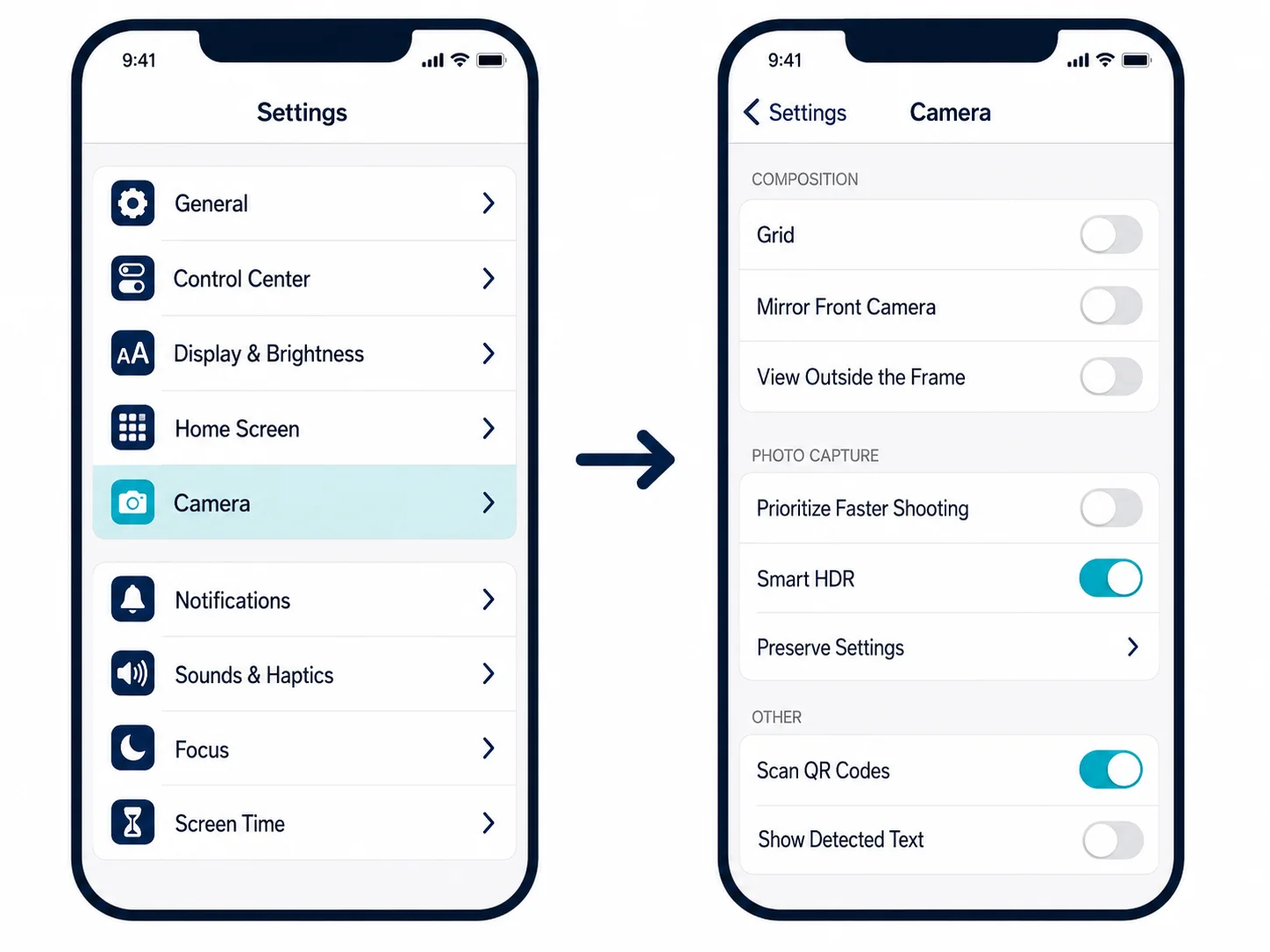
Get startedThis is the most common cause of QR codes not working on iPhone, and the most overlooked. When Apple introduced native QR scanning in iOS 11 (September 2017), they added a dedicated toggle buried in the Camera settings — off by default on some iOS configurations.
The exact path: Settings > Camera > Scan QR Codes. Toggle it on. No app download, no restart.
Apple reorganized the Camera settings in iOS 15 but kept the toggle in the same spot. If you upgraded from iOS 14 and your Camera app stopped recognizing QR codes, this is the first place to check.
Once enabled, scanning is passive. Open the Camera app (not a third-party scanner), point at the code, and a notification banner appears at the top of the screen. Tap it to open the link. No photo, no button.
Fix 2: HTTPS Is Not Optional on iOS Safari
iPhone's Camera app scans the code fine, but iOS Safari blocks the destination. Chrome on Android handles HTTP URLs without complaint — Safari doesn't.
On iOS 15 and later, Safari treats HTTP destinations from QR codes like any other insecure connection. Depending on your iOS version and Safari settings, you'll get a warning page, a failed automatic redirect, or (in enterprise configurations) a complete block.
The fix is in the QR code, not the phone. The destination URL must use HTTPS. If you created a QR code pointing to http://yourdomain.com, recreate it pointing to https://yourdomain.com. Static QR codes encode the URL directly, so updating the destination means creating a new code. Dynamic QR codes let you change the destination URL without reprinting — one reason dynamic codes are more practical for anything printed at scale.
If you didn't create the code and the destination is genuinely HTTP-only, there's no phone-side workaround. The problem lives at the source.
Fix 3: Low Contrast — iPhone's Decoder Is Stricter Than Android
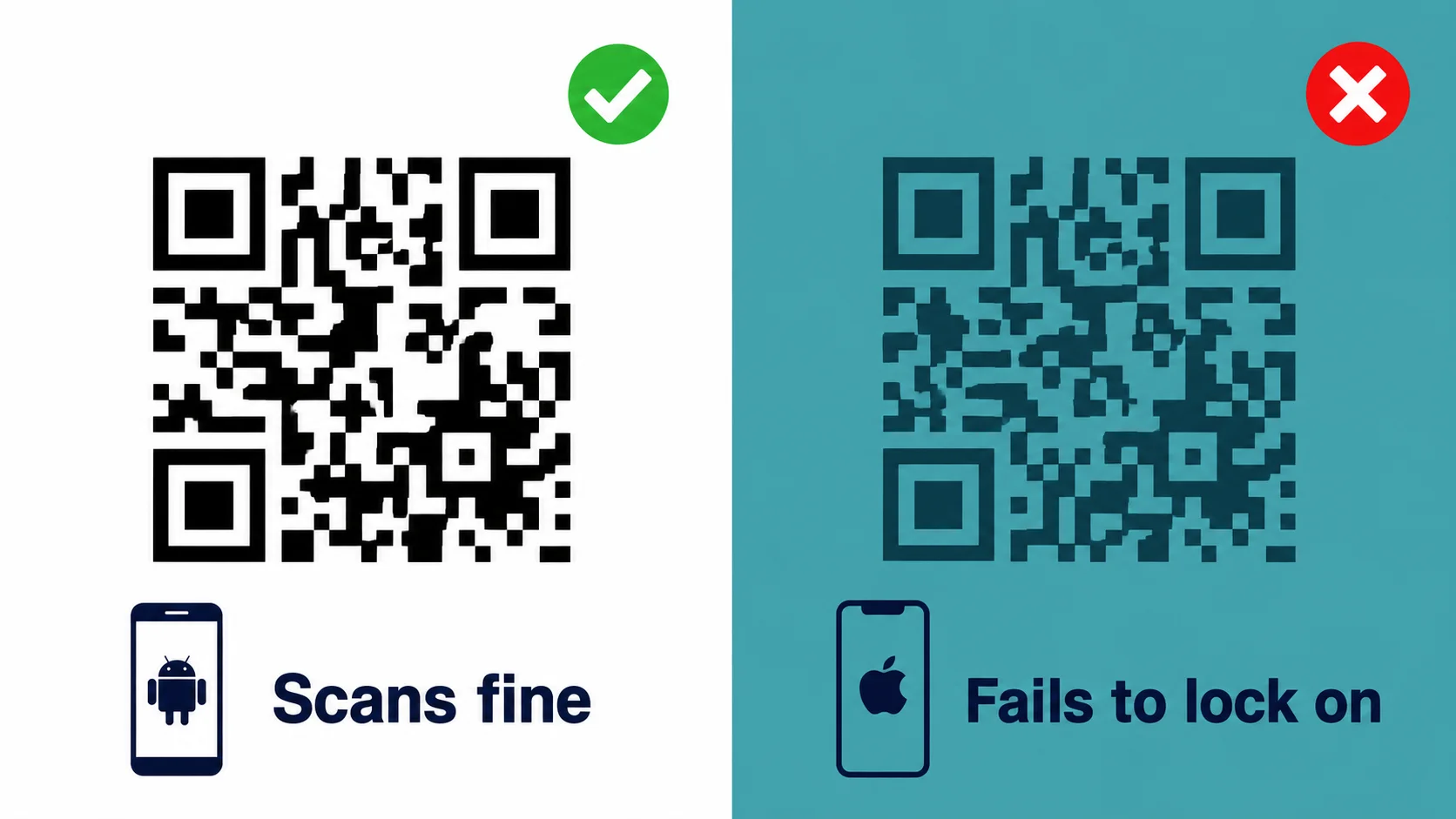
Same QR code. Scans instantly on Android. iPhone Camera won't lock on. The code isn't broken — the difference is decoder strictness.
iPhone's native QR decoder enforces higher contrast requirements than most Android alternatives, including Google Lens. A dark brown QR code on a warm beige background might clear Android's threshold at 30% contrast difference; iPhone typically needs 40–50% between the dark modules and the light background. Trendy color combinations — dark teal on light teal, dark navy on medium blue, dark maroon on light pink — fail on iPhone even when they scan fine on Android.
ISO/IEC 18004 (the formal QR code specification) recommends a minimum contrast ratio of 1:5 between dark and light elements. Most Android decoders are more lenient. iPhone is not.
To verify this is your problem: if the code scans on Android but not iPhone, and there's no HTTPS issue, contrast is the culprit. Regenerate with a black-on-white scheme, or push the contrast ratio up significantly. If the code has a center logo, check it covers less than 30% of the total code area — beyond that, error correction can't compensate.
The "Works on Android, Not iPhone" Rule
When someone says their QR code works on Android but fails on iPhone, check contrast first, HTTPS second. It's rarely anything else. The iPhone Camera app isn't less capable than Android — it applies a stricter interpretation of the QR standard, which means fewer misreads but a lower tolerance for borderline codes. That's a deliberate tradeoff, not a bug.
Fix 4: iOS 11 Is the Minimum — Older iPhones Can't Scan Natively
Native QR code scanning via the Camera app requires iOS 11 or later. iOS 11 launched September 19, 2017. Any device running iOS 10 or older has no built-in QR scanning — full stop.
This affects fewer users each year as Apple drops older hardware. An iPhone 5 (oldest device capable of iOS 11) is over a decade old at this point. But if you're troubleshooting QR issues for a fleet of older enterprise devices or a school deployment, the version floor matters.
For iOS 10 and below, a third-party QR scanner is the only path. QR Reader (by TapMedia) is the most-downloaded option with explicit support for older iOS versions.
Check your version: Settings > General > About > iOS Version.
Fix 5: Third-Party Scanners vs the Camera App — Which Is More Reliable
The native Camera app is the most reliable QR decoder on iPhone. Most third-party QR scanner apps are less consistent, not more. People install them expecting an upgrade — they usually get the opposite.
Third-party apps have inconsistent support for non-standard QR formats. App-specific deep links (like instagram:// or spotify://), data: URIs, vCard 3.0 encoded in QR, and certain proprietary encodings can confuse apps built primarily for URL scanning. The Camera app is tightly integrated with iOS's URL handling and routes each format to the correct system handler.
Where third-party apps do help:
- vCard 3.0: Some older business card QR codes encode contacts using vCard 3.0 rather than the more common vCard 2.1. The Camera app may not parse these correctly. An app like QR Reader handles the format properly.
- Custom app deep links: Codes that encode proprietary
app://URIs for specific apps sometimes need the target app's built-in scanner, not the system Camera. - Batch scanning: The Camera app logs each scan to history but doesn't bulk-process codes. Apps like QR Journal are better for sequential batch scanning scenarios.
For standard URL-based QR codes — the vast majority in the wild — delete the third-party scanner and use the Camera app. Faster, more reliable, and nothing inserted between you and the destination.
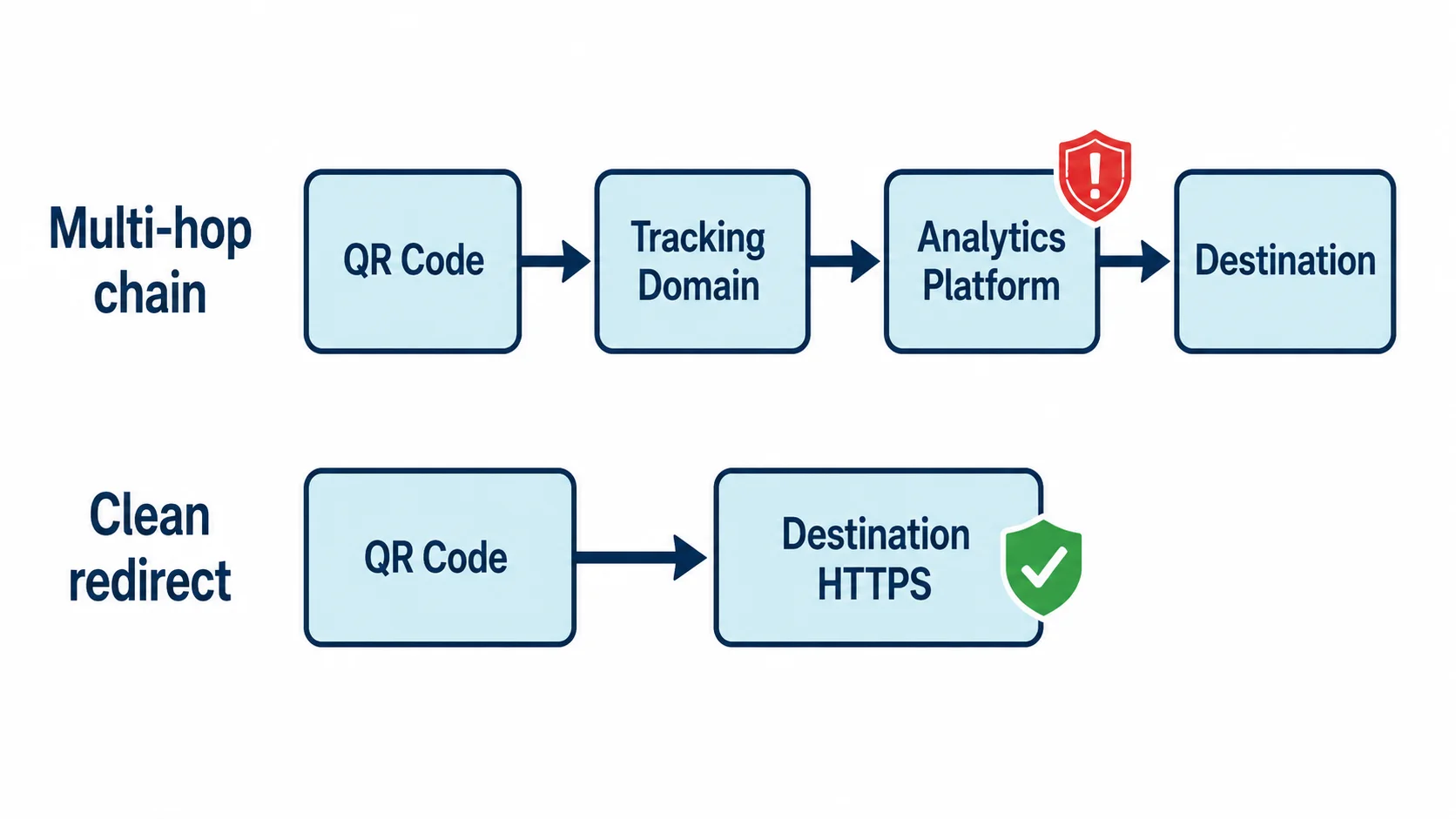
Fix 6: iOS 16+ Intelligent Tracking Prevention and QR Redirect Chains
This one is rare, but it affects a specific category: marketing links that chain through multiple tracking redirects before reaching the destination.
A typical chain: QR code URL → analytics tracking domain → campaign management platform → actual destination. On most browsers and older iOS, this works invisibly. On iOS 16+, Safari's Intelligent Tracking Prevention (ITP) — the same system that blocks third-party cookies — can cut multi-hop redirect chains where each hop crosses a domain boundary and carries tracking parameters.
When ITP triggers, Safari drops the redirect mid-chain or strips the UTM parameters the analytics platform needs for attribution. The user gets a blank page, an error, or lands at the destination with no tracking data captured.
Fix: collapse the redirect chain. Point the QR code directly to a single clean HTTPS URL. Need analytics? Append UTM parameters to the destination URL itself (https://yourdomain.com/page?utm_source=qr&utm_medium=print) instead of routing through an external tracker. One hop, ITP-safe, reliable across every platform.
Well-built dynamic QR codes use a single redirect from their short domain to your destination. That's the architecture that avoids this problem entirely.
QR Code Not Working on iPhone: Quick Diagnostic
Work through these in order. Most cases close at step 1 or 2:
- Camera app shows nothing when pointed at the code → Settings > Camera > toggle "Scan QR Codes" on
- Scan succeeds but Safari blocks or warns about the page → destination URL is HTTP; regenerate code with HTTPS URL
- Code works on Android, iPhone won't lock on → contrast issue; regenerate with black on white, or check logo coverage
- Camera app scans, link opens, page fails to load mid-redirect → ITP blocking multi-hop chain; collapse to single HTTPS redirect
- iOS version is below 11 → install a third-party scanner; native scanning is unavailable
- Using a third-party scanner app, Camera app works fine → stick with Camera app for standard URL codes
If none of the above resolves the issue, the problem is likely with the code itself — not your iPhone. The generic QR code troubleshooting guide covers seven failure modes that apply across all devices: code damage, minimum size violations, quiet zone violations, expired dynamic codes, unsupported QR variants, server errors at the destination, and encoding errors in the QR data itself.
How to Create QR Codes That Work on Every iPhone
If you're creating the codes rather than debugging someone else's, these are the iPhone-specific requirements to build in from day one:
- HTTPS destination, always. No exceptions. iOS Safari treats HTTP as a security issue.
- Black modules on white background. Any color customization reduces reliability on iPhone. If you need custom colors for brand reasons, test on iPhone specifically — not just Android — before printing.
- Single clean redirect. If you use a dynamic QR code service, verify the redirect is a single hop. Avoid routing through third-party analytics trackers as intermediate steps.
- Error correction level H. High error correction (30% module recovery) gives the iPhone decoder more data to work with and improves scan rate on slightly damaged or low-light prints.
- Adequate quiet zone. The white border around the QR code must be at least 4 modules wide. Printing the code edge-to-edge without a quiet zone breaks iPhone scanning even when the same code scans on Android.
At QR Nova, every generated code defaults to HTTPS validation, black-on-white rendering, and error correction level H — the three settings that matter most for iPhone compatibility. Dynamic codes use a single-hop redirect that doesn't trigger ITP. If you've been fighting iPhone scanning issues with codes from elsewhere, generate a replacement here. The difference usually shows up immediately.
For the physical scanning failure modes that apply regardless of device, the QR code not scanning guide covers what happens when the problem is in the print itself — size, damage, quiet zone violations — rather than the iOS layer.
Summary
Six iPhone-specific reasons. None of them appear in generic troubleshooting guides. The Settings toggle being off is the most common. HTTP destinations blocked by Safari is the most surprising. Contrast strictness is why Android reads a code that iPhone won't touch. iOS 11 is the hard floor for native scanning. Third-party scanner apps are less reliable than the built-in Camera. iOS 16 ITP can silently kill multi-hop redirect chains.
Every one of these is preventable at creation time. Create a QR code that works on iPhone from the start — free, no account required.
Frequently asked questions
Why does a QR code work on Android but not on iPhone?
iPhone's native Camera decoder is stricter than most Android alternatives — it won't scan low-contrast codes that Google Lens reads fine, and it blocks HTTP (non-HTTPS) destination URLs. If a code works on Android but fails on iPhone, contrast or HTTPS is almost always the cause.
How do I enable QR code scanning on my iPhone?
Go to Settings > Camera and toggle on 'Scan QR Codes.' This setting was introduced in iOS 11 (September 2017) and may be off by default on some configurations. Once enabled, point the default Camera app at any QR code — no third-party app needed.
Does iPhone block QR codes that go to HTTP websites?
iOS Safari shows a security warning for HTTP destinations scanned via QR code. The scan itself succeeds, but Safari flags the page as insecure and may block navigation entirely on iOS 15+. Fix: ensure the destination URL uses HTTPS.
What iOS version do I need to scan QR codes with the Camera app?
iOS 11, released in September 2017, introduced native QR scanning in the Camera app. iPhones running iOS 10 or earlier cannot scan QR codes without a third-party app. Any iPhone capable of running iOS 11+ (iPhone 5s and newer) has native scanning support.
When should I use a third-party QR scanner instead of the iPhone Camera app?
Only for special formats the Camera app does not handle: vCard 3.0 contacts, custom app:// deep links, or data: URIs. For standard URL-based QR codes, the native Camera app is the most reliable decoder on iOS — third-party apps introduce inconsistency.
Can iOS 16 Intelligent Tracking Prevention block QR code redirects?
Yes. Safari's ITP on iOS 16+ can interrupt multi-hop redirect chains commonly used for QR tracking links. If your QR code uses a tracking URL that chains through multiple domains before reaching the destination, Safari may block or strip the redirect. Use a single clean HTTPS redirect to avoid this.
Why is my iPhone QR code scanning blurry or failing to lock on?
Hold the phone steady at 15–30 cm distance and ensure the entire QR code is visible in the frame with a small border around it. The Camera app also requires adequate (not excessive) lighting — direct glare on glossy print is as problematic as low light.
Related articles
QR Code Not Working? 7 Real Causes (and Exact Fixes)
QR code not working? There are 7 distinct failure modes, not 25. Diagnose which one you have in 60 seconds and fix it. No account required.
How to Test a QR Code Before Printing: 5-Step Checklist
5-step checklist: multi-device scanning, distance testing, URL verification, contrast ratio, and structural validation. Catch QR failures before ink hits paper.
QR Code Expired? How to Fix It Without Reprinting (2026)
QR code expired? Trial end, scan cap, dead URL, or provider shutdown each need a different fix. Diagnose the cause and reactivate without reprinting.
Generate a QR code that works on iPhone
Get started