How to Make a QR Code Business Card
How to make a QR code business card that never expires, vCard setup, design tips, static vs dynamic explained. Free, no sign-up required.
This article was written by the QR Nova team. We build QR code software, which may inform our perspective.
Most guides about QR code business cards either point you at a random online tool and hope for the best, or push a $30/month platform that deactivates your codes the moment you stop paying. Neither is useful when you just want a card that works. Here's the actual process. A vCard QR code, generated free, once, from your contact details, gives anyone who scans your card an instant contact save prompt. No app required, no subscription, and it works for the life of the physical card.
TL;DR
- Use a vCard QR code to encode your full contact details, the recipient's phone prompts them to save you directly.
- Static vCard QR codes never expire and require no server or subscription.
- Minimum size: 2 × 2 cm on a printed card. Download as SVG for crisp print output.
- Test on three different phones before sending to print, character encoding errors are common with special characters.
What is a vcard QR code?
Try it now — no sign-up needed
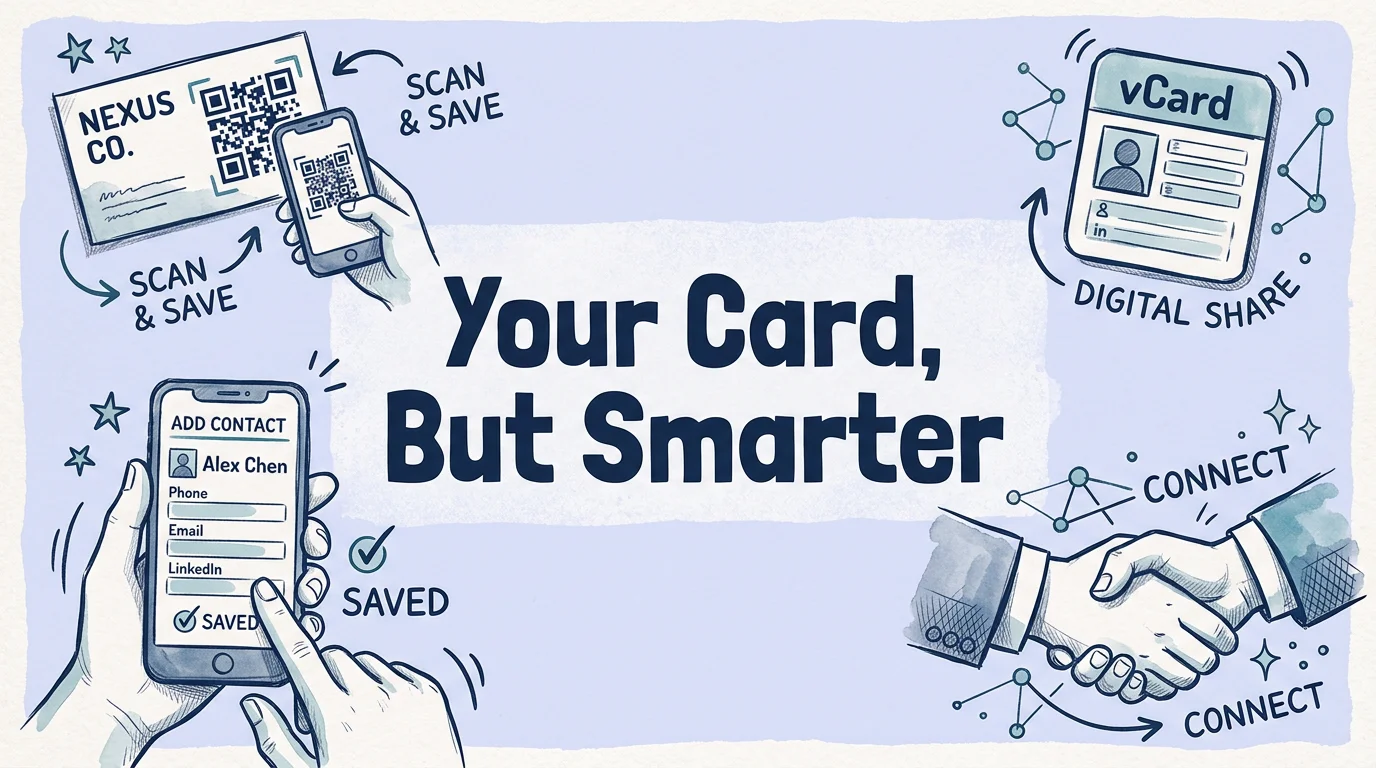
Get startedA vCard QR code encodes contact information, name, phone, email, company, address, website, in the vCard 3.0 format, a universal standard supported by every major mobile OS. When someone scans your card, their phone reads the vCard data and offers to save you as a contact. No app download, no manual typing, no friction.
The alternative is a URL QR code pointing to your website or LinkedIn profile. That works too, but it adds a step: the person has to save your contact info manually after visiting the page. For contact exchange, vCard is faster.
What you can store in a vCard QR code: full name, job title, organization, multiple phone numbers, multiple email addresses, website URL, mailing address, and a free-text note. The vCard 3.0 spec allows around 140 characters per field with no practical limit on total fields, more than enough for any business card.
How to make a QR code business card — step by step
Step 1: choose your QR code type
For contact exchange, start with a vCard QR code. If you're unfamiliar with the process, our step-by-step guide to creating a QR code covers the basics. If your goal is to drive traffic to a portfolio, a product page, or a booking link, and that destination might change over time, a URL QR code gives you more flexibility. But for most professionals, vCard is the right choice: the contact data is self-contained and doesn't depend on any website staying live.
Step 2: enter your contact information
Open QR Nova's vCard QR code generator and fill in your details. Required fields: name, at least one phone number, at least one email. Optional but worth adding: job title, company name, website. The generator encodes everything into a single QR code. If your name or company includes non-ASCII characters (accents, Chinese characters, Arabic), test the scan output carefully, some generators handle Unicode poorly.
Step 3: customize the design
Design matters. A blurry or low-contrast QR code looks unprofessional and, worse, won't scan. Keep these rules:
- Dark modules on light background. Standard is black on white. You can use dark brand colors (navy, forest green, dark red) on a white or cream background. The minimum contrast ratio for reliable scanning is approximately 40% luminance difference.
- No color inversion. Light modules on dark background scans reliably on most phones but fails on some older scanners and dedicated QR readers.
- Logo size under 25% of total area. Set error correction to level H (30% recovery) when adding a logo. Without level H, a logo covering the center modules will cause read failures.
- Quiet zone intact. The white border around the QR code (4 modules wide) is non-negotiable. Don't crop it or place design elements over it.
Step 4: download in the right format
This step is where most people go wrong. Downloading as JPEG and scaling up for print is the fastest path to a blurry, pixelated QR code on your business card.
Download as SVG. SVG is resolution-independent, it prints crisp at any size because it describes shapes mathematically rather than storing pixels. For detailed sizing recommendations, see our QR code print size guide. If your card designer needs a raster format, export PNG at minimum 1000 × 1000 pixels from the SVG source.
QR Nova generates QR codes in SVG format by default. No account needed, no watermark, instant download.
Step 5: place the code on your card design
Standard business card size is 85 × 55 mm (North America: 89 × 51 mm). A 2 × 2 cm QR code leaves room for your name, title, and contact details without the card looking cluttered. Practical placement options:
- Back of card, centered: clean, scannable, keeps the front professional
- Back of card, bottom-right corner: common for horizontal layouts with a tagline or social handles
- Front of card, one side: works for minimal card designs where the QR is a primary element
Avoid the center of the front face unless the design is explicitly QR-first. The code competes visually with your name and makes the card harder to read at a glance.
Step 6: test before printing
Before sending files to a printer, test the code on a printed proof. Print one copy on a regular printer at the intended size, then scan with three different devices: an iPhone, a recent Android, and one older Android (Android 8 or 9 era). Verify:
- Contact data populates correctly, no missing fields, no encoding errors
- Name displays as intended (not garbled Unicode)
- Scan works from 15–30 cm in normal room lighting
- Code scans without requiring the phone to be perfectly perpendicular
If the scan fails on the older Android, check that your error correction level is set to M or H, and that the modules are at least 0.4 mm wide in the printed output.
Static vs dynamic QR code for business cards
The choice between static and dynamic QR codes on a business card comes down to cost and risk.
Static vcard QR codes — the right choice for most people
A static vCard QR code encodes your contact data directly in the pixel pattern. No server involved. The code works permanently regardless of whether you maintain an account anywhere. Change your phone number? Print new cards, which you'd do anyway since that information also appears in the card's text.
Business card QR codes see a 34% scan rate, nearly three times the rate of advertising QR codes, according to industry benchmarks cited by QR Code Chimp. These scans happen when your card is in someone's hand. There's no analytics value from knowing which individual scanned your card at which moment. Static is enough.
When dynamic makes sense for business cards
Dynamic is worth considering in three specific scenarios:
- You're printing thousands of cards and your destination URL or contact details may change before the print run is depleted.
- You're tracking event-specific conversions: for example, different cards for different conferences, measuring which events generate the most scanned contacts.
- Your card links to a portfolio or booking page (URL code) and you need to change the destination without reprinting.
If you go dynamic, choose a platform that doesn't hold your codes hostage. Ask directly: what happens to my codes if I cancel? Any platform that redirects to an error page on cancellation is the wrong choice for business cards that will be in circulation for years. As of April 2026, QR Code Monkey's Lifetime Premium tier (one-time payment, no recurring fees) is one of the few options that doesn't create an ongoing subscription dependency.
QR code business card design mistakes to avoid
These are the specific failure modes that generic guides skip, patterns we see in actual printed materials that fail in the field.
Mistake 1: downloading jpeg and scaling up
A 300 × 300 pixel JPEG scaled to 2 × 2 cm at 300 DPI is fine. The same JPEG scaled to 3 × 3 cm will have visible pixelation in the modules, cutting scan reliability. Always start from SVG or a high-resolution PNG (minimum 800 × 800 pixels) and scale down, not up.
Mistake 2: dark code on dark card
Navy blue card with black QR code looks sophisticated. It also fails to scan on every phone under typical indoor lighting. The minimum luminance contrast for reliable scanning is higher than what human eyes need, the module-to-background contrast must be detectable by a camera sensor, not just visible to a human.
Mistake 3: placing the code on a matte black surface
Matte black printing absorbs light. Even a white QR code on matte black stock can fail to scan in dim lighting because the matte surface reduces the reflectance differential that camera scanners depend on. Glossy or satin finish stock scans more reliably than matte for QR codes.
Mistake 4: too much logo, not enough error correction
Adding a logo to a QR code generated at error correction level L or M, then covering 20% of the code with that logo, will cause frequent scan failures. The logo overwrites modules that level L/M can't recover. Generate at error correction level H before adding any logo. This produces a slightly denser code but recovers from up to 30% module damage.
When a QR code business card is not the right tool
QR codes on business cards make sense when the person receiving your card has a phone in their other hand and is in a context where scanning is natural. That's not always the case.
At a formal dinner, a boardroom presentation, or any context where pulling out a phone feels intrusive, the code on your card becomes irrelevant, the recipient will type your email later, or connect on LinkedIn. The code's value is in speed and accuracy of contact capture in casual professional contexts: networking events, trade shows, first meetings.
If your audience is primarily older business professionals who don't naturally scan codes, a prominent QR code on the card front can seem gimmicky rather than useful. Put the code on the back and don't make it the visual centerpiece.
How QR nova handles business card QR codes
QR Nova's vCard QR code generator creates static vCard codes at error correction level H by default. No account required, no email, no subscription. Enter your contact details, customize colors and corner style, download as SVG. The code is yours permanently, nothing to maintain, cancel, or renew.
For professionals who want to link to a dynamic destination (portfolio URL, Calendly booking link) rather than embed contact data directly, the URL QR code generator works the same way, free, no sign-up, instant SVG download.
Generate once, print, hand out. The code works for as long as the physical card exists.
Frequently asked questions
What type of QR code should I use for a business card?
A vCard QR code is the standard choice, it encodes your name, phone, email, company, website, and address directly into the code. When scanned, the recipient's phone prompts them to save you as a contact instantly. For a URL-only business card (portfolio, LinkedIn), a URL QR code works just as well.
Should I use a static or dynamic QR code on my business card?
Static vCard QR codes are the safer choice for business cards. They encode your contact data directly and never expire, no server, no subscription. Dynamic QR codes let you update the destination after printing, but if you cancel the subscription, every printed card becomes useless. For most professionals, a static vCard is the right call.
What size should a QR code be on a business card?
Minimum 1.5 cm × 1.5 cm (0.6 × 0.6 in) on a standard business card. 2 cm × 2 cm is more comfortable for scanning. Never go smaller, at 1 cm or below, most phone cameras struggle to lock focus at arm's length. A standard business card is 8.5 × 5.5 cm, so a QR code at 2 × 2 cm takes about 15% of the card area.
Can I add a logo to my business card QR code?
Yes. QR codes support up to 30% logo coverage with error correction level H, the scanner reconstructs the obscured modules automatically. Keep the logo centered, under 25% of the total area, and test on three different phones before printing. A logo that looks fine on screen can fail on a small printed code.
How do I make a QR code business card for free?
Use QR Nova's vCard QR code generator, no account required, no sign-up, no watermark. Enter your contact details, customize the design, download in SVG or PNG, and add it to your card design. The static vCard QR code is free and permanent.
What information can I put in a vCard QR code?
A vCard QR code can store: full name, job title, company name, phone number (multiple), email address, website URL, physical address, and a short note. The contact imports directly to the phone's native contacts app on both iOS and Android.
How do I test my business card QR code before printing?
Test with at least three different devices: an iPhone (iOS camera app), a recent Android (Samsung or Pixel camera app), and one older Android. Scan from 15–30 cm away in normal room lighting. Verify that the contact data imports correctly with no character encoding errors, especially for names with accents or special characters.
Related articles
How to Make a QR Code (Without It Failing at Print)
How to make a QR code that actually scans: static vs dynamic, error correction, testing before you print. Free, no sign-up.
QR Code Not Working? 7 Real Causes (and Exact Fixes)
QR code not working? There are 7 distinct failure modes, not 25. Diagnose which one you have in 60 seconds and fix it. No account required.
Can You Edit a QR Code After Printing?
Can I edit a QR code after printing it? Static codes can't, but dynamic codes let you change the destination anytime. Here's exactly how it works.
Try it now — no sign-up needed
Get started