QR Code Print Size Guide: Minimum Size & Resolution
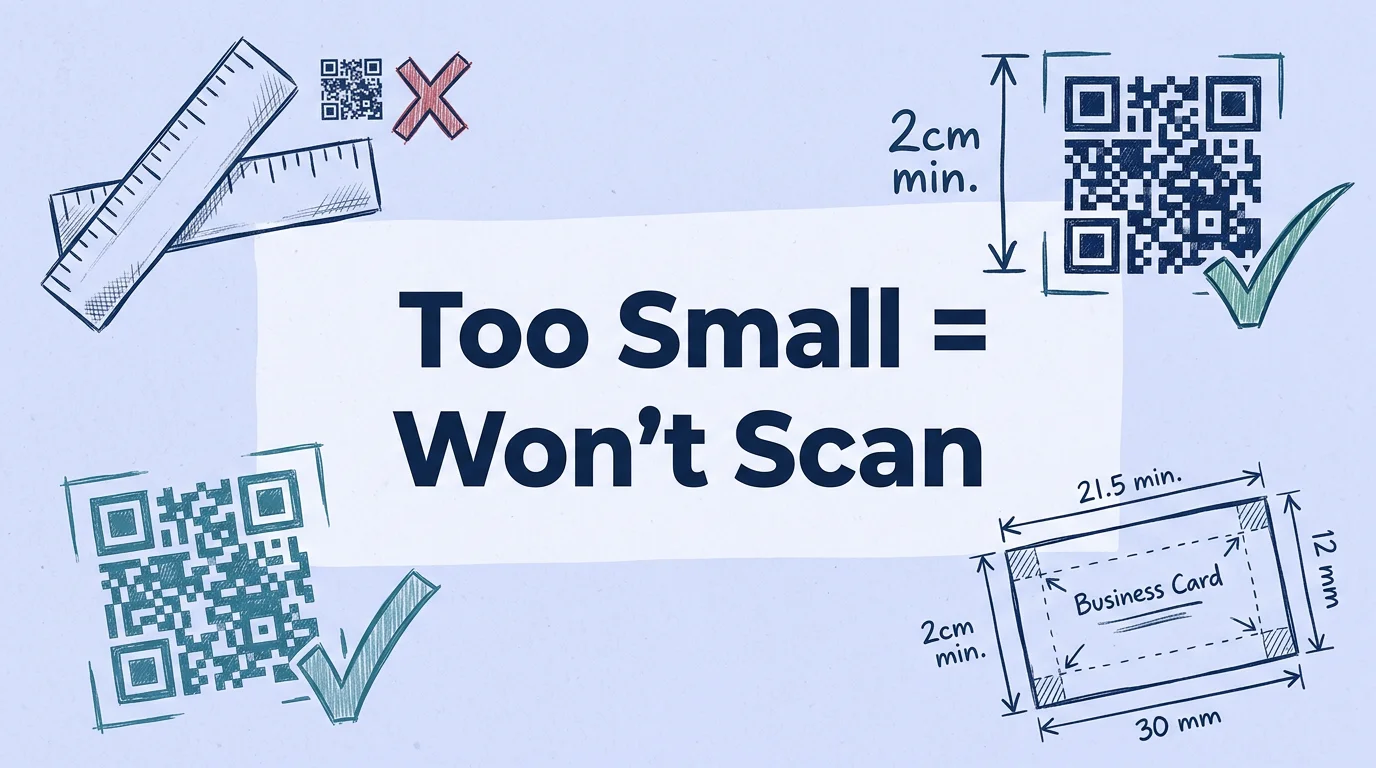
QR code print size guide: minimum 2cm × 2cm, 300 DPI for print, SVG for large format. Every use case covered with exact specs. No guesswork.
This article was written by the QR Nova team. We build QR code software, which may inform our perspective.
Most QR code size guides copy the 2 cm minimum figure from each other without explaining when it breaks down, or offer advice like "make it large enough to scan" without a single concrete spec. The result: businesses printing codes that fail at trade show booths, on packaging, and on business cards, and nobody knows why until a customer complains. Here's the actual data. QR code print size: minimum 2 cm × 2 cm for close-range scanning, 300 DPI for standard print, SVG vector for any large-format use. The most common failure isn't just too small, it's too small plus low DPI plus no quiet zone, all at once.
TL;DR
- Minimum size: 2 cm × 2 cm for scanning at 20–30 cm. Business cards: 3 cm × 3 cm. Posters: use the 10:1 rule (1/10th of scanning distance).
- Resolution: 300 DPI minimum for print. SVG (vector) for large format, it's resolution-independent.
- Never use JPEG. PNG at 300 DPI is acceptable; SVG is always better. See our QR code best practices for more.
- Quiet zone: 4 modules of white space on every side. Losing this is the #1 cause of small-format scan failure.
- Logo overlay: safe up to 20–25% coverage at error correction Level H. Above 30% risks decode failure.
The QR code size formula: minimum size by scanning distance
Create your first QR code — free
Get startedThe QR code minimum size is not one fixed number, it scales with expected scanning distance. The rule used by print professionals and the Denso Wave QR code standard is the 10:1 ratio: the scanning distance should be no more than 10 times the physical size of the QR code.
In practical terms: if your audience will scan from 20 cm (typical for a business card or menu held in hand), the code should be at least 2 cm. If the code is on a wall poster and people scan from 1 meter away, it should be at least 10 cm × 10 cm. For a trade show banner scanned from 3 meters: 30 cm × 30 cm minimum.
| Use Case | Expected Scan Distance | Minimum QR Code Size | Recommended Size |
|---|---|---|---|
| Business card | 20–30 cm | 2 cm × 2 cm | 3 cm × 3 cm |
| Restaurant table card / flyer | 30–40 cm | 2.5 cm × 2.5 cm | 3–4 cm × 3–4 cm |
| Brochure / pamphlet | 30–50 cm | 3 cm × 3 cm | 4–5 cm × 4–5 cm |
| Product packaging (label) | 20–40 cm | 2 cm × 2 cm | 3–4 cm × 3–4 cm |
| A4 poster (on a desk or held) | 30–60 cm | 3 cm × 3 cm | 5 cm × 5 cm |
| Wall poster / retail signage | 0.5–2 m | 5–20 cm × 5–20 cm | 10–20 cm × 10–20 cm |
| Trade show banner / roll-up | 1–3 m | 10–30 cm × 10–30 cm | 20 cm × 20 cm |
| Outdoor billboard | 5–15 m | 50 cm–1.5 m × same | 1 m × 1 m |
The "minimum" column is where scan failure starts occurring. The "recommended" column gives comfortable margin, scan success stays high even with slight angle variations, lower ambient light, and older devices.
QR code resolution for print: the dpi question
DPI (dots per inch) determines the sharpness of your printed QR code. Too low, and the module edges, the sharp boundaries between black squares and white space, become blurry or jagged. A scanner reading blurry modules makes decoding errors, especially on lower-version smartphones or at challenging angles. If your printed code looks fuzzy, see our guide on fixing blurry QR codes.
300 dpi: the standard for close-range print
For any material scanned at close range, business cards, flyers, restaurant menus, product labels, brochures, export your QR code at 300 DPI at its intended print size. At 300 DPI, a 3 cm × 3 cm code requires a source image of approximately 354 × 354 pixels. A 5 cm × 5 cm code needs roughly 590 × 590 pixels.
When exporting from design tools like Adobe Illustrator, Figma, or Canva: export as PNG at 300 DPI, not 72 DPI (the default screen resolution for web use). Many businesses inadvertently print at 72 DPI because the default export setting is "web" or "screen" and they don't change it. At 300 DPI, the same 3 cm code that looks sharp in print would appear at 590 × 590 pixels on screen, slightly large for web, correctly sized for print.
When 300 dpi isn't enough: large-format printing
At large format sizes, anything over A3 (approximately 30 cm × 42 cm), you run out of useful pixels at 300 DPI unless you export from a very high-resolution source. A 20 cm × 20 cm code at 300 DPI requires a 2,362 × 2,362 pixel source image. Technically achievable from a raster file, but you're better off using SVG instead.
SVG: the correct format for large-format QR codes
An SVG (Scalable Vector Graphics) file stores the QR code as mathematical paths rather than pixels. When you scale an SVG from 5 cm to 50 cm to 5 meters, no quality is lost, the edges remain perfectly sharp at any size. SVG is the right choice for:
- Any QR code intended for large-format printing (posters, banners, billboards)
- Any QR code where you're not certain of the final print dimensions
- Templates that may be adapted to different materials at different sizes
- Any code that will be embedded in a vector layout (e.g., an Illustrator or InDesign file)
QR Nova generates codes with SVG download available, this is the file to request from your design team or download yourself when sending files to a print shop. The print shop can scale the SVG to any dimension without asking for a higher-resolution file. Create and download your QR code as SVG for free, no sign-up required.
File format: PNG vs. SVG vs. jpeg
The format matters as much as the resolution. Here's the breakdown:
PNG — acceptable for fixed-size close-range print
PNG is a lossless format, no compression artifacts. A PNG at 300 DPI at the exact intended print size will scan reliably. The limitation: if the print shop scales the PNG up (even 20%), the module edges soften. PNG is the right choice when you control the final size and the code won't be scaled.
SVG — best choice for almost everything
Vector files scale infinitely. Use SVG unless you have a specific reason not to. Every major design tool and print shop accepts SVG. If a vendor tells you they can't use SVG, ask for an EPS, same concept, resolution-independent vector format used in professional print workflows.
JPEG — never use for QR codes
JPEG uses lossy compression that deliberately degrades sharp edges to reduce file size. The sharp black-white boundaries of QR code modules are exactly what JPEG destroys first. The result: blurry edges that cause decode failures, especially at small sizes. A QR code saved as JPEG at high compression will fail to scan entirely. There is no use case where JPEG is appropriate for a QR code. Don't export or accept a QR code as JPEG.
The quiet zone: the most overlooked spec
The quiet zone is the blank white border surrounding the QR code pattern. The ISO/IEC 18004 standard requires a minimum quiet zone of 4 modules (where a module is the smallest square unit in the code). At a printed size of 3 cm, 4 modules typically equals approximately 2–3 mm of white space on each side.
This border isn't decorative. QR scanners use it to locate and frame the code before decoding begins. Without adequate quiet zone, the scanner may misidentify the edge of the pattern and fail to decode, or decode incorrectly. This failure mode is particularly common when designers reduce or eliminate the quiet zone to fit a code into a tight layout, placing the code flush against text, a border, or another design element.
The practical rule: maintain at least 3 mm of clear, unprinted white space on all four sides of the QR code in your final layout. If you're placing the code on a colored background, the "quiet zone" should be the same color as the QR code's light modules, typically white, not the page background color, which may not provide enough contrast.
Error correction levels and logo overlays
The QR code standard defines four error correction levels: L, M, Q, and H. Each level determines how much of the code can be damaged or obscured while still remaining decodable.
| Error Correction Level | Recovery Capacity | Code Density | Best For |
|---|---|---|---|
| L (Low) | ~7% | Lowest (fewest modules) | Clean indoor environments, no logo overlay |
| M (Medium) | ~15% | Moderate | Standard use, indoor print |
| Q (Quartile) | ~25% | Dense | Outdoor, logo overlay up to 15% |
| H (High) | ~30% | Densest (most modules) | Logo overlay up to 25%, outdoor/industrial |
Higher error correction means more redundant data in the code, and therefore a denser, more complex pattern. A Level H code has more modules than a Level L code encoding identical content. This means Level H requires a slightly larger minimum print size to maintain reliable scannability, because each module becomes smaller when more modules are packed into the same physical area.
Logo overlays: how much is too much
Placing a logo in the center of a QR code is common for branding purposes. The safe range, based on testing across multiple scanner implementations, is:
- Up to 20% of total code area: safe at Level M or higher
- 20–25% of total code area: requires Level H error correction
- Above 30%: scan failure risk increases significantly, especially on older devices and in low light
The center of the QR code is the safest area for logo placement, the three finder pattern squares in the corners are critical structural elements and must remain unobstructed. Placing a logo in a corner rather than the center is a common design mistake that causes consistent scan failures.
Color QR codes: contrast requirements
Black modules on white background is the baseline. Color QR codes are supported by all modern scanners, with constraints. The fundamental requirement is sufficient luminance contrast between the dark modules and the light modules (background).
Rules that apply to colored QR codes:
- Dark modules should always be darker than the background. Don't reverse this.
- The contrast ratio between module color and background color should be at minimum approximately 40% luminance difference.
- Dark blue on white, dark green on white, dark red on white: all work reliably.
- Light blue on white, light yellow on white, pastel on white: will fail, insufficient contrast.
- Inverted codes (light modules on dark background) work on most iOS 14+ and Android 10+ devices but fail on older devices and many dedicated QR readers. Test before printing at scale.
- Gradient backgrounds that transition from light to dark under the code will cause zone-specific decode failures. Use a flat background color under the QR code at all times.
Real-World size specifications by material
These are the specs we recommend based on consistent scan performance across high-volume printed materials:
Business cards
Standard business card: 85 mm × 55 mm. QR code: 3 cm × 3 cm (30 mm × 30 mm) minimum. This leaves enough space for contact information while keeping the code at a size that scans reliably from arm's length. Format: PNG at 300 DPI or SVG. Error correction: Level M unless adding a logo, then Level H. Quiet zone: 3 mm.
Restaurant table cards
For A5 (148 mm × 210 mm) or folded table tents: 4–6 cm × 4–6 cm. At table card distance (35–40 cm), this gives comfortable margin. Use Level H if adding a restaurant logo. Format: SVG preferred, or PNG at 300 DPI.
Product labels (packaging)
Minimum 2.5 cm × 2.5 cm. For small-label pharmaceutical or cosmetics packaging where space is constrained: test the specific size on your print output with at least 5 different scanner apps including iOS native camera and a dedicated scanner app. A code that scans at 2 cm in a well-lit studio may fail on store shelves under fluorescent light at an angle. Build in a 20% size margin over your minimum successful test size.
Posters and event signage
A3 poster (297 mm × 420 mm) intended for reading from 1 meter: 10 cm × 10 cm minimum, 15 cm preferred. Add the URL in text under the QR code for any material over A4, it allows users to manually type the URL if the code fails to scan, and provides context about where the code goes.
When a larger code won't fix the problem
There are scan failure causes that size alone won't solve. If you're troubleshooting a code that doesn't scan reliably, check these before increasing dimensions:
- Low-quality print output: Inkjet printers at low quality settings produce fuzzy edges. QR codes benefit from the sharpest available print mode.
- Glossy or reflective surface: Laminated or glossy materials reflect light. A scanner under direct overhead lighting sees glare that washes out modules. Matte laminate or uncoated paper scans more reliably than gloss.
- Dark background behind the code: If the QR code has white modules placed on a dark page background without a white quiet zone area, the scanner cannot locate the code. Always place QR codes on a white or very light background area.
- Low error correction on outdoor materials: Outdoor materials exposed to weather accumulate physical damage. A Level L code on an outdoor sign will degrade to failure within months. Use Level H for any outdoor, industrial, or high-traffic physical placement.
How QR nova handles print-ready downloads
When you create a QR code at QR Nova, you can download in PNG and SVG formats, both generated at print-ready specifications. The SVG is infinitely scalable; the PNG exports at 300 DPI at the specified size. Error correction defaults to Level M for standard use, with Level H available when you add a logo overlay.
Static QR codes generated at QR Nova require no account and no subscription, download your print-ready QR code free. For business cards, the vCard QR code generator creates contact information codes that never expire and download in both PNG and SVG.
The critical point for print: a code that works perfectly on screen at 72 DPI may fail in print if you don't re-export at 300 DPI or use SVG. Make this a mandatory step in any print production workflow, verify the file format and DPI before sending to the printer, not after the run comes back.
Frequently asked questions
What is the minimum size for a QR code?
The absolute minimum is 2 cm × 2 cm (roughly 0.8 in × 0.8 in) for scanning at close range, typically 20–30 cm (8–12 inches). For business cards or materials scanned at arm's length, 3 cm × 3 cm (1.2 in) is safer. Below 2 cm, even high-end smartphone cameras fail to reliably decode the pattern, especially in lower light or at slight angles.
What DPI should a QR code be for printing?
For standard print materials, business cards, flyers, menus, packaging, use 300 DPI minimum. For large-format printing like posters and signage viewed from more than 3 feet, export at 300 DPI at the actual print size or use an SVG vector file, which scales without quality loss regardless of print dimensions.
What file format should I use for printing QR codes?
SVG (vector) is the best format for any use case where you don't know the final print size or where the code may be scaled up. PNG at 300 DPI is acceptable for materials with fixed dimensions under A3 size. Never use JPEG for QR codes, JPEG compression artifacts can corrupt module edges and cause scan failures. PNG at 72 DPI (screen resolution) is insufficient for print.
How large should a QR code be on a billboard or banner?
Use the 10:1 rule: QR code size should be at least 1/10 of the expected scanning distance. For a banner viewed from 5 meters, the code should be at least 50 cm × 50 cm. For a billboard viewed from 10 meters, 1 meter × 1 meter. Always export as SVG for large-format printing, raster images at these sizes will be visibly pixelated.
Does adding a logo to a QR code affect its scannability?
Yes, but within limits. The QR code standard (ISO/IEC 18004) includes error correction that can recover from up to 30% data loss at Level H. A centered logo covering up to 20–25% of the code area is generally safe at Level H. Going above 30% risks scan failure, especially at small print sizes or on lower-quality print surfaces.
What color contrast is required for a QR code to scan reliably?
The scanner needs to distinguish dark modules from the light background. Black on white is ideal. The minimum contrast ratio is approximately 40% luminance difference. Dark modules on a light background work in any color combination that maintains this contrast, dark blue on white, for example, is fine. White modules on a white or near-white background, or dark on dark, will fail. Never invert the code (white modules on black background) on many consumer scanner apps without testing first.
What is the quiet zone and how much is required?
The quiet zone is the blank border around the QR code required for scanners to locate and decode the pattern. The ISO/IEC 18004 standard specifies a minimum quiet zone of 4 modules (the smallest square unit in the code). At a 3 cm printed code, this works out to approximately 2–3 mm of white space on each side. Many scan failures on small-format print materials are caused by designs that eliminate the quiet zone to save space.
Related articles
QR Code Minimum Size: Smallest Size That Still Scans
QR code minimum size for print and phones: when 2 cm works, when it fails, and how to size labels, cards, menus, and posters correctly.
QR Code Best Practices (2026): 9 Rules to Prevent Failures
Exact size, contrast, quiet zone, and error correction numbers from the DENSO Wave standard — plus a pre-print checklist. Prevent scan failures before print.
How to Test a QR Code Before Printing: 5-Step Checklist
5-step checklist: multi-device scanning, distance testing, URL verification, contrast ratio, and structural validation. Catch QR failures before ink hits paper.
Create your first QR code — free
Get started