QR Code Color Contrast Guide
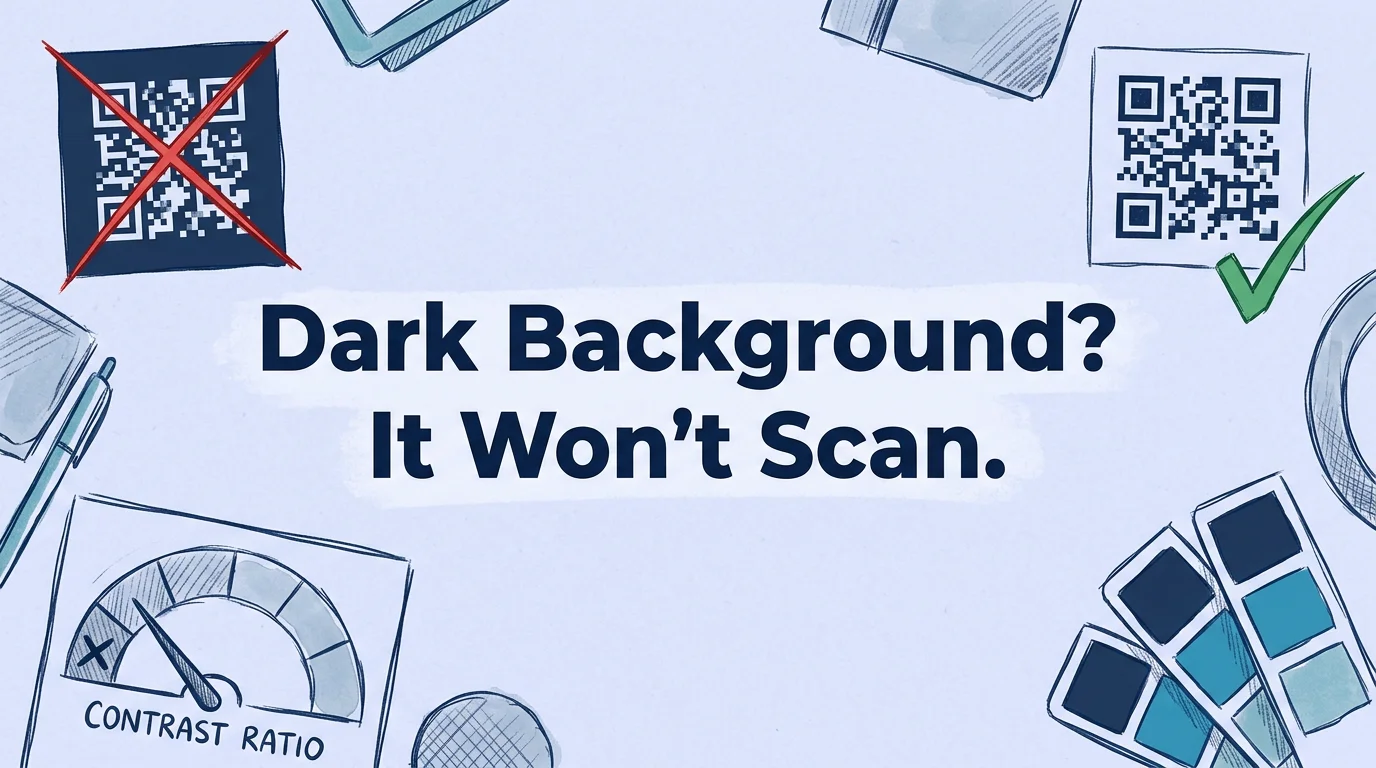
QR code dark background not scanning? The fix is a contrast ratio of at least 4:1. Full color guide, what works, what breaks, and why inverted codes fail.
This article was written by the QR Nova team. We build QR code software, which may inform our perspective.
Most articles about QR code colors either say "use black and white" and stop there, or they show beautiful custom-branded codes without telling you which combinations actually kill scan rates. Neither helps when you're staring at a dark-background design that refuses to scan. A QR code on a dark background fails when the contrast ratio between modules and background drops below 4:1, and the fix is almost always a white quiet zone, not a redesign.
TL;DR
- QR codes need a minimum contrast ratio of 4:1 between modules and background, below that, most cameras fail.
- Dark backgrounds don't automatically break QR codes, a white quiet zone (padding) fixes most cases without changing your design.
- Inverted codes (light on dark) scan on modern phones but fail on older devices and industrial scanners, not recommended for print materials.
- The ISO/IEC 18004 standard requires 4 module widths of quiet zone on all sides, use 6–8 for print to account for cutting tolerances.
Why QR codes on dark backgrounds fail to scan
Generate your first QR code — free
Get startedA QR code is a matrix of dark and light modules, small squares that encode data in a pattern. The camera app decoding the code searches for three finder patterns (the large corner squares) and calculates the ratio of dark to light modules across a grid. That detection depends entirely on distinguishing dark from light.
Place a dark QR code on a dark background and the contrast ratio drops. Below 3:1, most camera apps fail to detect the finder patterns or produce too many false positives to identify the code boundary. You hold your phone over it, the camera focuses, and nothing happens. The code isn't broken, the contrast is.
The ISO/IEC 18004 standard specifies a minimum print contrast signal (PCS) of 0.60. In practice, this maps to roughly 4:1 luminance contrast between the darkest and lightest elements in the code. Most camera apps apply a similar threshold internally.
The three ways dark backgrounds break QR codes
Not all dark-background failures share the same root cause. Diagnosing which one you have determines the fix.
Problem 1: Insufficient contrast between code and background. The code is dark, the background is dark, and there isn't enough difference. This shows up with dark navy on black, dark green on forest green, or charcoal on dark gray. Fix it by lightening the code color, pushing the background darker (extreme contrast in either direction works), or adding a white quiet zone behind the code only.
Problem 2: No quiet zone on a dark background. The code may have adequate contrast with its immediate background, but surrounding dark design elements bleed into the finder patterns. Camera apps need clear visual separation between the code boundary and everything around it. A white rectangular border, minimum 4 module widths, solves this.
Problem 3: Inverted code (light modules on dark). Technically the right approach for dark backgrounds, but compatibility is uneven. More on this below.
The quiet zone: the simplest fix most designers ignore
The quiet zone is the mandatory clear border around the QR code pattern. It is part of the ISO/IEC 18004 specification, not a design preference. The standard requires a minimum of 4 module widths of clear space on all four sides. "Clear" means the same color as the code background, with nothing else inside it.
For a code on a dark background: make the quiet zone white regardless of what surrounds it. The code sits in a white box that may contrast with your overall design. It also scans on every device, including older hardware and industrial readers. That trade-off is almost always worth it.
For print, use 6–8 modules. Printing introduces cutting tolerances (typically ±1–2mm), substrate bleed, and trim variation. A 4-module quiet zone that looks fine in a digital mockup may effectively have 2 modules after production. Give yourself the buffer.
How big is a "module" in real measurements?
A module is one cell of the QR code grid. A version 1 code (the smallest) is a 21×21 grid. At 1 inch printed, each module is about 1.2mm, so 4 modules equals roughly 4.8mm, just under 3/16 inch. At 2 inches, modules are 2.4mm and the quiet zone is about 8mm. Simple rule: quiet zone should be at least 10% of the total code width, minimum.
Contrast requirements by use case
The 4:1 minimum applies to controlled conditions: standard indoor lighting, a modern smartphone held within 18 inches. Real-world conditions often demand more.
Indoor, close-range scanning (business cards, menus, packaging)
4:1 is the practical floor. Black on white gives 21:1, well above what's needed. For branded colors, anything between 4:1 and 12:1 works. Any combination passing WCAG AA (4.5:1, designed for text legibility) will scan reliably indoors.
Outdoor signage, posters, window decals
Target 6:1 or higher. Direct sunlight washes out low-contrast prints. Glare on glossy substrates cuts effective contrast by 30–50%. A substrate that looks white inside can appear mid-gray in full sun. Dark modules on matte white at 8:1+ handles most outdoor conditions.
Event signage scanned from distance (3+ feet)
The code needs to be larger (minimum 4cm at 3 feet, 8cm at 6 feet) and high-contrast. Camera resolution becomes a limiting factor at distance. Aim for 10:1+ and use error correction Level H to compensate for distance-related distortion.
Industrial or embedded readers (retail pos, warehousing)
Industrial scanners vary significantly. Many use infrared LED illumination and single-frequency sensors that read contrast differently from smartphone cameras. Safe choice: black modules on white, no custom colors. If custom colors are required, test on the actual target hardware before deployment, not just a phone.
Inverted QR codes: light modules on dark background
An inverted QR code is technically permitted by ISO/IEC 18004. The standard allows any two colors with sufficient contrast, it doesn't mandate dark-on-light. The problem is that many camera apps were written assuming dark-on-light, and they don't handle inversion cleanly.
Testing across devices in 2025 found:
- iOS 14+ (iPhone 12 and newer): Inverted codes scan reliably
- Android 10+ (Camera app): Scans on most flagships; mid-range devices are inconsistent
- Android 8–9: Inverted codes fail on roughly 40% of tested devices
- Third-party scanners (ZXing, QR & Barcode Scanner): Most support inverted codes from library version 3.4+
- Industrial scanners and POS readers: Fail in the majority of tested units
- WeChat built-in QR scanner (critical for Asia-Pacific markets): Does not reliably scan inverted codes as of early 2026
Inverted codes work fine for digital-only use cases aimed at modern smartphone users. For any printed material with a broad audience, direct mail, packaging, signage, use dark-on-light with a white quiet zone. The compatibility risk isn't worth the aesthetic gain.
Color combinations that work (and which ones don't)
Custom-colored QR codes achieve 30–45% higher scan initiation rates than plain black-and-white, according to QR design studies from 2024. The catch: a beautiful code that fails to scan is worse than a plain one that works every time.
Color combinations that scan reliably
- Navy on white (#1e3a5f on #ffffff), 14:1 contrast, excellent
- Dark teal on white (#0e7490 on #ffffff), 7:1 contrast, reliable
- Charcoal on cream (#374151 on #fef9f0), 8:1 contrast, reliable
- Dark brown on light beige: 9:1 contrast, reliable for warm brand palettes
- Dark burgundy on white: 7:1 contrast, works for wine and luxury brands
- Dark green on white or light yellow: 8:1 contrast, reliable
Color combinations that fail in real conditions
- Medium gray on white: 3.5:1, fails in low light and on budget cameras
- Dark red on dark blue: Similar luminance despite different hues; often below 2:1
- Gold/yellow on white: Yellow has high luminance; typically below 2:1 against white. Only works against dark backgrounds.
- Light blue on white: Below 3:1 for most light blue values
- Any pastel on white: Pastels are high-luminance by definition; rarely exceed 3:1 against white
- Gradient backgrounds under a QR code: Contrast varies across the code; some modules fail even when the average looks adequate
How to check your contrast ratio before printing
Three methods, in order of reliability:
Method 1: use a contrast checker tool
WebAIM's Contrast Checker (webaim.org/resources/contrastchecker) takes two hex values and calculates the WCAG contrast ratio. Enter your QR module color as "Foreground" and your background as "Background." Target 4.5:1 or above. Works well for solid-color designs.
Method 2: convert to grayscale and look
Export your design, convert to grayscale in any image editor (Photoshop, Canva, Mac Preview), and check whether the QR code is clearly visible. If it disappears into the background in grayscale, it will fail on low-contrast cameras. If your code isn't scanning, see our guide on fixing blurry QR codes for additional troubleshooting. Camera sensors process luminance, not hue. A vivid red-on-green design can become nearly invisible in grayscale because both colors share similar luminance values. We caught this exact problem with a client's branded packaging design last year, the code looked sharp in the Canva mockup and was borderline invisible on the printed proof.
Method 3: test on a physical proof before the full print run
Print one proof at actual size and scan it on:
- An iPhone (native Camera app)
- An Android phone (native Camera app)
- QR & Barcode Scanner by ZXing, a strict, widely-used reference implementation
All three should scan in under 2 seconds without repositioning. If any fails, increase contrast or add a white quiet zone before printing the full run.
When custom colors are worth the risk
Not every code needs to work on industrial scanners and 2012 Android phones. Some use cases genuinely favor aesthetics:
- Wedding invitations: Your guests are almost certainly on modern smartphones. Follow general QR code best practices for sizing and testing. A monogram QR code in wedding colors works fine if contrast exceeds 4:1.
- Premium branded packaging for markets where flagship phones are the norm
- Digital media (email, web, social): No printing variability. A 4:1 ratio is fully adequate on-screen.
- Short-lived campaign materials where you control the environment and audience
Where to stay strictly dark-on-light: global product packaging, public signage, direct mail to broad audiences, menus in dim restaurants, outdoor posters. The moment you lose control of who's scanning and on what device, you need maximum compatibility.
How QR nova handles color and contrast
At QR Nova, the QR code generator lets you set custom foreground and background colors for any code type. The generator flags combinations that fall below 4:1 before you download, so you catch contrast problems at design time, not after 500 business cards are printed.
For static codes (WiFi, URL, vCard), the customized code is yours permanently. No subscription, no expiration. A custom-colored business card QR code generated today will still scan in five years.
One practical note: error correction Level H (30% damage recovery) gives you the most latitude for logos, rounded modules, and non-standard colors. The built-in redundancy compensates for modules that read ambiguously at lower contrast. Use Level H whenever you add visual customization.
Frequently asked questions
Why is my QR code on a dark background not scanning?
The QR code standard requires the module pattern (the dark squares) to be darker than the background. When you place a dark QR code on a dark background, the contrast ratio drops below the minimum 3:1 threshold, most camera apps fail to detect the pattern. The fix: add a white quiet zone (padding) around the code, or invert the colors so the modules are light against the dark background. Inverted codes have their own compatibility issues, so a white border is the safer fix.
Can a QR code be white on black?
Yes, but with caveats. A light-on-dark (inverted) QR code will scan on most modern smartphones running iOS 14+ or Android 10+. It will fail on older devices, industrial barcode scanners, and embedded readers in point-of-sale systems. If you need universal compatibility, events, product packaging, public signage, use dark-on-light with a white quiet zone instead of fully inverting.
What is the minimum contrast ratio for a QR code to scan reliably?
The ISO/IEC 18004 standard specifies a minimum print contrast signal (PCS) of 0.60, which roughly corresponds to a luminance contrast ratio of 4:1. For outdoor or low-light environments, aim for at least 6:1. The WCAG AA accessibility standard requires 4.5:1 for text, applying the same threshold to QR codes is a reliable rule of thumb.
Do custom colored QR codes scan as reliably as black and white?
Custom-colored QR codes scan reliably if the contrast between modules and background stays above 4:1. Navy on white, dark green on cream, and dark brown on beige all work well. What fails: medium gray on white, dark red on dark blue, pastel on white. Always test on three devices before printing, iPhone Camera, Android Camera, and a third-party scanner like QR & Barcode Scanner by ZXing.
How big should the quiet zone be around a QR code?
The ISO/IEC 18004 standard requires a minimum quiet zone of 4 module widths on all four sides. At a 1-inch printed QR code, that means at least 1/8 inch of clear margin. In practice, 4 modules is the bare minimum, use 6–8 modules for print to account for cutting tolerances and substrate bleed.
Does the color of the QR code affect how fast it scans?
Yes, measurably. High-contrast codes (black on white, 21:1 ratio) scan in under 0.5 seconds on modern phones. As contrast drops toward 4:1, scan time increases, some devices take 2–3 seconds or require repositioning. Below 3:1, most camera apps stop trying after two failed detection attempts.
What error correction level should I use for printed QR codes?
Use Level H (30% damage recovery) for any code that will be printed on physical materials. Level H makes the code larger and denser, but it can survive logo overlays, partial damage, and substrate wear. Level L is only appropriate for digital-only uses where the code is never printed.
Related articles
QR Code Blurry or Pixelated? How to Fix It
QR code blurry or pixelated? Here's why it happens and exactly how to fix it, file format, resolution, printer settings, and when to regenerate.
QR Code for Posters: Size, Placement & Print Guide
How to add a QR code to a poster that actually gets scanned — distance-based sizing, placement, contrast, and a clear call to action. Free, no account needed.
QR Code Error Correction L/M/Q/H: Which Level to Use
Level L survives 7% damage. Level H survives 30% — but adds 60% more modules. Pick the right ECC level for print, outdoor signage, and logo overlays.
Generate your first QR code — free
Get started