QR Code for Posters: Size, Placement & Print Guide
How to add a QR code to a poster that actually gets scanned — distance-based sizing, placement, contrast, and a clear call to action. Free, no account needed.
This article was written by the QR Nova team. We build QR code software, which may inform our perspective.
Posters fail at QR codes for a reason most design tutorials never mention: a poster is read from a distance, but a QR code is scanned up close. The gap between those two distances is where almost every poster QR code goes wrong. Adding a QR code to a poster takes two minutes. Sizing and placing it so a person standing six feet away can actually scan it is the part that decides whether the code earns a single scan or zero. This guide covers the distance math, placement, and print settings that separate a working poster code from decoration.
TL;DR
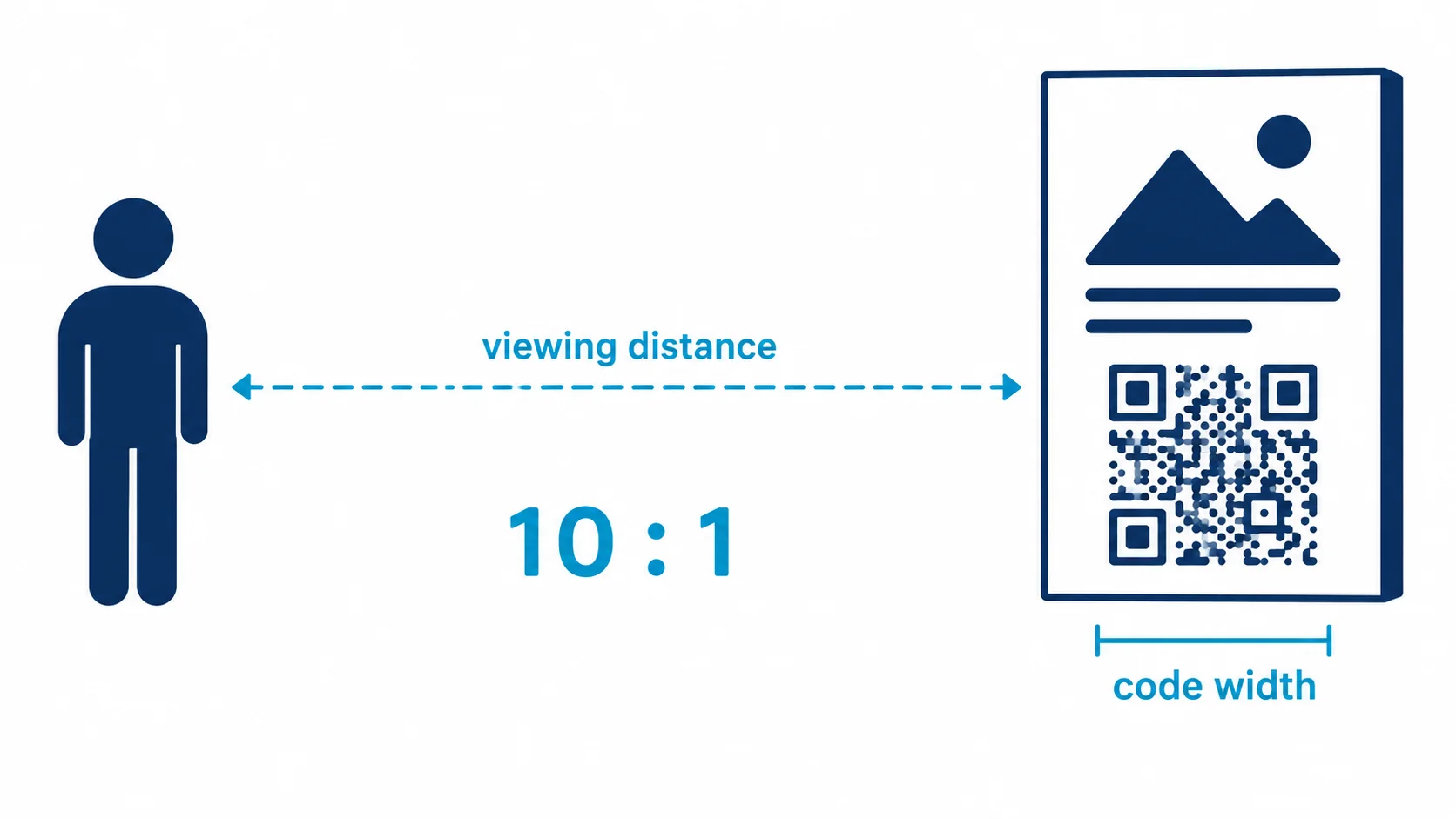
- Size by scan distance, not by taste. The 10:1 rule: code width ≥ one-tenth of the viewing distance.
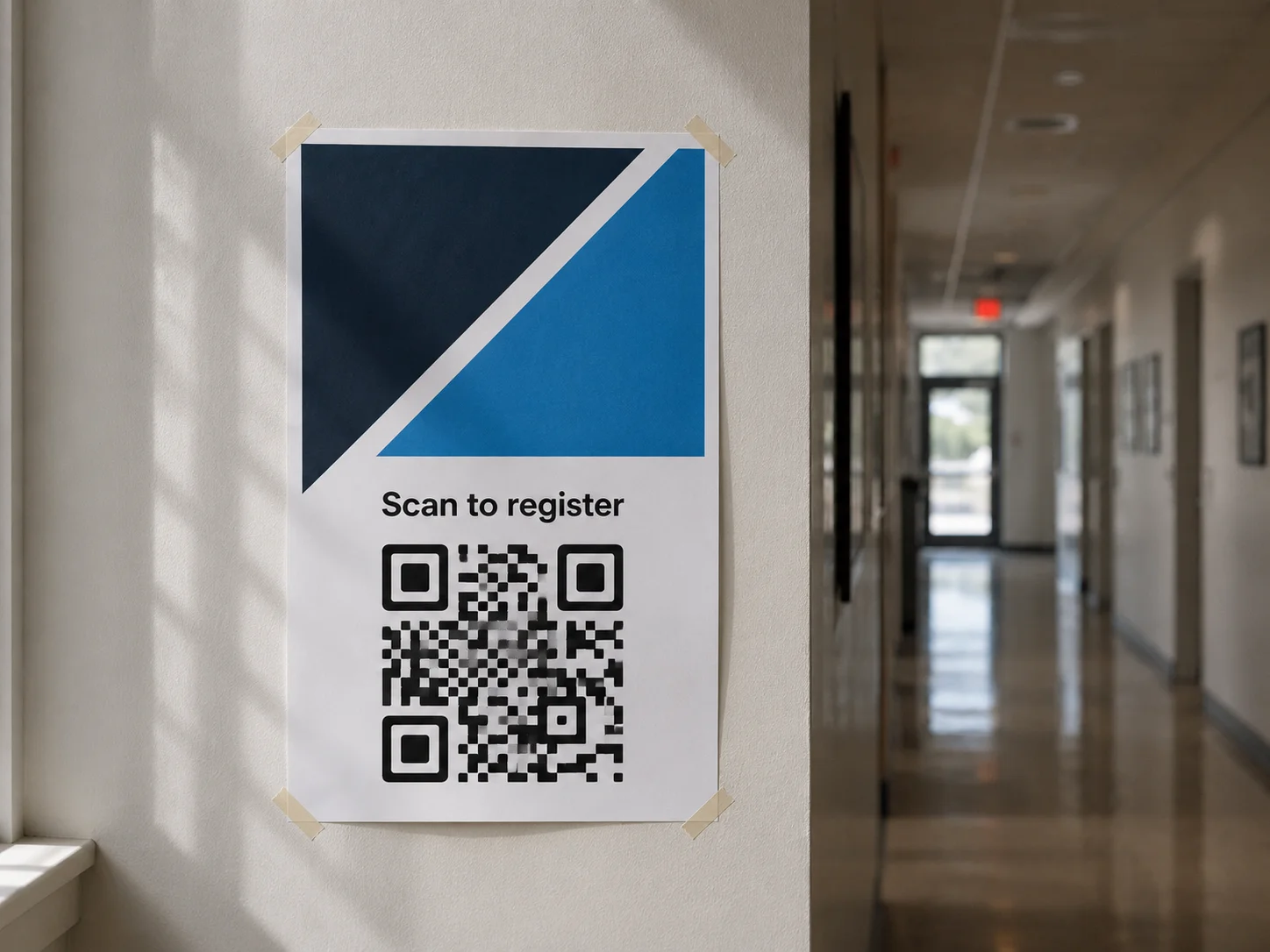
- Place the code at eye level or in the lower third, with a short call to action above it ("Scan to register").
- Export as SVG for large-format print — it stays sharp at any size, from A4 to billboard.
- A static QR code from QR Nova works permanently: no subscription, no redirect server, no scan cap. Use dynamic only if the destination may change.
The One Rule That Decides Everything: Scan Distance
Make your poster QR code — free, no sign-up
Get startedA QR code for a poster is a standard QR code that encodes a URL — a registration page, a menu, a video, an app download. Scanning it opens that link on the viewer's phone. The code itself is just a machine-readable URL. What makes posters different from business cards or flyers is the distance: nobody holds a poster in their hands. They stand back and look at it, then walk up to scan.
The governing rule is the 10:1 distance-to-size ratio. The width of the QR code should be at least one-tenth of the distance from which people will scan it. Stand someone 10 feet (3 metres) from the poster and the code needs to be at least 12 inches (30 cm) wide. Scan from 3 feet at a reception desk and 3.6 inches (9 cm) is enough. This single number explains most failed poster codes: a designer drops a 1-inch code into the corner of an A1 poster, it looks tidy in the layout, and it is physically too small to decode from where anyone stands.
- Scanned from 1–2 ft (handout-style poster, lobby): 1.2–2.4 in (3–6 cm).
- Scanned from 3–5 ft (wall poster in a hallway, retail): 3.6–6 in (9–15 cm).
- Scanned from 8–10 ft (event banner, large wall poster): 10–12 in (25–30 cm).
- Scanned from 15+ ft (stage backdrop, transit): 18+ in (45+ cm), and reconsider whether a poster code is the right tool at all.
When you are unsure, size up. There is no downside to a code that is slightly larger than necessary, and there is a total downside — zero scans — to one that is too small. For the underlying print mechanics behind these numbers, see our QR code print size guide.
Step-by-Step: Adding a QR Code to a Poster
To add a QR code to a poster: copy your destination URL, paste it into QR Nova's free generator, download as SVG, and place it into your poster layout sized by the distance rule above. The steps below cover the settings that matter for large-format print.
Step 1 — Decide where the code points
The destination should be mobile-friendly and singular. A poster scan is a one-tap moment: the viewer points their camera, taps the link, and expects something useful immediately. Send them to a registration form, a menu, a short video, or a landing page built for phones — not to a desktop homepage where they have to hunt for the right link. If the poster will be up for months and the destination might change, read Step 4 on static versus dynamic before you generate the code.
Step 2 — Generate the code as a vector file
Paste your URL into QR Nova's generator. You can match the foreground color to your poster's palette, but keep the contrast ratio above 4:1 between the modules and their background — dark code on a light field, never the reverse. Add a logo if you want, but keep it under 30% of the code area or you will break the error correction and the code will look fine while refusing to scan. Then download as SVG. For large-format print this is not optional: SVG is resolution-independent and stays sharp whether you print A3 or a 2-metre banner. A PNG sized for a small layout becomes a blurry mess when scaled up, and blurry module edges are unscannable.
Step 3 — Place it into the poster with breathing room
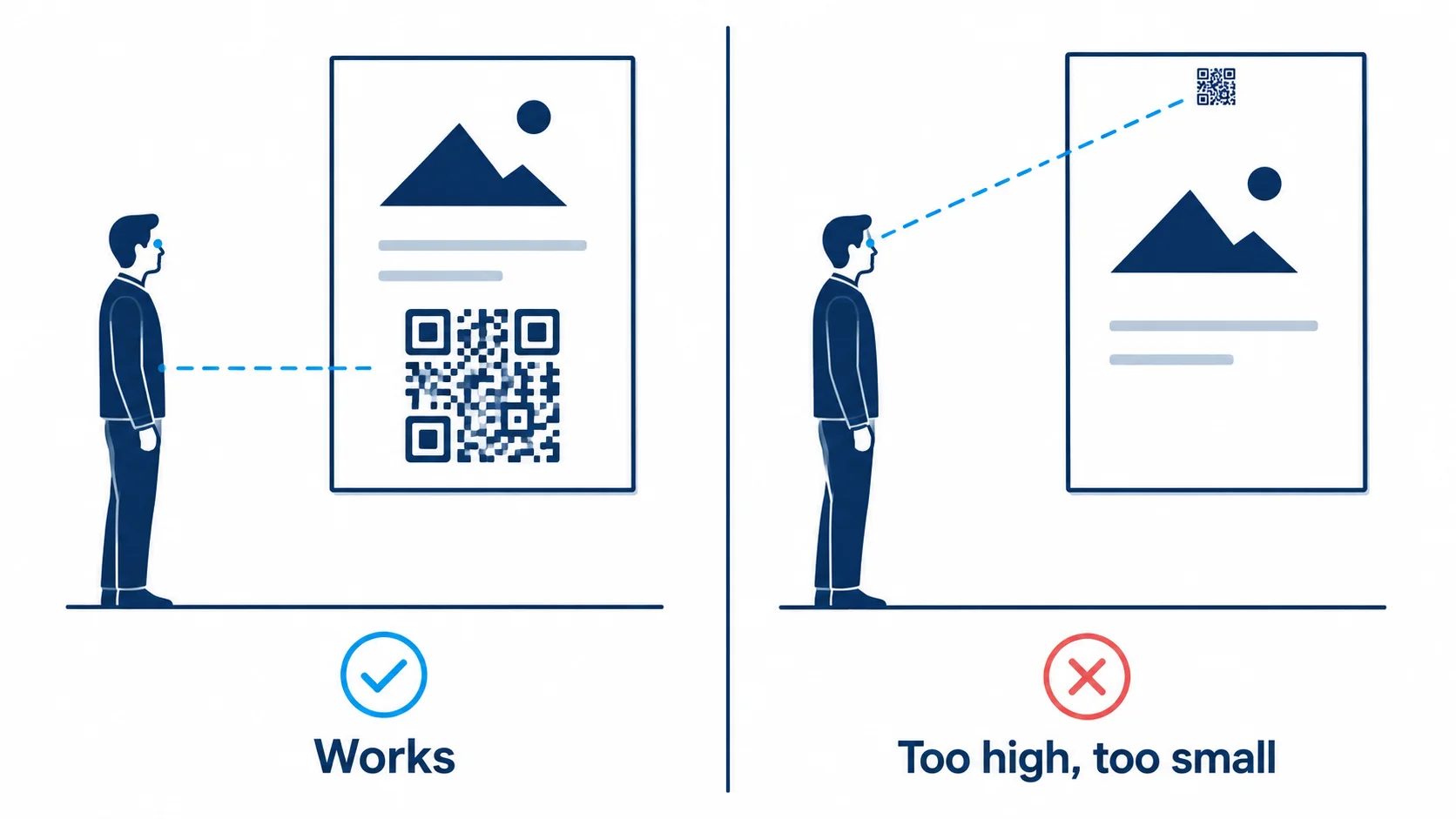
Drop the SVG into Canva, Illustrator, InDesign, or whatever you design in. Two non-negotiables: keep the quiet zone — a clear margin around the code at least 4 modules wide, with nothing in it — and put the code somewhere a phone can physically reach. On a wall-mounted poster that means eye level or the lower third, not the top edge two metres off the floor. Add a short call to action directly above the code so the viewer knows what they get: "Scan to register," "Scan for the menu," "Scan to watch." A naked code with no context is scanned far less often.
Step 4 — Test at final size before the print run
This is the step that saves an entire print budget. Print one copy of the code at the exact final dimensions, tape it where the real poster will hang, and scan it from where a real viewer would stand. Check three things: it decodes on the first try, it works in the actual lighting of the location (a code that scans in your office may fail under a shop's overhead spots), and the link opens to the right mobile page. Do this before you commit to a hundred A1 prints, not after. Our guide to testing QR codes before printing covers the full checklist.
Placement: Where the Code Goes on the Poster
Size gets a poster code most of the way there; placement covers the rest. A perfectly sized code in the wrong spot still gets no scans.
- Height on the wall: A phone has to be aimed at the code from a comfortable standing position. Put the code at roughly chest-to-eye height (4–5.5 ft / 120–165 cm from the floor) on the poster as it will hang. A code at the very top of a poster mounted high on a wall is unreachable without a step ladder.
- Lower-third rule: When in doubt, the lower third of the poster is the safest zone. It keeps the code reachable and leaves the upper area for the headline and image that draw people in from a distance.
- Away from edges and folds: Codes near the trim edge get clipped by printers or curl on a wall. Folded posters that crease through the code destroy it. Keep it well inside the safe margin.
- Clear background: The code needs a plain, high-contrast patch behind it. Placing it over a busy photo or a gradient kills the contrast the camera relies on. Give it a solid white or light panel.
Common Failure Modes (and How to Avoid Them)
Here is what actually goes wrong on posters, even when the code itself was generated correctly:
Too small for the distance
The single most common failure, and the easiest to prevent. A code sized to look balanced in a design file is almost always too small for the real viewing distance. Apply the 10:1 rule and size up. A poster code that looks slightly too big on screen is usually right in the room.
Mounted too high to scan
A poster goes up at the top of a wall or above a doorway. It is readable from across the room but the code sits eight feet off the floor, and no one can aim a phone at it. Plan placement around where the poster will actually hang, not just how it looks on a desk.
Glare from glass and lamination
Posters in frames, bus shelters, and gloss-laminated boards reflect overhead lighting straight into the phone camera, and the scan fails. Use matte or anti-glare glazing and lamination where you can, and avoid positioning the code where a ceiling light or window reflects off it. A larger, higher-contrast code gives the camera a better chance of locking on despite some reflection.
No call to action
A bare QR code in a corner answers no question. People have learned to ignore codes that do not tell them what they are for. A single line above the code — "Scan to register for the workshop" — measurably lifts scan rates by giving a reason to act.
Static or Dynamic: Which Code for a Poster?
Posters often stay up for weeks or months, which makes the static-versus-dynamic choice matter more than it does for a short-lived flyer.
Use a static code when the destination is permanent. A static QR code encodes the URL directly into the image. There is no redirect server, no subscription, and no scan cap — the code is the URL. For a poster pointing to a stable page (a permanent menu, a homepage, a fixed registration form), static is the right default. It works for the life of the poster with nothing that can expire or shut down behind it.
Use a dynamic code when the destination may change, or you need analytics. A dynamic QR code points to a short redirect URL you control, so you can change where it leads after the poster is printed — repoint a sold-out event to a waitlist, or swap a seasonal landing page — without reprinting a thing. Dynamic codes also log scans, so you can see how many people scanned and when. The trade-off is that a dynamic code depends on the redirect service staying live. Our static vs. dynamic QR codes guide walks through the full decision.
Three Poster Scenarios at Different Scales
Event registration poster (single location)
A workshop organizer prints one A1 poster for a community board. The code points to a Google Form for sign-ups. Viewing distance is about 4 feet, so the code is 5 inches (13 cm) wide, placed in the lower third with "Scan to register" above it. Static code, since the form URL is permanent. Total cost: zero, no scan limits no matter how many people sign up.
Retail campaign (multiple stores, fixed weeks)
A retailer runs a six-week promotion across 20 stores, with one poster design in every window. The code points to a campaign landing page. Because the destination changes when the promo ends, a dynamic code is used: at the end of the campaign it is repointed to the main store page instead of going dead, and the scan data shows which stores drove the most traffic. The code is sized for a 6-foot window-shopper distance — about 8 inches (20 cm) — and tested for glare against the window glass.
Large-format event banner (high visibility)
A conference prints a 2-metre stage-side banner. The code points to the live agenda. Scan distance is 10+ feet, so the code is 14 inches (35 cm) wide, generated as SVG so it prints razor-sharp at that size, and placed low enough that attendees can reach it. Dynamic, so the agenda link can be updated through the event. The complexity here is print production and placement, not the code itself.
How QR Nova Generates a QR Code for Your Poster
At QR Nova, a static QR code for a poster encodes your URL directly into the image using the ISO/IEC 18004 standard. There is no redirect server, no scan counter, and no subscription sitting between the code and its destination. Download it as SVG and it scales to any poster size — A4, A0, or a full banner — without losing a single sharp edge.
That permanence is the point in print. A poster can hang for months. A code that depends on a redirect service from a platform that might change its plan or shut down is a real liability over that span. A static code that simply is the URL has no single point of failure: as long as the destination page exists, the code works. For posters where you genuinely need to change the destination or track scans, the dynamic option is there — but for everything else, a code that just works forever is the safer choice.
No account required. No email. No credit card. Generate your QR code for a poster, download SVG or PNG, and place it into your design. For more on why this matters in physical media, see our permanent QR codes page.
Frequently asked questions
What size should a QR code be on a poster?
Use the 10:1 distance rule: the QR code's width should be at least one-tenth of the distance people scan from. A poster scanned from 3 feet (90 cm) away needs a code at least 3.6 inches (9 cm) wide. For a poster on a wall people walk past at 10 feet, the code needs to be roughly 12 inches (30 cm) wide. When in doubt, make it bigger — a code that is too small simply does not scan.
Where should the QR code go on a poster?
Place it at eye level or in the lower third of the poster, never near the top edge of a wall-mounted poster where people cannot comfortably aim a phone. Leave clear space (a quiet zone) around the code, and add a short call to action above it like 'Scan to register.' Keep it away from folds, edges, and any busy background imagery.
How do I add a QR code to a poster for free?
Copy the URL you want the poster to link to, paste it into QR Nova's free generator at qrcodenova.com/en/qr-code-generator, download the code as SVG, and place it into your poster design in Canva, Illustrator, or any layout tool. SVG scales to any size without blurring, which matters for large-format printing. No account, no scan limits, no expiry.
Should I use a static or dynamic QR code on a poster?
Use a static code if the destination never changes — it works permanently with no subscription or redirect server. Use a dynamic code if the poster stays up for months and you may need to change where it points (a sold-out event, a new landing page) or if you want scan analytics. The QR code on the poster looks identical either way.
Why is my poster QR code not scanning?
The four most common causes are: the code is printed too small for the scan distance, it is mounted too high on the wall to aim a phone at, it sits behind reflective glass that bounces light into the camera, or the contrast is too low (a colored code on a colored background). Test by printing the code at final size and scanning from where a real viewer would stand.
Can I put a QR code on a poster behind glass?
Yes, but glare is the enemy. Glass in a frame or bus shelter reflects overhead lighting directly into the phone camera and stops the scan. Use matte or anti-glare glazing where possible, avoid placing the code where a light source reflects off it, and keep the code large and high-contrast so the camera can lock on quickly despite reflections.
What resolution does a poster QR code need for printing?
For large-format printing, use a vector SVG file rather than a PNG. SVG has no fixed resolution — it stays razor-sharp at any size, from A4 to a billboard. If you must use PNG, export it at the final print dimensions at 300 DPI minimum so the module edges stay crisp and the camera can decode them reliably.
Related articles
QR Code for Google Forms: Step-by-Step Guide
Create a QR code for Google Forms in under 2 minutes — free, no account, no scan limits. Step-by-step guide with size, placement, and testing tips.
QR Code Best Practices (2026): 9 Rules to Prevent Failures
Exact size, contrast, quiet zone, and error correction numbers from the DENSO Wave standard — plus a pre-print checklist. Prevent scan failures before print.
QR Code for Coupons: The Complete Guide
How to make a QR code coupon that you can edit after printing, track redemptions, and stop people from sharing. Free generator, no account.
Make your poster QR code — free, no sign-up
Get started