QR Code Blurry or Pixelated? How to Fix It
QR code blurry or pixelated? Here's why it happens and exactly how to fix it, file format, resolution, printer settings, and when to regenerate.
This article was written by the QR Nova team. We build QR code software, which may inform our perspective.
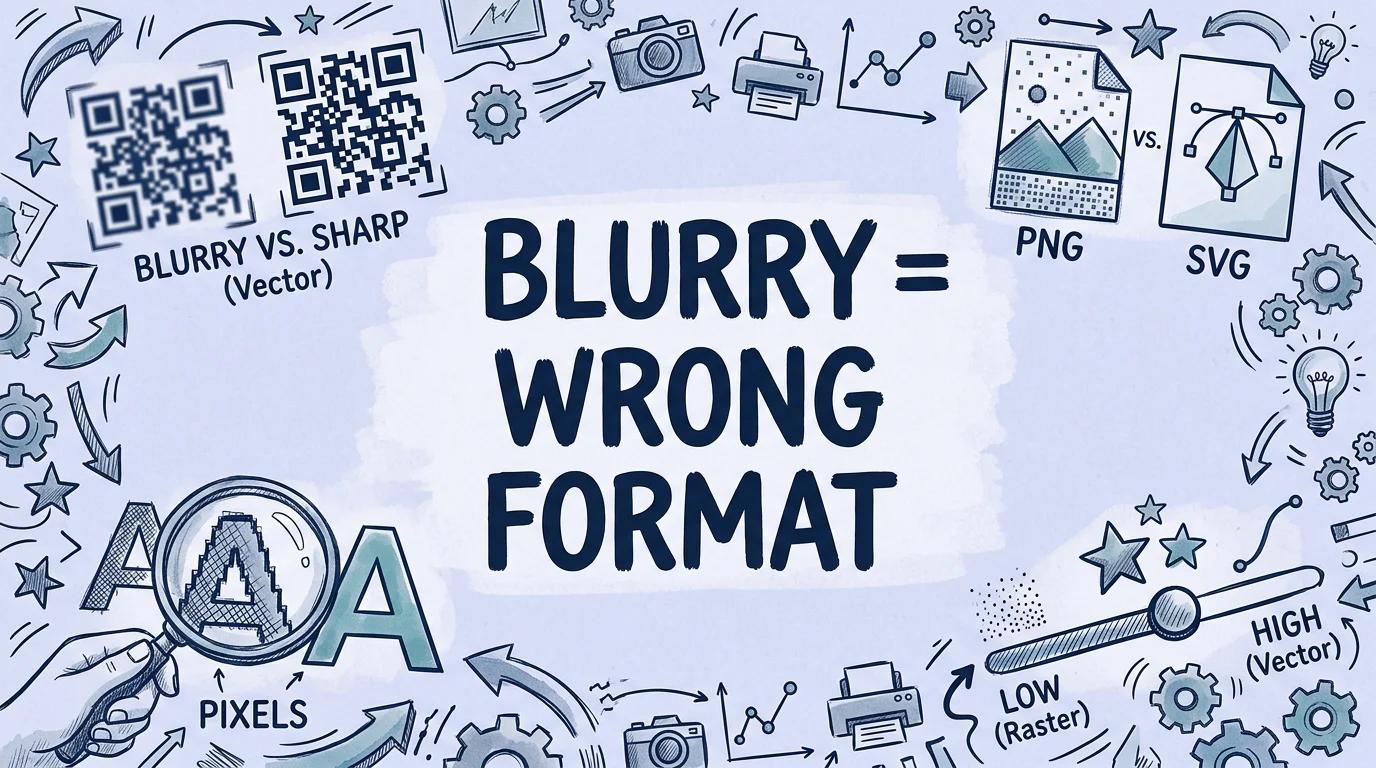
A blurry QR code is almost always a file format problem, not a generation problem. Most guides recommend "use higher resolution", which is correct but incomplete. The actual cause in most cases is downloading as JPEG, downloading a low-resolution PNG and scaling it up in the design, or exporting from a vector design tool as a rasterized file. A QR code that scanned fine in the generator preview and looks blurry in print was almost certainly downloaded in the wrong format, regenerate it as SVG and the problem is solved in under 60 seconds.
TL;DR
- The most common cause of a blurry QR code: JPEG download or low-resolution PNG scaled up for print.
- The fix: regenerate and download as SVG. SVG is resolution-independent and prints crisply at any size.
- If SVG is not available, use PNG at minimum 300 DPI at the intended print size.
- Never use JPEG for QR codes, compression artifacts blur module edges and cause scan failures.
- A blurry code that still scans is a cosmetic problem. A blurry code that doesn't scan needs regeneration.
Why is my QR code blurry?
Regenerate as crisp SVG — free, no sign-up
Get startedQR code blur has six distinct causes. The fix depends entirely on which cause applies, and they're not all file format problems.
Cause 1: downloaded as jpeg
JPEG is a lossy format designed for photographs. It achieves compression by averaging color values in small blocks of pixels (8×8 pixel DCT blocks). At hard contrast edges, exactly where QR code modules meet the background, this averaging creates visible compression artifacts that blur the boundary between dark modules and white background.
A QR code module edge has maximum contrast: black to white in one pixel. JPEG compression reduces that to a gradient of gray values spread across several pixels. To a camera scanner, these blurred edges are harder to threshold accurately, the scanner may misread a module boundary as part of an adjacent module, causing decode errors.
Fix: Regenerate the code and download as SVG or PNG. If you must use the existing JPEG, test whether it still scans on multiple devices. If it does, the cosmetic blur is acceptable. If it doesn't, regeneration is the only reliable fix.
Cause 2: raster image scaled up for print
Scaling a raster image beyond its native resolution reveals the underlying pixel grid as visible squares (pixelation) or, if the software applies bicubic resampling, as blurred edges. A 300×300 pixel PNG at 2×2 cm is 152 DPI, below the 300 DPI minimum for quality print. The same PNG placed at 5×5 cm is 60 DPI, visibly pixelated on any commercial printer.
The problem is invisible in most design software screen previews because the screen itself is only 72–96 DPI, lower than the file resolution. It's only when the print shop outputs at 300–2400 DPI that the insufficient raster resolution becomes visible.
Fix: Open your design software and check the effective DPI of the placed QR code image. In Adobe InDesign: click the image, then check Links > Effective PPI. In Photoshop: Image > Image Size. If the effective DPI is below 300, replace the file with SVG or re-export at a higher resolution.
Cause 3: image exported with compression from design software
Some designers receive a perfect SVG or high-resolution PNG from a QR generator, place it in Canva, Adobe Express, or another design tool, and then export the final design as a JPEG or compressed PDF. The export step introduces JPEG compression that wasn't in the original QR code file.
Fix: Export your final design as PDF (print-quality, no downsampling) or as a PNG with no JPEG compression. In Canva, select "Download > PDF Print" instead of JPEG or PNG. In Illustrator, export as PDF with PDF/X-1a settings.
Cause 4: social media or messaging app compression
WhatsApp, Instagram, Facebook, and most messaging platforms compress images before delivery. A QR code image sent via WhatsApp is automatically recompressed as JPEG regardless of the original format. The compression rate varies, WhatsApp applies heavy compression to images over approximately 400 KB.
If someone sends you a QR code via a social or messaging platform and you're trying to print it, don't use that image. Request the original file in SVG or PNG format via a method that doesn't recompress, email attachment, Dropbox, Google Drive, WeTransfer.
Cause 5: low-quality third-party QR generator
Some free QR generators produce low-resolution raster outputs as their default, or only offer JPEG downloads. Others apply heavy JPEG compression to reduce server bandwidth costs. The code looks passable at small screen sizes and fails at print scale.
If you generated the code on a platform that only offers JPEG download or that produces visually rough output even at the preview stage, regenerate on a different platform. QR Nova generates SVG by default, no account required, no watermark, no format restrictions.
Cause 6: screen capture or screenshot of the QR code
Taking a screenshot of a QR code from a website, email, or presentation and using that screenshot for print is a guaranteed way to get a blurry result. Screenshots are captured at screen resolution (72–96 DPI) with JPEG or PNG compression applied by the operating system. A screenshot of a 200×200 pixel QR code at screen DPI is unsuitable for any print use.
If you need to extract a QR code from a PDF or image, open the original file and export the QR code directly at full resolution, don't screenshot it.
How to fix a blurry QR code: the correct approach
Step 1: check whether the code still scans
Before investing time fixing the blur cosmetically, test whether the code is functionally broken. Print a copy at the intended size (or zoom in on your screen to simulate print size) and test with three phones: iPhone, recent Android, older Android.
If it scans on all three, the blur is aesthetic. Decide whether it's acceptable at the viewing distance. A 5×5 cm code on a flyer at arm's length will show moderate blur; from 2 meters on a wall, the same code may look fine. Use your judgment.
If it fails on any device, regeneration is the path forward. If the issue persists after fixing the image, check our guide on QR codes not scanning for additional troubleshooting. AI upscaling tools can improve visual appearance but cannot reliably restore the module edge data that scanner algorithms depend on.
Step 2: identify the original source
Do you still have access to the platform where the code was generated? If yes, re-download as SVG. That's the complete fix in most cases, the code content is identical, the blur is gone.
If the platform no longer has the code (you used a guest session, the account was deleted, or the platform shut down), you need to regenerate. For static QR codes, you can regenerate from the same URL or contact data, the resulting code will be functionally identical. For dynamic QR codes, you need to regenerate on the same platform, since the code's short URL is specific to that platform's redirect infrastructure.
Step 3: regenerate at the correct format
Regenerate the code and download as SVG. If the destination or encoded data has changed, update it while you're there.
If SVG is not available (your design workflow requires raster), download PNG at the highest available resolution and verify: what is the DPI at your intended print size? Use this formula: pixels ÷ print size in inches = DPI. A 1000×1000 pixel PNG printed at 2 inches × 2 inches = 500 DPI, acceptable. The same 1000×1000 PNG printed at 4 inches × 4 inches = 250 DPI, borderline for print quality.
Print-Specific QR code blurriness
Print introduces additional blurriness causes that don't apply to screen display. Understanding printer-specific factors helps diagnose problems that persist even after fixing the file format.
Ink spread (dot gain)
When ink prints on paper, it spreads slightly beyond the intended boundary, a phenomenon called dot gain or ink spread. On standard offset print paper, dot gain is typically 10–20%. On absorbent uncoated stock (newsprint, recycled paper), it can reach 30%+. For a QR code, dot gain darkens the modules and reduces the space between them. If the modules are at minimum size, dot gain can cause adjacent modules to merge, making the code appear smudged.
Mitigation: use coated stock (gloss or satin), which has much lower ink absorption and less dot gain. For codes that must print on uncoated stock, increase the code size by 20–30% to compensate for the reduced module spacing after dot gain. Our QR code print size guide has exact minimum dimensions for every material type.
Laser printer toner resolution
Consumer laser printers typically output at 600 DPI. Some lower-end models output at 300 DPI. At 600 DPI, a QR code module needs to be at least 2 printer pixels wide to render cleanly, that sets a practical minimum module size of about 0.085 mm. A Version 1 QR code (21×21 modules) with a 10 mm quiet zone would need each module to be at least 1.8 mm, meaning the code should be at least 3.8 cm minimum at 600 DPI.
For codes smaller than 3 cm printed on a 600 DPI laser printer, check the output carefully. Inkjet printers at 1200+ DPI handle small codes better than budget lasers.
Dark or metallic stock
White QR codes on dark or metallic card stock require high-opacity white ink (or white foil stamping), which is a specialty printing process. Standard CMYK printing cannot produce white, the "white" in standard print is the paper showing through. Printing a QR code on black card stock requires either UV white ink (digital specialty printing), white foil stamping (expensive), or silk-screen printing with white ink. If you're seeing a blurry or faint QR code on dark stock from a standard printer, it's not a file problem, it's a process mismatch.
Specific scenarios and fixes
Blurry QR code on a business card
Business cards are printed at 300–600 DPI with tight physical tolerances. A 2×2 cm code needs SVG or PNG at minimum 300 DPI (236×236 pixels), ideally 600 DPI (472×472 pixels). Most business card print shops require files in print-ready PDF format. Export your card design as a PDF from your design software with the QR code as a vector element (SVG placed in Illustrator, Affinity Publisher, etc.) or as a high-resolution embedded PNG at 600 DPI.
Blurry QR code in a word or powerpoint document
Word and PowerPoint are not print design tools, they handle images at screen resolution internally and apply compression when saving. If you must place a QR code in a Word document for print use, insert it as a high-resolution PNG (at least 600 DPI at print size) and in Word's Picture Format settings, set compression to "Do not compress images in file." When exporting to PDF, use "Best for printing" in the print dialog, not "Standard" or "Minimum size."
Blurry QR code in Canva
Canva displays high-quality previews but applies JPEG compression to downloaded JPEGs and moderate compression to PNGs. For QR code exports from Canva: always download as "PDF Print" instead of JPEG or PNG. If you need a PNG, select the highest quality setting and check "Transparent background", transparent PNGs in Canva use less compression than solid-background PNGs.
When regeneration is the only answer
If the code was generated months or years ago and you no longer have access to the original platform or file, and the current version is blurry, the cleanest path is to regenerate with the same content.
For a static URL QR code: the code is deterministic for a given URL, regenerating from the same URL on any standards-compliant generator produces an equivalent code. Regenerate for free at QR Nova, enter the same URL, download SVG, done. The new code will be functionally identical to the original.
For a static vCard code: enter the same contact details in the vCard generator. Same result, new SVG, sharp at any size.
For a dynamic QR code: you cannot regenerate the short URL on a different platform, the short URL is specific to the original platform's redirect infrastructure. You need to regenerate on the same platform, or accept that if the platform is no longer accessible, the code must be replaced entirely and any printed materials using the old code must be updated.
Frequently asked questions
Why is my QR code blurry after printing?
The most common cause is downloading the QR code as a JPEG or low-resolution PNG and then scaling it up before printing. JPEG compression introduces blur at module edges. The fix: regenerate the code and download it as SVG, which is resolution-independent and prints sharply at any size.
Why does my QR code look pixelated?
Pixelation happens when a raster image (PNG or JPEG) is displayed or printed larger than its native resolution allows. If you downloaded a 200×200 pixel PNG and placed it at 5×5 cm in your print design, the modules appear as blocky pixels. Fix: download SVG or re-export PNG at minimum 300 DPI at the intended print size.
Can I fix a blurry QR code without regenerating it?
If the blurry code still scans, no fix is needed, the blur is cosmetic. If it doesn't scan, upscaling a blurry raster file with AI image tools won't reliably restore scan functionality. The reliable fix is to regenerate the code at the original platform and download SVG or a high-resolution PNG. Upscaling tools improve appearance but can't recover lost module edge data.
What resolution should a QR code be for printing?
For print, you need either SVG (resolution-independent) or PNG at minimum 300 DPI at the intended print size. For a 2×2 cm code at 300 DPI, that's 236×236 pixels minimum. For a 10×10 cm code at 300 DPI, that's 1181×1181 pixels. When in doubt, export at 600 DPI, the file is larger but eliminates any print resolution concerns.
Why does my QR code look fine on screen but blurry when printed?
Screens display at 72–96 DPI. A 300×300 pixel PNG looks fine at 10×10 cm on a screen (30 DPI effective). When the same file is printed at 10×10 cm, 300×300 pixels at 300 DPI produces about a 2.5×2.5 cm result, the printer scales it up to 10 cm, revealing the pixelation. Always check the print resolution in your design software, not the screen preview.
Does a blurry QR code affect scanning?
Moderate blur (blurred edges but clear contrast between dark and light areas) may still scan, especially in good lighting. Heavy blur that makes module edges indistinguishable will cause scan failures. Test the printed code on three different phones. If it fails on any, regenerate at higher resolution.
Related articles
QR Code Color Contrast Guide
QR code dark background not scanning? The fix is a contrast ratio of at least 4:1. Full color guide, what works, what breaks, and why inverted codes fail.
QR Code for Posters: Size, Placement & Print Guide
How to add a QR code to a poster that actually gets scanned — distance-based sizing, placement, contrast, and a clear call to action. Free, no account needed.
QR Code Error Correction L/M/Q/H: Which Level to Use
Level L survives 7% damage. Level H survives 30% — but adds 60% more modules. Pick the right ECC level for print, outdoor signage, and logo overlays.
Regenerate as crisp SVG — free, no sign-up
Get started