QR Code Logo Size: Maximum Safe Limit Explained
QR code logo size limit depends on error correction level. 30% max at H-level ECC only. Wrong ECC = broken scan. Free guide with exact rules.
This article was written by the QR Nova team. We build QR code software, which may inform our perspective.
Most guides on QR code logo size hand you a number — "keep it under 30%" — and leave it there. That number is technically correct only half the time. Use it without understanding why, and you will print thousands of unreadable QR codes with your brand in the center.
Here's what actually determines whether your logo breaks your QR code. The safe maximum logo size is 30% of the QR code area — but only when error correction is set to Level H. At Level L or M error correction, which many generators apply by default for clean-looking codes, a logo covering more than 10% of the area will destroy data that cannot be recovered.
TL;DR
- Maximum logo size is 30% of QR code area — only valid at Error Correction Level H.
- At Level L or M ECC, even a small logo (10%+) will break scanning.
- Most generators don't tell you which ECC level they're using. Ask, or test every design before printing.
- Dense data types (full vCard, long WiFi passwords) can fail even at H-level. Test before you print anything.
- A QR code at H-level ECC with a logo is more damage-tolerant overall than the same code at L-level with no logo.
What Error Correction Actually Does
Try it now — no sign-up needed
Get startedEvery QR code contains redundant data encoded using Reed-Solomon error correction. This redundancy lets a scanner reconstruct the original message even if parts of the code are damaged, dirty, or obscured. Your logo is — from the scanner's perspective — deliberate damage to the code's modules.
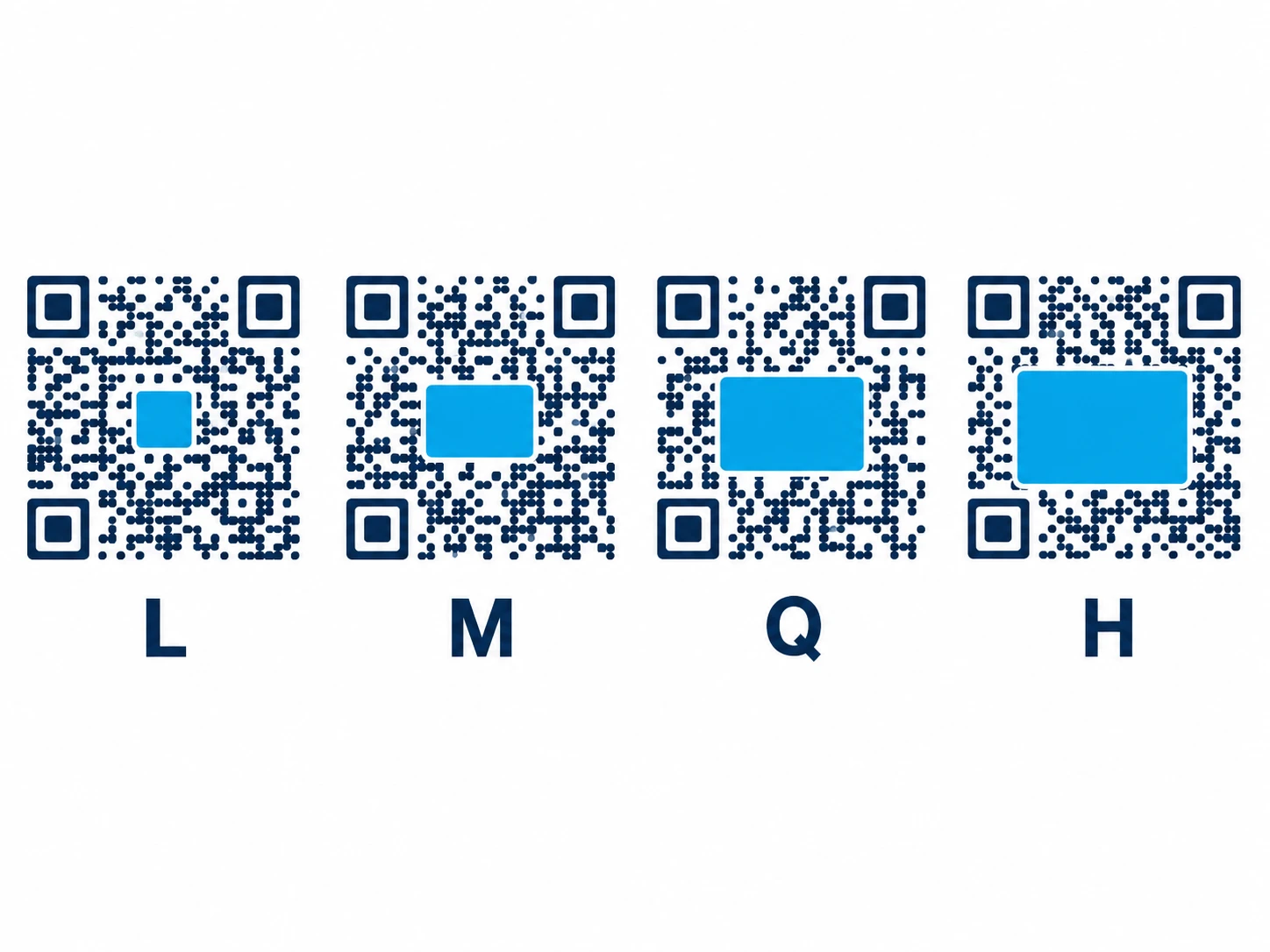
ISO/IEC 18004, the international standard that defines QR code structure, specifies four error correction levels:
| Level | Recovery capacity | Safe logo coverage | Typical use case |
|---|---|---|---|
| L (Low) | ~7% of modules | None (logo will break scanning) | Clean environments, maximum data density |
| M (Medium) | ~15% of modules | <10% only (risky, test first) | General purpose |
| Q (Quartile) | ~25% of modules | Up to 20% (acceptable) | Industrial environments |
| H (High) | ~30% of modules | Up to 25-30% (logo-safe zone) | Required for any logo QR code |
Recovery capacity is the percentage of a QR code's data modules that can be destroyed and still decoded correctly. A logo sitting on top of the code destroys those modules — whatever is underneath the image is gone as far as the scanner is concerned.
The Root Cause of Logo Scan Failures
Generators often default to Level M or even Level L for aesthetic reasons. Lower ECC levels produce visually cleaner QR codes — fewer modules means less visual noise. When a user then adds a logo through the same interface, the generator may not automatically upgrade ECC to H-level.
Result: a beautiful QR code with your logo centered, built on M-level ECC, where the logo alone covers 20% of the modules — well above the 15% recovery threshold. Looks perfect on screen. Fails every time someone points their phone at the printed poster.
This is the gap most guides miss. They say "keep the logo under 30%." They don't say "and verify your ECC level is H before that number means anything."
What the Generator Landscape Looks Like in May 2026
QR Tiger's logo upload flow accepts PNG or JPG at 300x300px but does not surface the ECC level in the main creation interface. Canva's built-in QR code tool creates codes for URLs only and provides no ECC controls at all. Flowcode focuses on absolute logo dimensions (approximately 3 inches / 900px on one side at 300dpi) for print output, without publishing a percentage-based limit relative to the code area.
None of these platforms tell you, in the logo upload step, whether your current ECC setting is compatible with the logo size you just chose. QR Nova displays the active ECC level and blocks logo sizes that exceed the current level's recovery capacity — preventing the failure before it reaches print.
The Counterintuitive Truth About Logos and Scan Reliability
Most articles skip this because it sounds wrong: a QR code with a correctly-sized logo at H-level ECC is more scan-tolerant than the same QR code at L-level ECC with no logo at all.
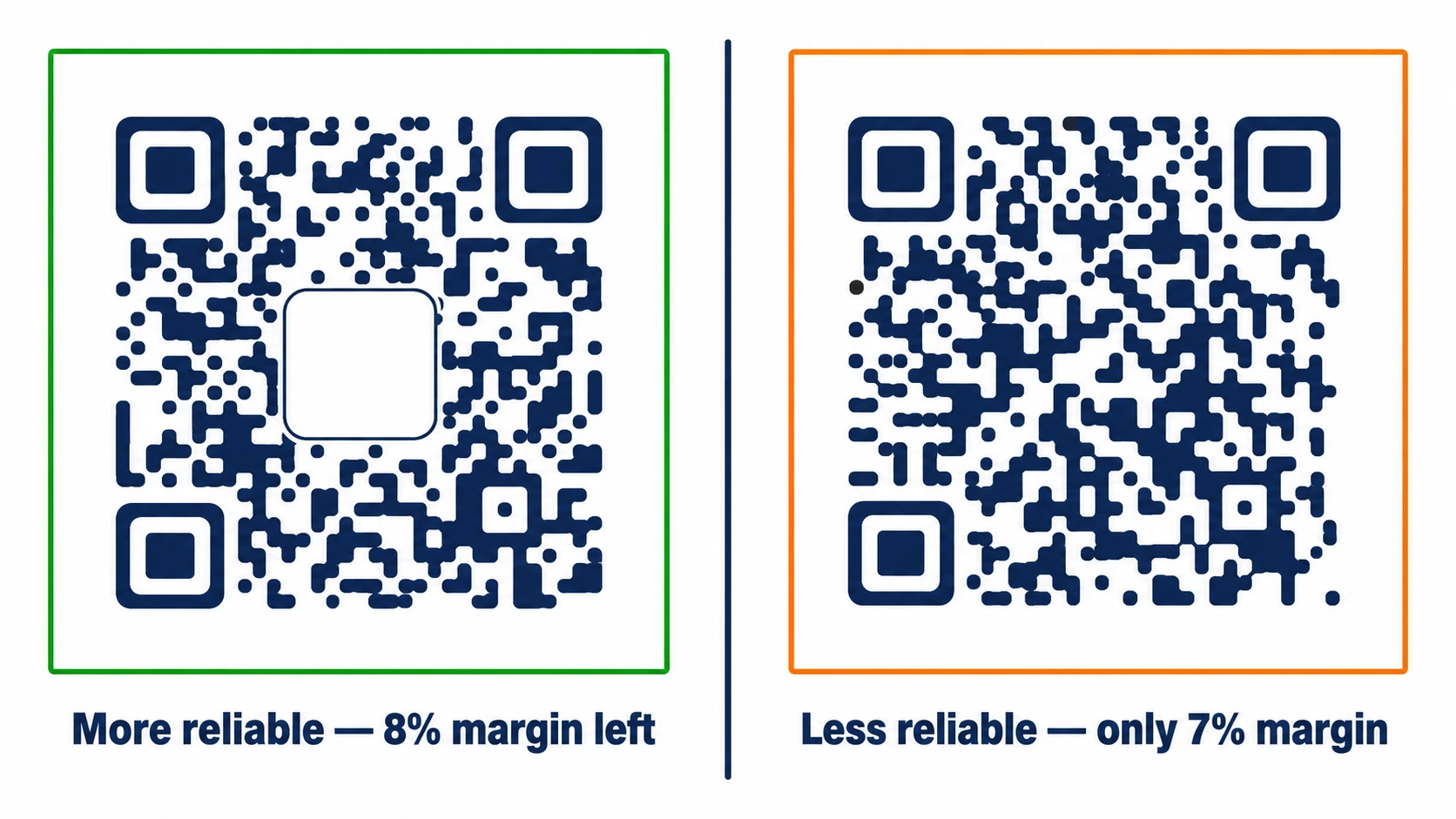
At H-level, 30% of modules are pure redundancy. Even after your logo covers 22% of the code area, you still have 8% of error recovery capacity left for real-world damage: scratches, crumpled paper, low-contrast printing, glare, partial occlusion. An L-level code with no logo has only 7% for all real-world damage combined. One coffee ring on the corner and it fails.
Choosing H-level ECC for any printed QR code is good practice regardless of whether you add a logo. The logo is just the reason most people are forced to discover this.
Practical Size Limits by Use Case
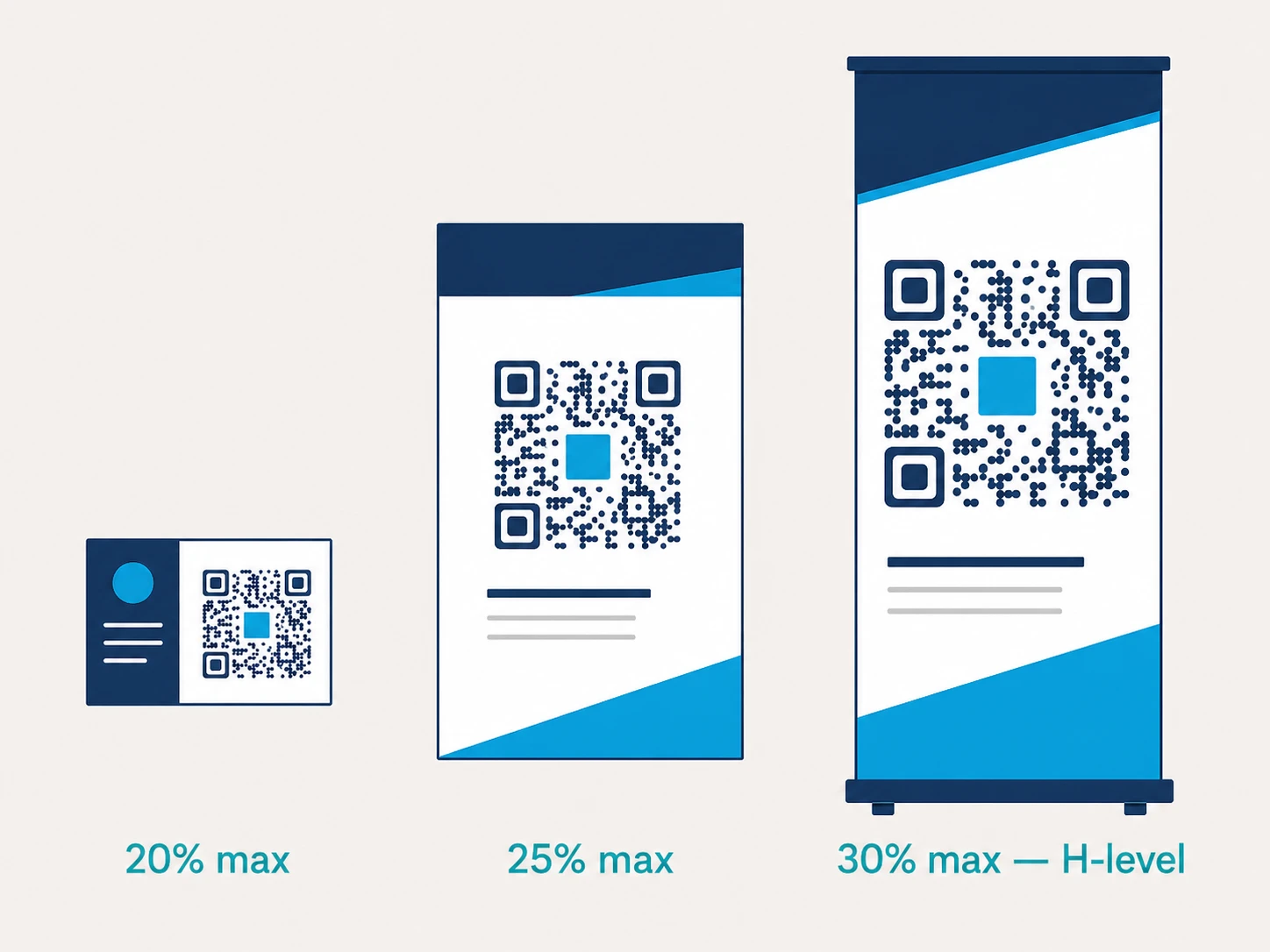
The 30% theoretical maximum and the 25% practical recommendation exist at the code level. Real-world application adds more variables: viewing distance, print resolution, phone camera quality, and ambient light all affect how much ECC headroom you actually need.
Business Card (Small QR Code, Close Scanning Distance)
A QR code on a business card is typically 2-3 cm printed. At this size, the camera must work harder and resolution is limited. Use H-level ECC and keep the logo at or below 20% of the code area. A logo that is 35% of the code width by 35% of the code height covers approximately 12% of the area (0.35 × 0.35 = 0.12) — well within range. Anything larger risks failure when the card is slightly bent or the lighting is poor.
A4 Flyer (Medium QR Code, Standard Scanning Distance)
At 4-6 cm printed and a typical 30-50 cm scanning distance, you have more resolution to work with. H-level ECC, logo up to 25% of the total area. This is the scenario most guides are writing for when they say "25-30%." Good print quality and a reasonably modern phone camera are assumed.
Trade Show Banner (Large QR Code, Variable Distance)
At 10+ cm printed on a banner, you have the most room. H-level ECC, logo up to 30% of the total area is technically achievable. The catch: banners are often photographed at angle, under artificial lighting, with glare from lamination. Even with 30% ECC headroom, an irregular-shaped logo (not a clean rectangle) may effectively cover more than its nominal percentage due to anti-aliased edges. Test on the actual print material before the event.
When Logos Cannot Work at All
Some QR code types cannot accommodate logos regardless of ECC level. The issue is data density: the more data a QR code encodes, the more modules the code requires, and the larger the code version (V1 through V40). Larger code versions have more total modules, which means the absolute number of modules your logo covers grows — even if the percentage stays the same.
At very high data density, the generator may already be operating near the practical ECC limit just to encode the data. A logo tips it over.
Scenarios where logos reliably fail even at H-level ECC:
- Full vCard contacts — name, company, three phone numbers, email, physical address, website URL, and a note field can push a vCard past 300 characters. At H-level, a Version 13+ code (65x65 modules) with a 25% logo overlay will borderline or fail on lower-end camera hardware.
- WiFi QR codes with long passwords — a 63-character WPA2 password (the maximum) plus SSID, encryption type, and hidden-network flag creates a substantial payload. H-level ECC helps but a large logo creates genuine risk.
- PDF or file URL redirect chains — if the underlying URL is long (tracking parameters, UTM strings), the QR code carries more data. Use a short URL redirect service first, then add the logo to the shortened code.
The fix for all dense-data cases is the same: shorten the payload. Use a dynamic QR code with a short redirect URL, keeping the encoded string under 50-80 characters. The short URL encodes at a much lower version number, leaving ample ECC margin for a logo.
How to Verify Your QR Code Logo Size Is Safe
The calculation takes about ten seconds. Measure the logo's pixel dimensions and the QR code's pixel dimensions, then compute the area ratio.
Logo area coverage = (logo width × logo height) / (QR code width × QR code height)
A 200×200px logo on a 600×600px QR code covers (200×200)/(600×600) = 40,000/360,000 = 11.1% of the area. At H-level ECC, that's comfortably within range. At M-level, it already exceeds the 15% threshold when you account for the logo's effective visual mass.
The practical verification workflow before any print run:
- Confirm the ECC level in your generator's settings — if it doesn't show ECC controls, assume M-level.
- Calculate logo area coverage using the formula above.
- If ECC is H and coverage is below 25%: safe to print.
- If ECC is H and coverage is 25-30%: test on the actual print material with three different phone models before committing.
- If ECC is below H: remove the logo, or regenerate with H-level ECC and verify the new code scans correctly before printing.
Download the QR code as an image, then scan it with iOS native camera, Android Camera, and at least one third-party app like Google Lens. All three need to read it. If one fails, the design is not safe.
How QR Nova Handles Logo Sizing
When you add a logo in QR Nova's generator, the interface automatically sets ECC to Level H and caps the logo placement zone to 30% of the code area. If you try to resize the logo beyond the safe boundary, the generator shows a warning before you can export the design. There is no way to accidentally export a logo QR code at L-level ECC.
For dense data types — vCards with all fields, long WiFi passwords — the generator flags the data density and recommends switching to a dynamic QR code with a short redirect URL before adding a logo. This preserves scannability without requiring you to manually calculate version numbers or module counts.
The full guide to adding a logo to a QR code covers the step-by-step process, including how to upload, resize, and test your design. The QR code design rules article covers the complete ISO/IEC 18004 spec — quiet zones, contrast ratios, and module sizing — for anyone printing QR codes in professional contexts.
QR codes generated at QR Nova are permanent — the code never expires or breaks because of a subscription lapse. If you spend time getting the logo sizing right, the result should stay scannable for as long as the print material survives.
Frequently asked questions
What is the maximum logo size for a QR code?
The safe maximum is 30% of the QR code area — but only when error correction is set to Level H. At Level L or M error correction, a logo larger than 10% of the area will likely break scanning.
Why does my QR code with a logo not scan?
The most common cause is a mismatch between logo size and error correction level. If your generator used Level L or M ECC (common for clean-looking, less dense codes), a logo covering even 15% of the code can destroy more data modules than the code can recover.
What error correction level should I use for a QR code with a logo?
Always use Level H (High) when adding a logo. Level H tolerates up to 30% module damage, which gives the logo room to exist without breaking decodability. Level Q (25%) is the minimum acceptable; L and M are incompatible with logos of any practical size.
Can I add a logo to any QR code type?
Not reliably. QR codes encoding dense data — full vCard contacts with all fields, WiFi credentials with long passwords, or large files — may already use most of the ECC capacity just to encode the data. Adding a logo to these codes at H-level ECC still risks scan failures. For dense data types, test rigorously before printing.
Is a 30% logo really safe?
30% is the theoretical maximum at H-level ECC, not a comfort zone. In practice, logos are rarely perfect rectangles — transparent corners, irregular shapes, and anti-aliasing cause effective coverage above the nominal percentage. A 25% nominal logo might cover 28% effectively. Keep logos at 20-25% for reliable real-world scanning.
Does QR Tiger or Canva limit logo size automatically?
QR Tiger sets logo dimensions at 300x300px without enforcing a percentage limit relative to the code size. As of May 2026, neither QR Tiger nor Canva document which error correction level they apply when you add a logo — meaning users can unknowingly combine a large logo with low ECC.
What happens when a logo is too big for the QR code?
The scanner's Reed-Solomon decoder attempts to reconstruct missing data modules, but when damage exceeds the ECC capacity, reconstruction fails silently. The result is either a scan failure (most common) or — in rare cases — a decode to wrong data, which is far more dangerous for payment or authentication codes.
Is a QR code with a logo less scannable than one without?
Not necessarily. A QR code at H-level ECC with a well-sized logo (20% area) is actually more scan-tolerant overall than the same code at L-level ECC without any logo. The higher redundancy of H-level covers both the logo obstruction and incidental damage from scratches or print defects.
Related articles
How to Add a Logo to a QR Code
How do I add a logo to a QR code? Use a generator that builds around your logo, don't overlay it. Step-by-step guide with scannability rules. Free.
QR Code for Posters: Size, Placement & Print Guide
How to add a QR code to a poster that actually gets scanned — distance-based sizing, placement, contrast, and a clear call to action. Free, no account needed.
QR Code Design Ideas: Creative Examples for 2026
QR code design ideas that actually scan: color palettes, logo embedding limits, module shapes, frame CTAs, and real industry examples for 2026.
Try it now — no sign-up needed
Get started