SVG vs PNG for QR Codes: Which to Use & When (2026)
SVG or PNG for your QR code? SVG wins for print, PNG is fine for digital. Here's exactly when to use each format and why it matters for scan reliability.
This article was written by the QR Nova team. We build QR code software, which may inform our perspective.
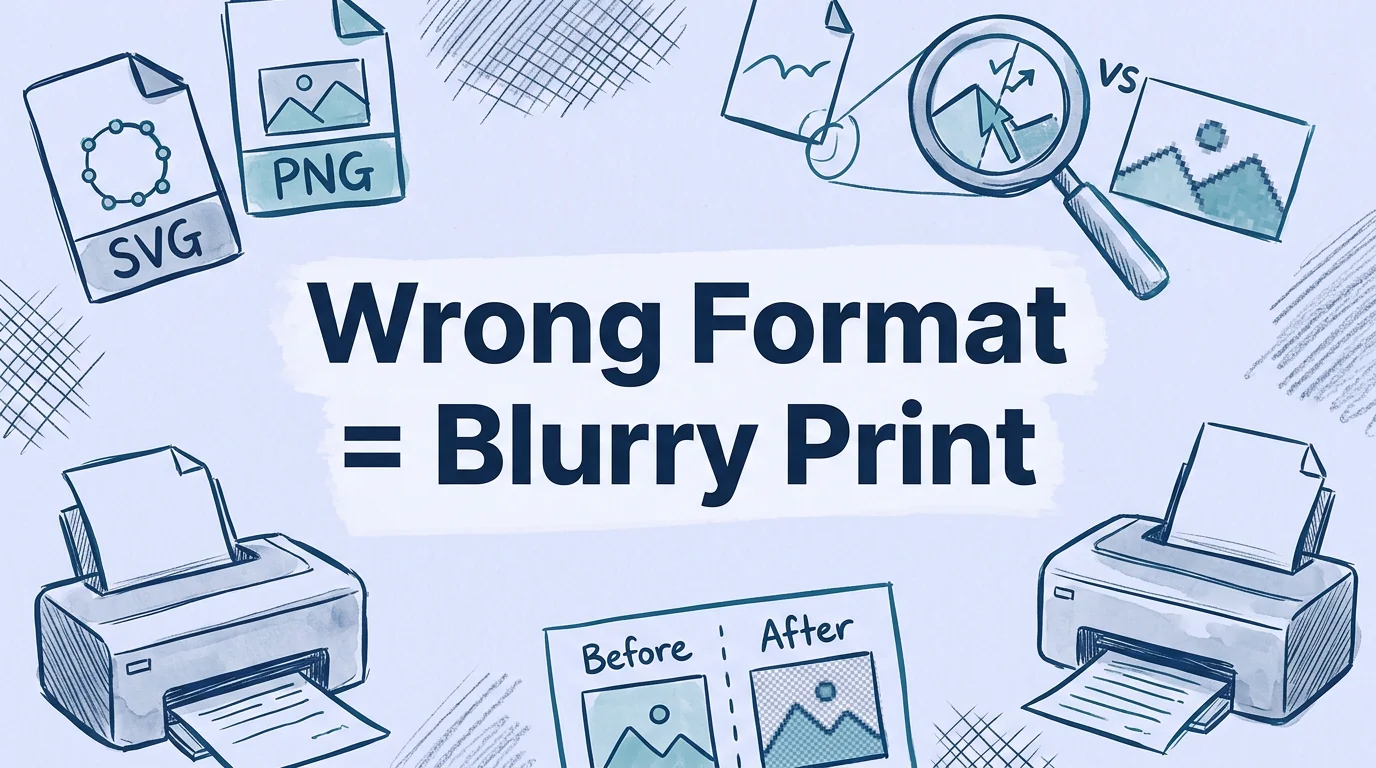
Most QR code generators offer PNG, SVG, PDF, and sometimes EPS, with no explanation of which one you should actually download. The choice isn't arbitrary. Pick the wrong format and you get a QR code that looks sharp on screen, prints as a blurry mess at poster size, and fails to scan. Download SVG when printing at any size. Download PNG when displaying on screen at a fixed pixel size. The practical difference: a 200×200 pixel PNG stretched onto a trade show banner will pixelate and likely fail to scan; an SVG of the same code prints perfectly at 10 feet wide.
TL;DR
- SVG is a vector format, infinitely scalable, always sharp, the right choice for any print use.
- PNG is a raster format, fixed pixel dimensions, fine for digital/screen use, risky if scaled up for large print.
- For business cards, flyers, packaging, and any physical material: use SVG.
- For websites, email, presentations, and digital displays at fixed size: PNG at 1000px+ is fine.
What SVG and PNG actually are
Try it now — no sign-up needed
Get startedUnderstanding the format difference takes about 30 seconds and makes the download decision obvious every time.
PNG (Portable Network Graphics) is a raster image format. It stores your QR code as a grid of individual pixels, each pixel assigned a specific color value (black or white for a standard QR code). When you scale a PNG larger than its original pixel dimensions, the renderer has to invent new pixels to fill the space, which blurs the sharp black-to-white boundaries that QR code scanners depend on.
SVG (Scalable Vector Graphics) stores the QR code as mathematical descriptions of shapes, essentially "a black square starting at coordinates (10, 10) with side length 20 pixels" for each module in the code. When you scale an SVG up or down, the renderer recalculates those shapes at the new size. The output is always pixel-perfect at whatever resolution you're rendering to, because no pixel-stretching is involved.
For QR codes specifically, this distinction matters more than for photographs or illustrations, because QR code scanners are strict about module boundaries. A photo with slightly blurry edges looks fine to a human. A QR code with blurry module edges may fail to decode entirely.
When SVG is the right choice
Use SVG for any QR code that will be printed on a physical material.
Business cards and stationery
Business card QR codes are often small, 1.5cm to 2.5cm square is common (see our QR code print size guide for exact specs). At that size, a high-resolution PNG (1000×1000 pixels gives you 85 DPI at 12mm, which is below the 150 DPI minimum for crisp print) can look slightly soft on a professional press. SVG eliminates this concern entirely: the printer's RIP software renders the vector shapes at full output resolution, typically 1200–2400 DPI on modern offset presses. You can generate a QR code business card as SVG at QR Nova for free.
Flyers, posters, and large format
This is where PNG falls apart most visibly. A QR code PNG downloaded at 500×500 pixels looks fine on screen. Print it on an A4 flyer at 5cm square (about 2 inches) and you're at roughly 100 DPI, just below the threshold for crisp print. Stretch it to 10cm for a poster and the pixelation is obvious. SVG renders at whatever DPI the output device supports, so it's always crisp.
Product packaging
Packaging QR codes go through multiple format conversions during production: designer's file to prepress to plate to print. Each conversion should preserve vector quality if you start with SVG. Starting with a rasterized PNG introduces compression artifacts at every stage. For a code appearing on 100,000 units, use SVG and avoid any ambiguity about output quality.
Signage and environmental graphics
Window decals, wall graphics, vehicle wraps, and architectural signage are produced at sizes where any PNG will fail. SVG is the only sensible choice. Typical large format output is at 72–150 DPI but at very large physical dimensions, the math only works in your favor when starting with a vector.
When PNG is the right choice
PNG is fine, and often more convenient, for digital use cases where the display size is fixed.
Websites and Web apps
A QR code displayed inline on a webpage at 300×300 CSS pixels doesn't need to scale. A 1000×1000 pixel PNG at that display size gives you 3× resolution for retina/HiDPI screens. Perfectly sufficient, and PNG files are universally supported in every browser without additional handling.
SVGs in web contexts can also behave oddly if the SVG file contains embedded raster data or incorrect viewport settings. For simple QR codes, the SVG should render cleanly, but PNG removes any uncertainty if you're not comfortable inspecting SVG markup.
Presentations and slide decks
Google Slides, PowerPoint, and Keynote all support both formats. At typical presentation sizes (QR code taking up roughly a quarter of a slide), a 1000×1000 PNG is more than sufficient. SVG support in presentation tools is inconsistent, some tools rasterize SVGs on import anyway, negating the advantage.
Email and messaging
Email clients have variable SVG support. PNG is the safe default for any QR code sent in an email or message. Use a minimum 600×600 pixel PNG for email, recognizing that mobile email clients may scale the image and a higher resolution provides a buffer.
Digital displays at fixed resolution
TV screens, digital signage, and monitor displays render at fixed pixel dimensions. A 1080p display showing a QR code at 400×400 pixels benefits from a 400×400 or 800×800 PNG (for retina). No scaling involved means no quality loss.
The specific failure mode: scaled-up PNG
The most common QR code format mistake is downloading a low-resolution PNG and then scaling it up for print. Here's exactly what goes wrong:
A QR code PNG downloaded at the default size from many generators is 200×200 or 300×300 pixels. At print resolution (300 DPI), that corresponds to a physical size of roughly 0.67 × 0.67 inches (about 17mm square), smaller than a postage stamp. Any larger and the image must be upscaled by the design software or printer, which blurs the module edges through interpolation.
QR code scanners detect the pattern by finding high-contrast boundaries between modules. Blurred boundaries reduce contrast. The ISO/IEC 18004 standard specifies a minimum reflectance difference of 40% between modules and background for reliable scanning. Bilinear or bicubic upscaling can halve the effective contrast at module edges. The code may scan on a high-quality camera phone in good lighting, and fail on an older device or in mixed lighting, exactly the environment where you want maximum reliability.
The test: if you received a PNG file and you're unsure if it's high enough resolution for your intended print size, check the pixel dimensions. Divide the pixel width by 300 to get the maximum reliable print width in inches (or divide by 118 for centimeters). A 600-pixel PNG is reliable up to 2 inches (about 5cm). Anything larger, use SVG.
Other formats: eps, PDF, and jpeg
Some QR code generators also offer EPS, PDF, and JPEG exports. Here's how they compare:
EPS (encapsulated postscript)
EPS is a vector format, like SVG, that renders at any size with perfect sharpness. It's the legacy standard for professional print workflows, prepress systems, offset print shops, and older design tools (Adobe Illustrator CS-era) tend to prefer EPS. If your printer requests "a vector file" and you're unsure which format they want, ask specifically. Most modern print workflows accept PDF vectors; some older systems still default to EPS.
PDF (vector)
PDF can be either raster or vector depending on how it's generated. A QR code generator that exports a vector PDF is giving you something equivalent to SVG or EPS for print purposes. Confirm that the PDF is vector (not a rasterized image embedded in a PDF container) by zooming to 1600% in a PDF viewer, if the code stays sharp, it's vector; if it pixelates, it's raster.
JPEG
Never use JPEG for QR codes. JPEG compression is lossy and introduces artifacts at the high-contrast boundaries between modules, exactly where scan reliability depends on clean edges. Even at maximum JPEG quality, the artifacts can cause scan failures on older or lower-quality scanners. There is no scenario where JPEG is the right choice for a QR code.
SVG availability by platform (April 2026)
SVG export availability varies by platform and pricing tier:
- QR Nova: SVG available free on all static code types, no account required.
- QR Code Monkey: SVG available free for static codes. One of the few platforms that doesn't gate vector export behind a paywall.
- QR Tiger: SVG export is a paid feature. Free tier outputs PNG only. Paid plans starting at $7/month include SVG and EPS downloads.
- Flowcode: SVG included in paid plans; free tier is PNG only.
- Bitly: QR code download formats limited on free tier; SVG reserved for paid plans.
If SVG is locked behind a paywall and you only need a static code, the simplest solution is to use a generator that offers SVG for free. For a business card QR code or WiFi QR code that will be printed, there's no reason to pay for SVG export. QR Nova generates both as SVG for free, no sign-up required.
How to use your SVG QR code in a design file
Once you have an SVG, the workflow for most design tools is straightforward:
Adobe Illustrator: File → Place (or drag-and-drop). The SVG imports as a linked or embedded vector object. You can ungroup and modify individual module elements if needed, useful for applying custom colors or embedding a logo with precise placement.
Figma: Drag the SVG file into the canvas. Figma imports SVG as a vector group. The code can be scaled freely. To embed a logo, create a centered frame over the code and add your logo; this works because QR codes have built-in error correction at Level H, which can tolerate up to 30% visual obstruction while remaining scannable. See our full guide on how to add a logo to a QR code for sizing rules.
Canva: Upload the SVG as a custom element. Canva supports SVG uploads on Pro plans; free accounts may see the SVG rasterized on import, which negates the vector advantage. If you're using Canva free for print, request a high-resolution PNG from the generator (at least 1000×1000) instead.
InDesign: File → Place. InDesign handles vector SVG cleanly and passes the vector data through to the print-ready PDF. This is the ideal workflow for professional print production.
For print production files, embed the SVG rather than linking it where possible, to avoid broken link issues when the file is sent to a printer or a different machine.
One practical rule
If you're in doubt, download both. Most generators that offer SVG also offer PNG at the same time. Keep the SVG for print production, the PNG for quick digital use. Storage cost is negligible; the wrong format choice for a 50,000-unit packaging run is not.
You can download your QR code as SVG for free at QR Nova, no account, no subscription, and no format restrictions on static codes.
Frequently asked questions
Should I download my QR code as SVG or PNG?
Download SVG if you're printing, on business cards, flyers, banners, product packaging, or any physical material. SVG is a vector format that scales to any size without losing quality. Download PNG if the code will only appear on screens at a fixed size, like a website, presentation, or email. A high-resolution PNG (at least 1000x1000 pixels) is also acceptable for most print uses if the final printed size is small.
What is the difference between SVG and PNG for QR codes?
PNG is a raster format, it stores your QR code as a fixed grid of pixels. If you scale a PNG larger than its original resolution, the modules blur and the code may fail to scan. SVG is a vector format, it stores the code as mathematical descriptions of shapes, which can be rendered at any size with perfect sharpness. For QR codes, this means an SVG always prints crisply regardless of the output size.
Can a blurry QR code fail to scan?
Yes. QR code scanners rely on detecting the contrast boundary between black modules and white background. If modules are blurry from upscaling a low-resolution PNG, the scanner may misread individual modules and fail to decode the pattern. ISO/IEC 18004 recommends a minimum quiet zone (white border) of 4 module widths, and sufficient contrast (at least 40% difference in reflectance between modules and background) for reliable scanning.
What resolution PNG do I need for printing a QR code?
For standard print sizes (business card or smaller), a 1000x1000 pixel PNG at 300 DPI is sufficient, that gives you about 3.3 inches at print quality. For larger formats like flyers (A4/letter) or posters, download at 2000x2000 or higher, or use SVG. A 200x200 pixel PNG stretched to poster size will produce visible pixelation and likely fail to scan.
Is SVG available for free on QR code generators?
It depends on the platform. QR Tiger reserves SVG export for paid tiers. QR Nova includes SVG download for free on all static QR codes, no account required. QR Code Monkey offers SVG for free on static codes. If SVG is locked behind a paywall on a platform and you only need a static code, switching generators is often the simpler solution.
Can I edit an SVG QR code after downloading?
Yes. SVG is an XML-based format that can be opened and modified in vector editors like Adobe Illustrator, Inkscape (free), or Figma. This lets you change the QR code's colors, add a logo, adjust sizing, or integrate it precisely into a layout. This is a major advantage over PNG for designers handling print production files.
What about EPS and PDF formats for QR codes?
EPS and PDF are also vector formats suitable for professional print production. EPS is the legacy standard preferred by some print shops and offset presses. PDF vector exports work in most design workflows. If your printer or print shop requests EPS, ask if PDF is acceptable, most modern workflows accept both. SVG is the most widely supported vector format for web and design tools, and the best default choice unless your printer specifies otherwise.
Related articles
QR Code for Google Forms: Step-by-Step Guide
Create a QR code for Google Forms in under 2 minutes — free, no account, no scan limits. Step-by-step guide with size, placement, and testing tips.
QR Code for Coupons: The Complete Guide
How to make a QR code coupon that you can edit after printing, track redemptions, and stop people from sharing. Free generator, no account.
QR Code for Posters: Size, Placement & Print Guide
How to add a QR code to a poster that actually gets scanned — distance-based sizing, placement, contrast, and a clear call to action. Free, no account needed.
Try it now — no sign-up needed
Get started